
Article content:
Adding companies as favorites within the shipment #
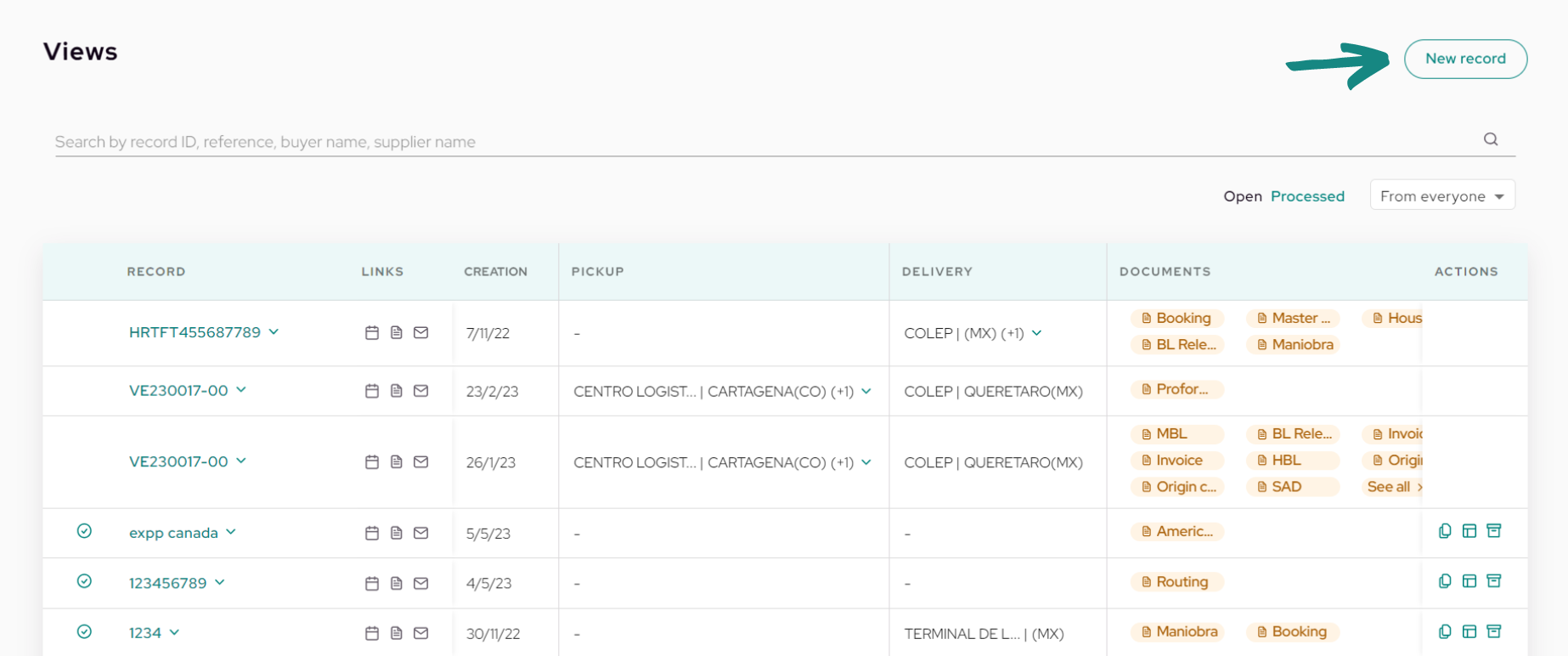
First log in to your account and click on «New Record«.
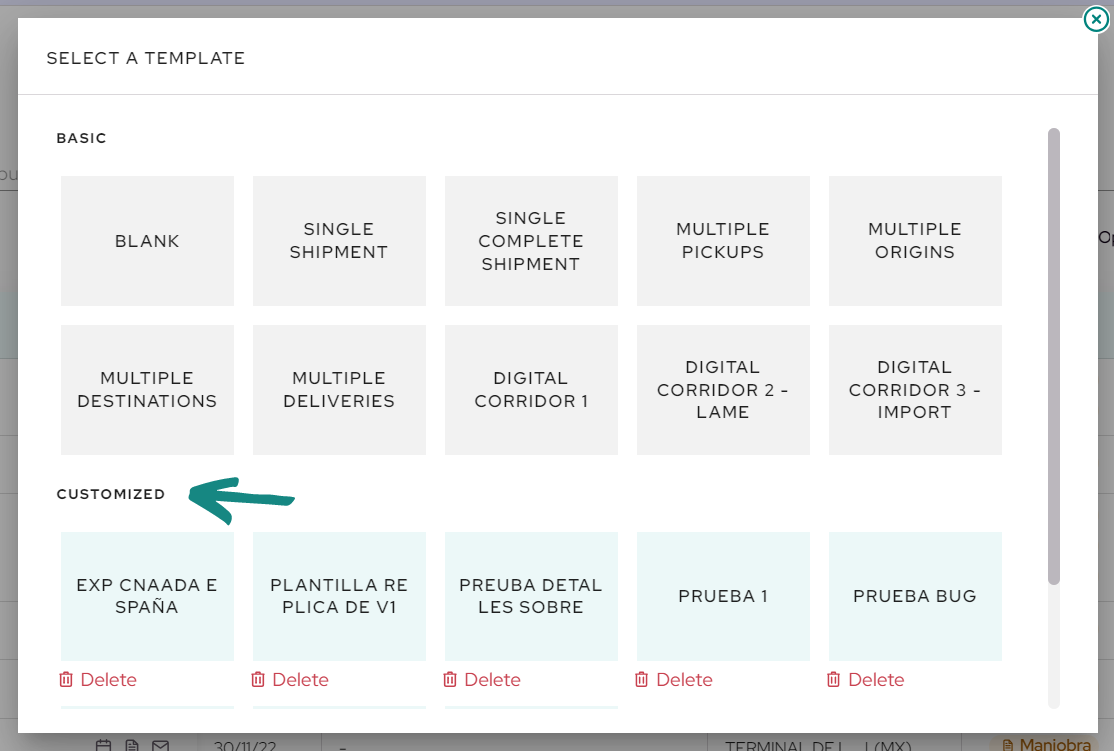
Subsequently, select the template of the shipment to be managed to open it.
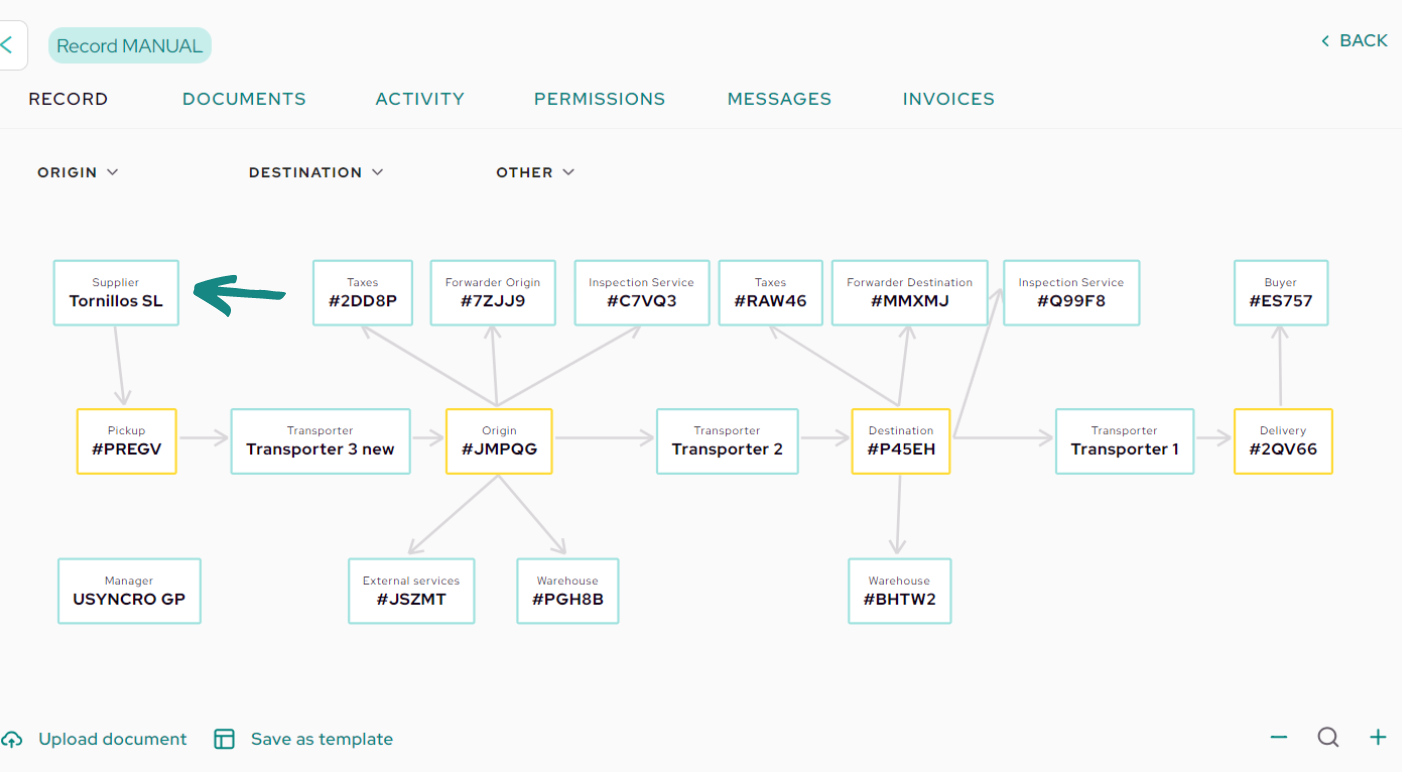
Locate and click on one of the boxes in your shipment for which you want to enter the data of a company.
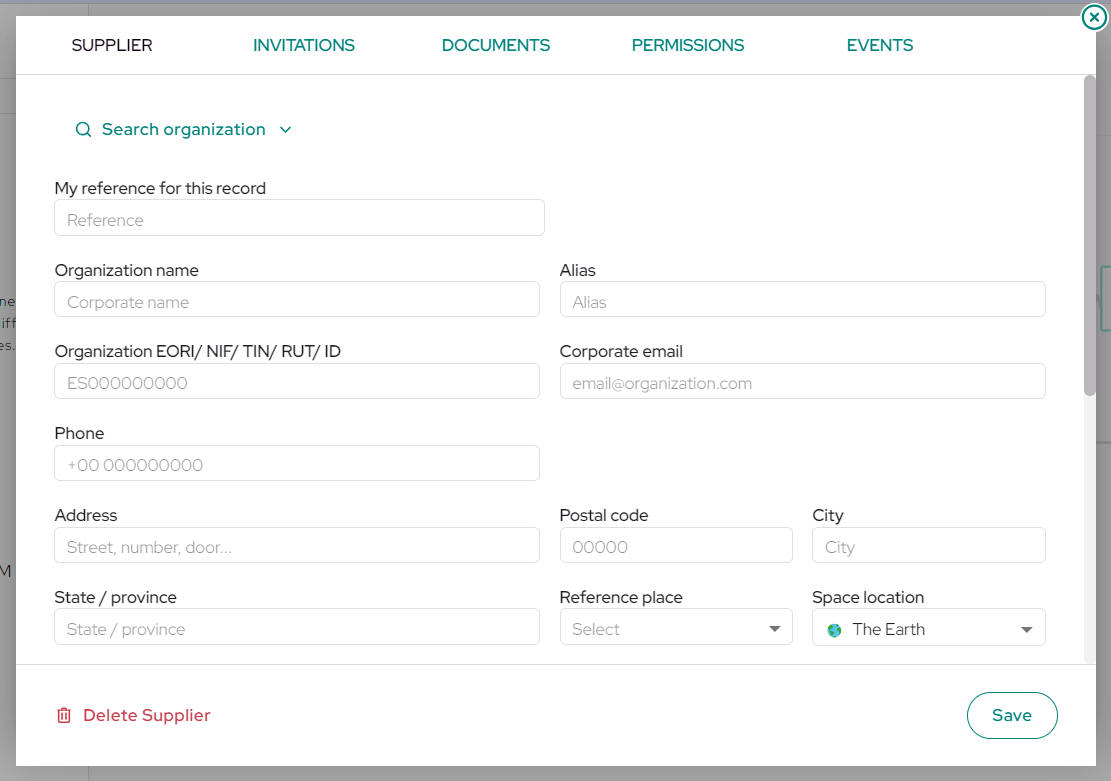
Once inside, proceed to complete all the fields with the information of the company you want to save, which will act with the corresponding role for that box. Remember that in the field called «Alias,» you should enter the name by which to search for this favorite in the future.
 |
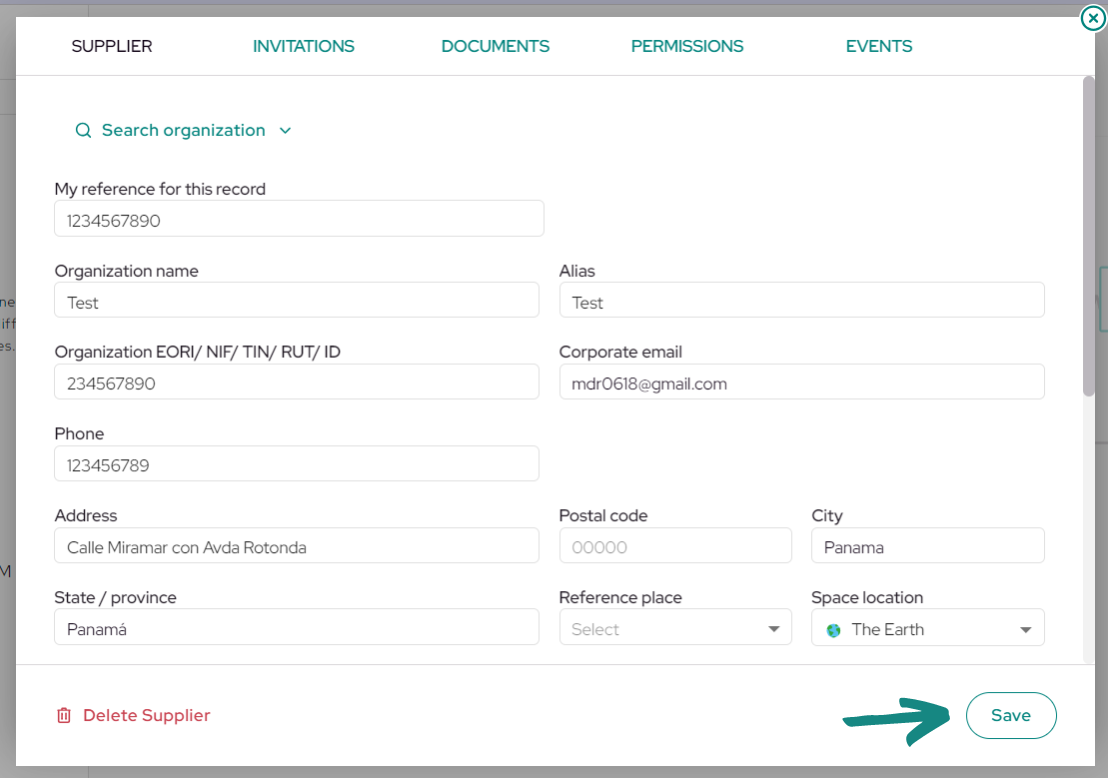 |
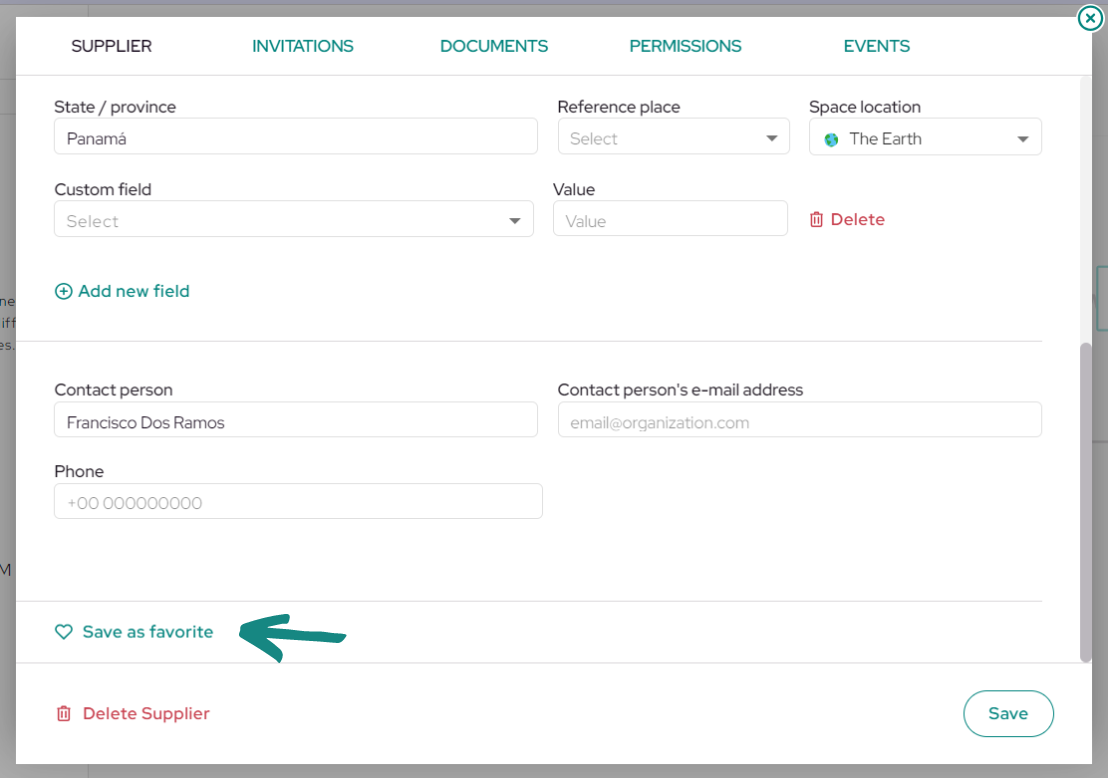
Once all the company information is completed, scroll down to the bottom of the box.
There, you will find a button called «Save as Favorite«. Click on it to save all the completed fields in the «Favorites» of your account.There, you will find a button called «Save as Favorite«. Click on it to save all the completed fields in the «Favorites» of your account.
Adding companies as favorites in the account #
You will also be able to add favorites to your account from the main screen without having to access a shipment.
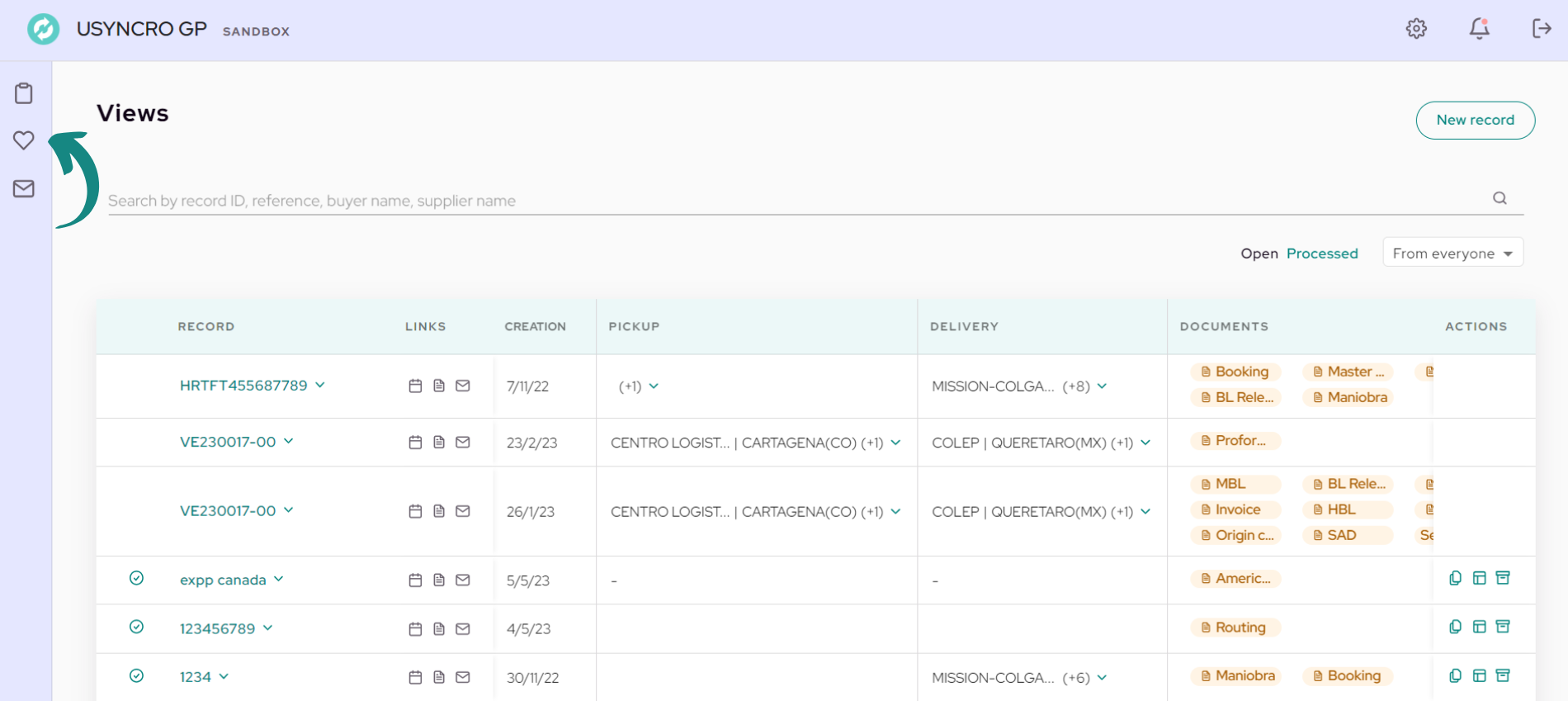
To do this, click on the «Heart» on the left side of the screen.
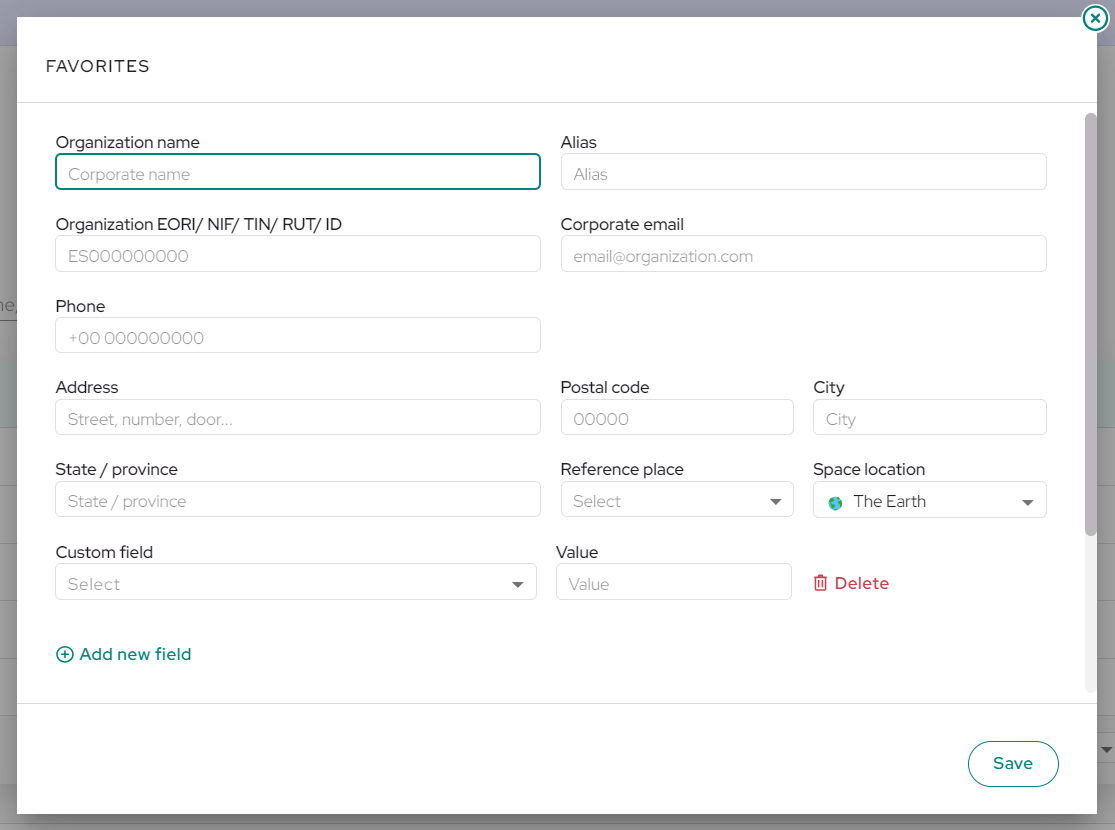
Once in the favorites section, you will see a list of all the favorites you have saved. To add a favorite, click on the «New Favorite» button.
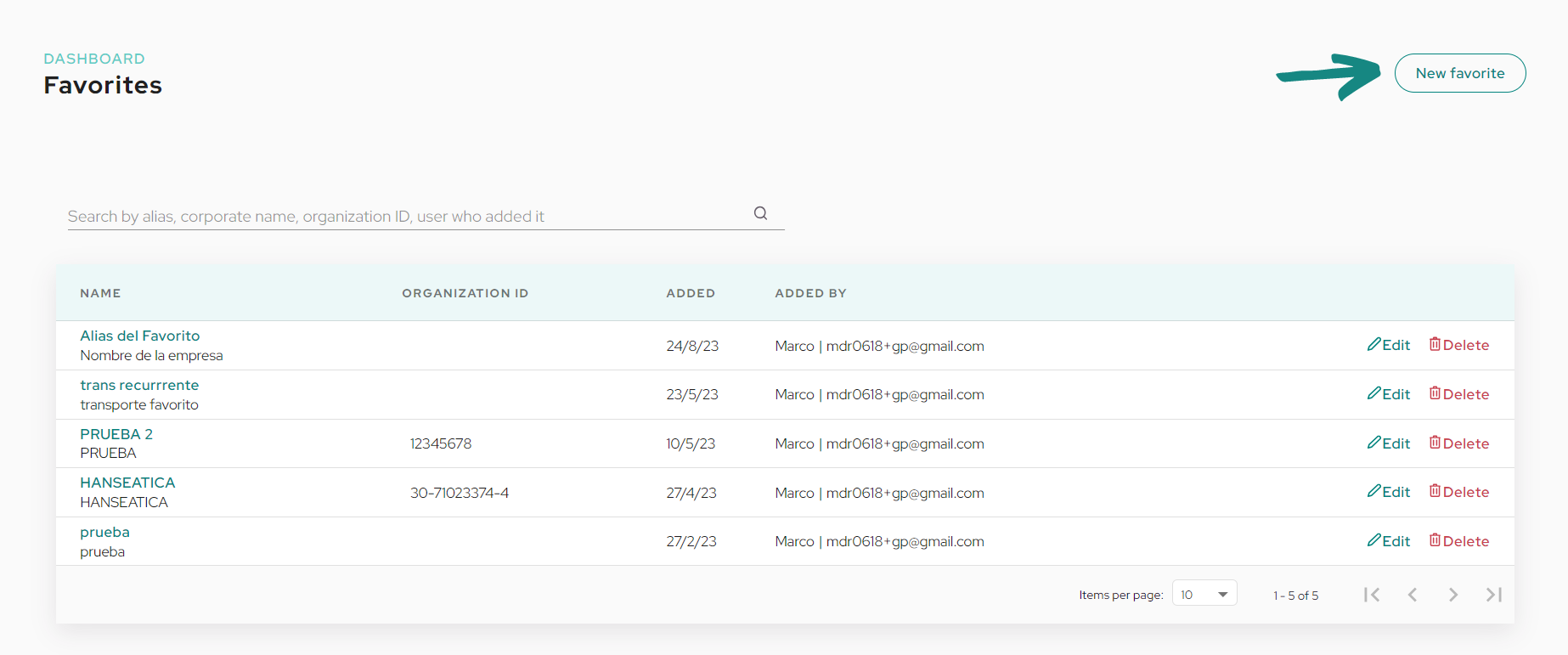
A window will open with all the necessary fields to save a new favorite. Proceed to fill in the information of the company you wish to add and click «Save«.
 |
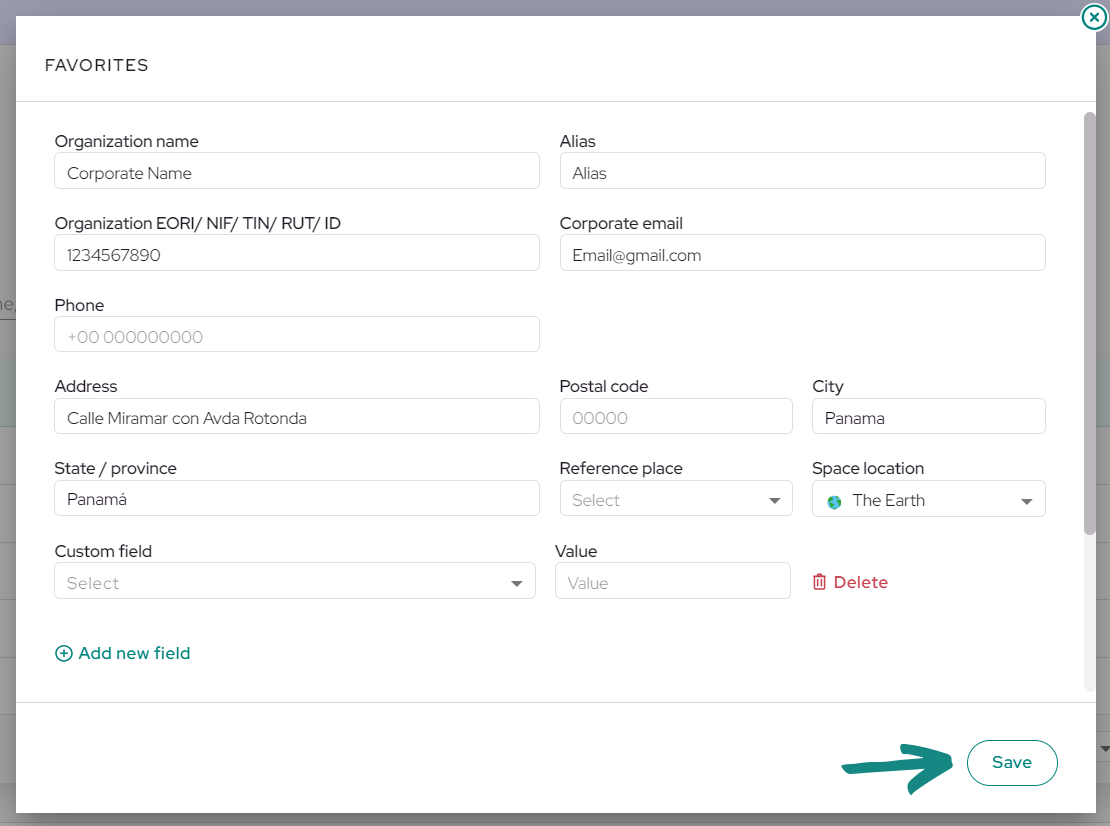 |
After saving, you will see the new favorite added to the table and you will be able to select it within your shipments to autocomplete the information.
Complete information by selecting favorites #
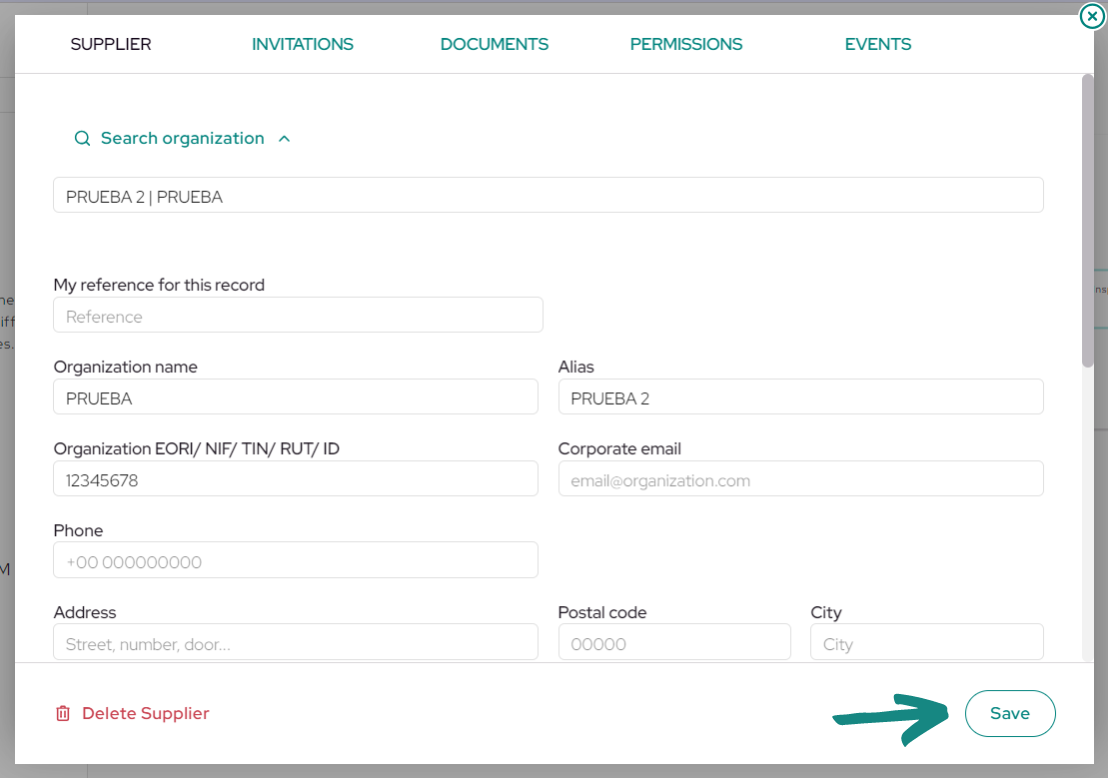
To automatically fill in all the information of a company saved as a favorite in their respective fields, you will need to click on «Search organization» at the top.
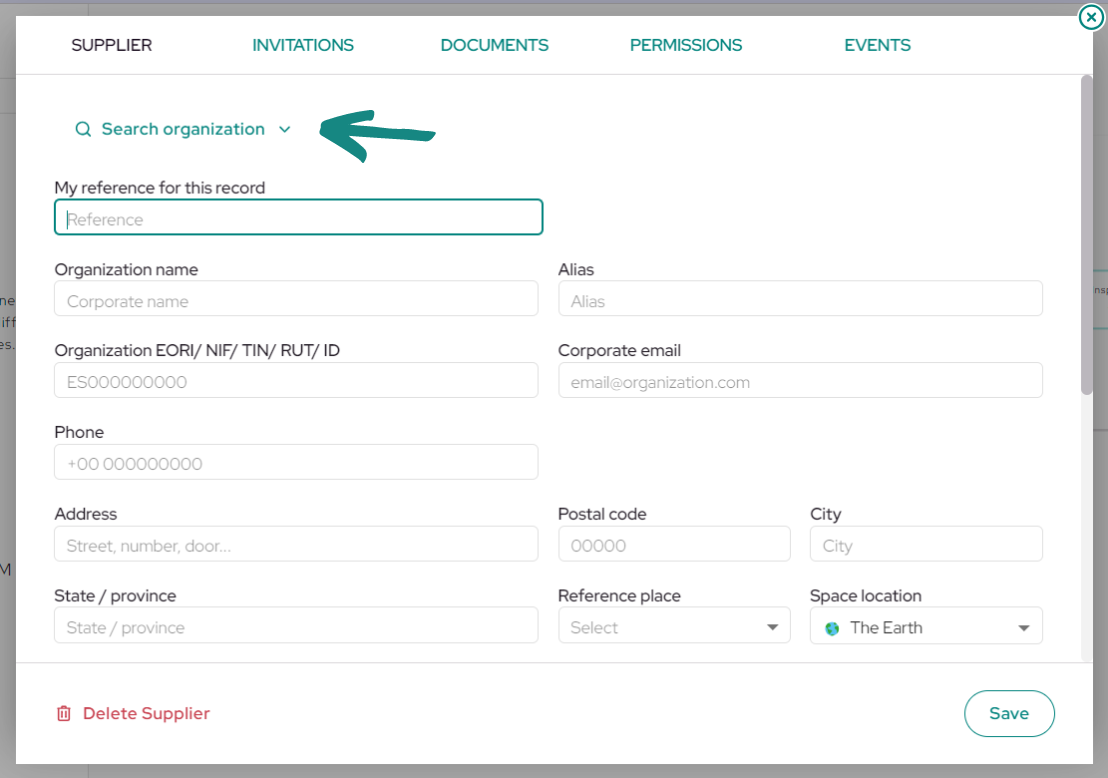
A dropdown will open with the different favorites previously saved. Enter the «Alias» of the favorite you need and select the company from the shipment. Subsequently, all the fields will be filled with the information of the selected company.
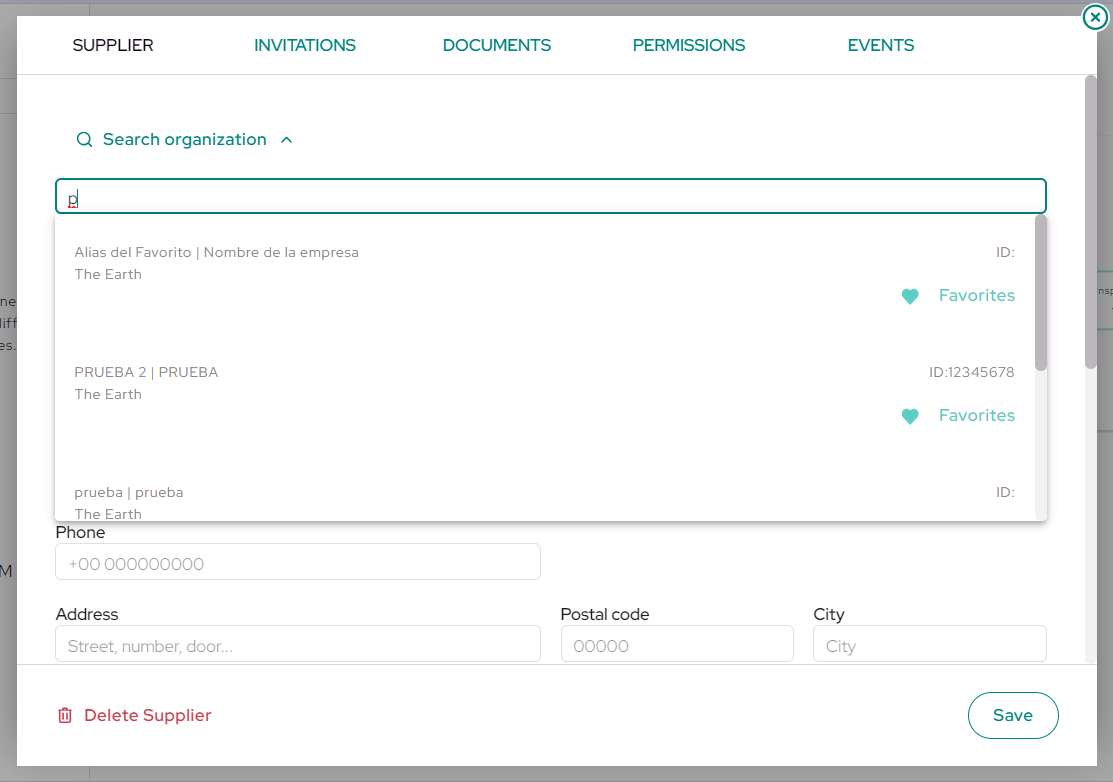
Subsequently, all the fields will be completed with the information of the selected company. Click on «Save» to save the information registered in the box.
Invite companies to your shipment #
When the shipment is created, proceed to invite all the actors involved To do this, click on their respective boxes.
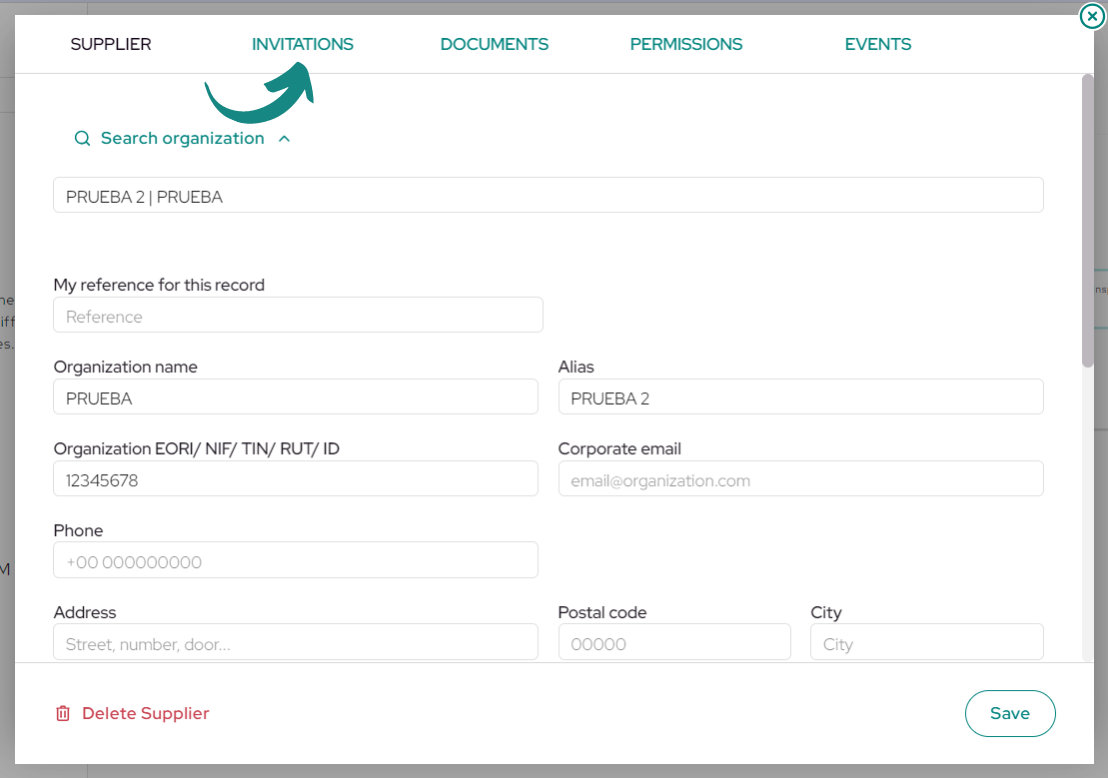
Click on the «Invitations» tab.
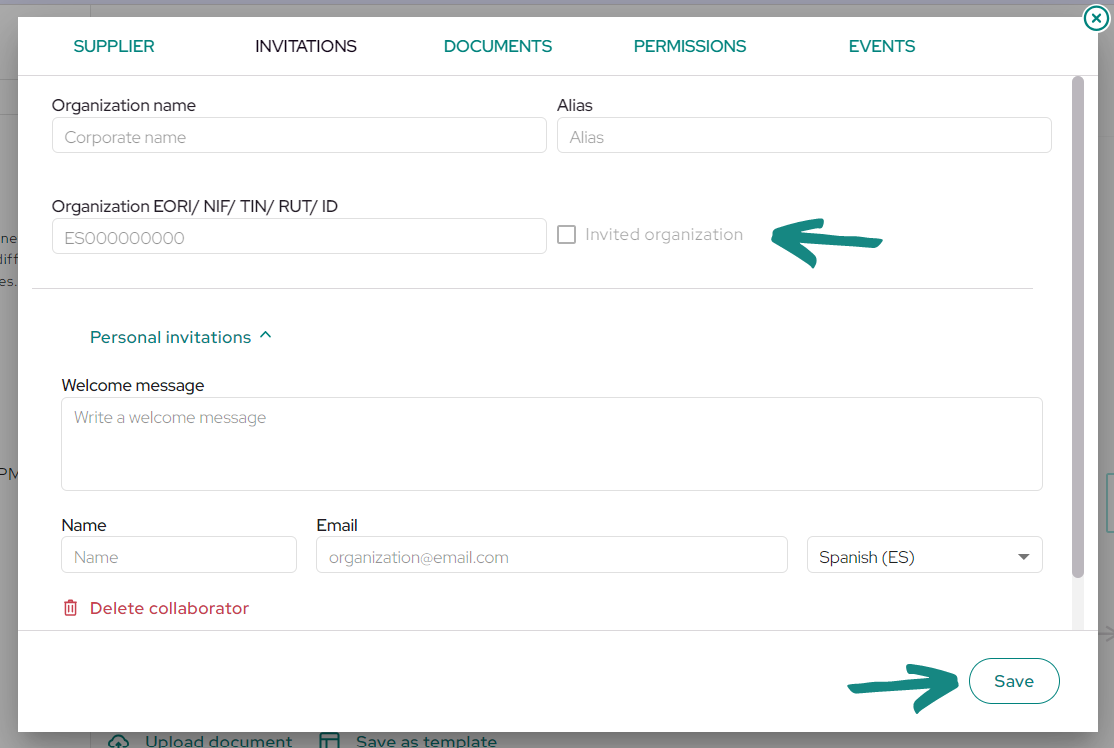
Subsequently, if the invited company is registered in USYNCRO, you will be able to click on the «Invited Organization» checkbox located to the right of the EORI to automatically invite the company.
To enable the checkbox, you must first have correctly entered the EORI of the company you wish to invite. If the EORI does not match, you won’t be able to invite the company using this method (when completing the information with the favorite, the saved EORI will be automatically entered into this field).
Click «Save» to send the invitation.
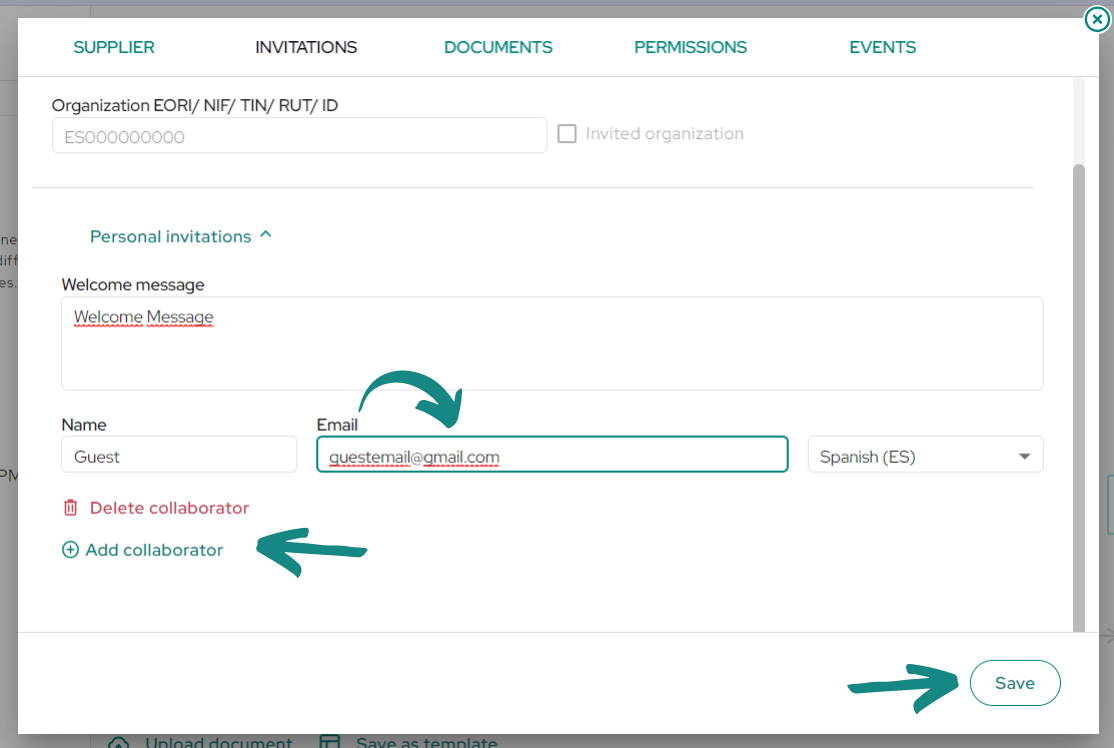
If the company you wish to invite is not yet registered in USYNCRO or if you want to invite a specific member of the organization, you will need to scroll to the bottom of the window and click on «Add Collaborator«
Fields will be enabled for you to enter the name and email address of the person you want to invite. Click «Save» to send the invitation.
Accept Invitation #
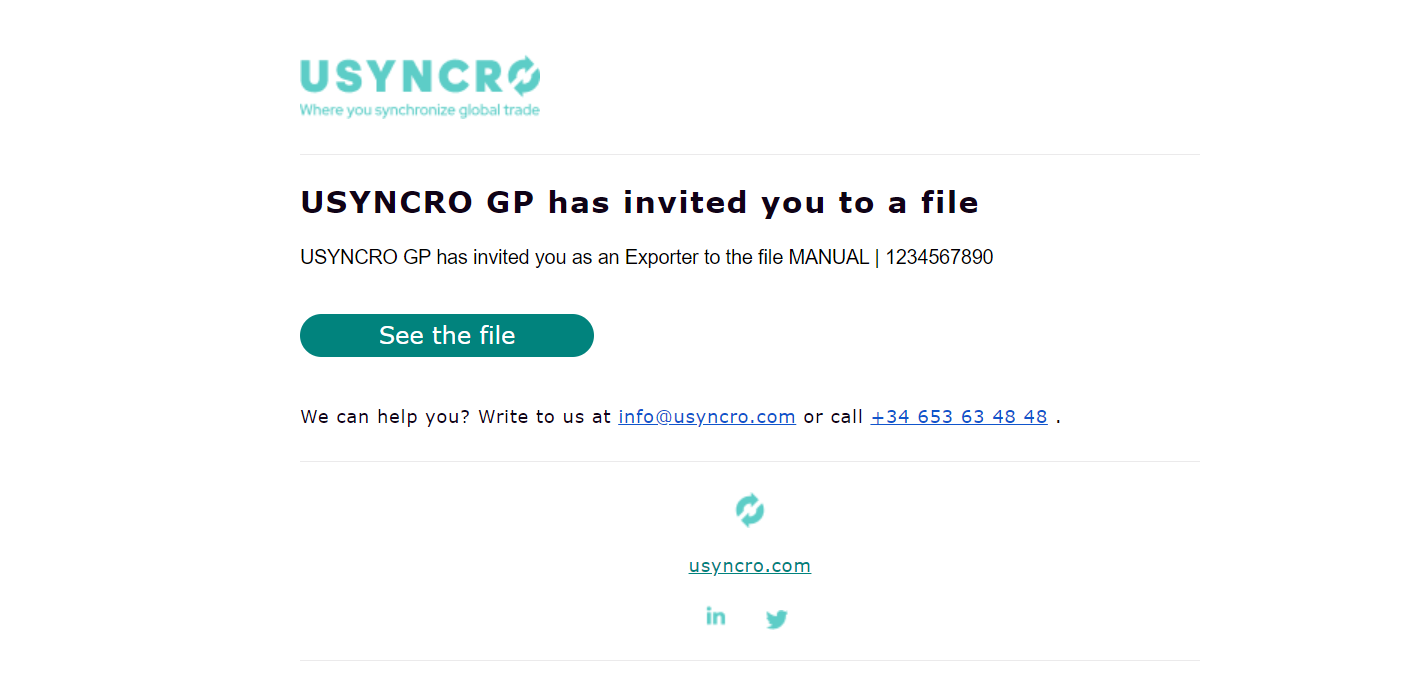
The invited organization will receive an email with a link to access the record/shipment in USYNCRO.
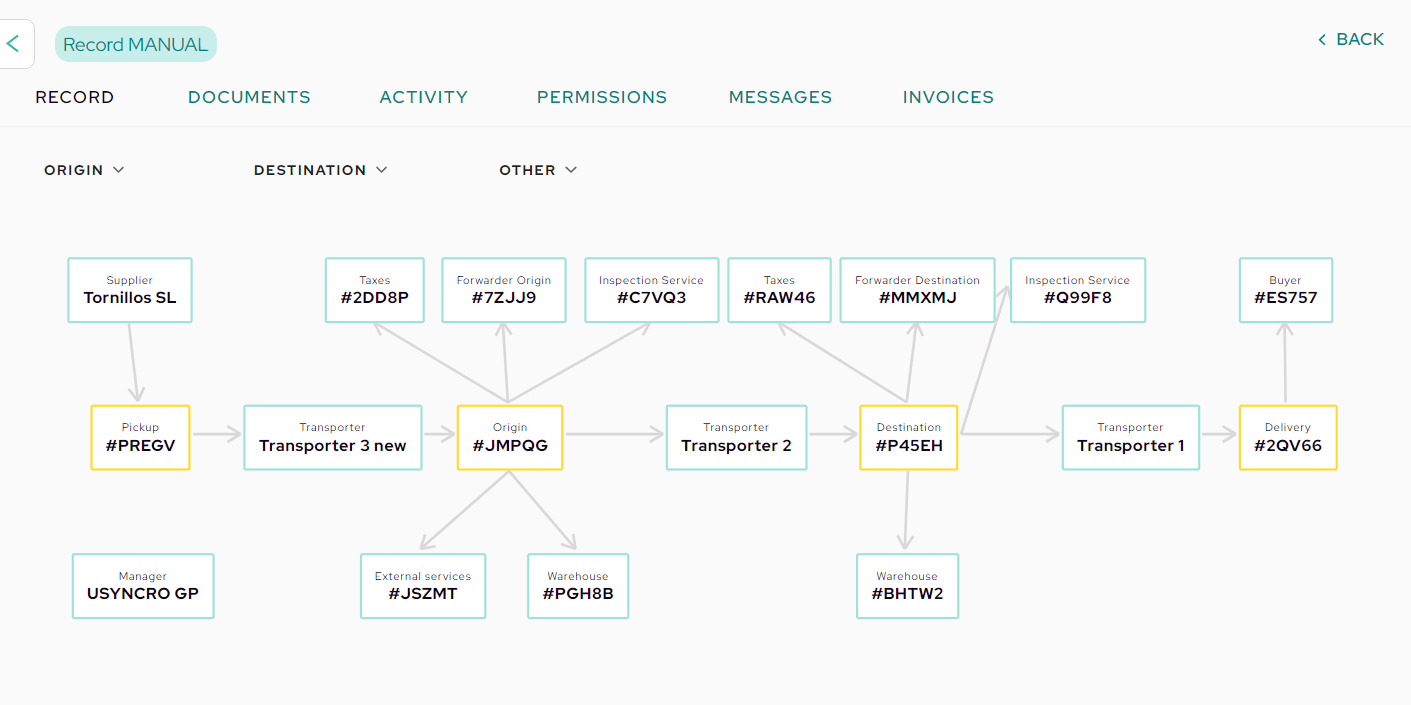
They will need to click on «View Record» to access the shipment, and a new window will open, allowing the invitee to work according to the assigned permissions.
 |
 |


