Ir al contenido

CONTACT

  • Inicio
    • Piloto
    • Agendar demo
    • Premios y Partners
  • Funciones
  • Tecnología
  • Notícias
Log in
Log in

  • Inicio
    • Piloto
    • Agendar demo
    • Premios y Partners
  • Funciones
  • Tecnología
  • Notícias
Log in
Log in

User Manual V1

17
  • How to register on the platform? V1
  • Initial account setup V1
  • How to invite third parties to your shipment? V1
  • Manage and upload documents in USYNCRO V1
  • Steps to manage your shipments V1
  • Manage your financing project from USYNCRO V1
  • Manage insurance project for your records V1
  • Manage customs pre-clearance from the platform V1
  • USYNCRO Payment Plans V1
  • How to change my password? V1
  • Record activity V1
  • Dashboard of the shipments V1
  • Internal chat of USYNCRO V1
  • Creation of eCMR V1
  • Creation of eBL V1
  • Servicios aduaneros de USYNCRO V1
  • How to apply for your digital identity profile in FIATA? V1

User Manual USYNCRO

23
  • Manage Documents with USYNCRO
  • dsd
  • NEW VERSION 1.16.0
  • Company invitations
  • Pasos para realizar tus expedientes ING
  • How to manage your first shipment?
  • Example draft
  • Example article
  • Glosario de términos
  • Version 1.32
  • Registration on USYNCRO´s platfrom
  • Invite collaborators & add favorites
  • Events & ativity of the shipment
  • Templates Creation
  • Insurances
  • Shipping messaging
  • Views
  • Emision de documentos aduana de Egipto CargoX
  • Initial account setup
  • ¿Cómo darse de alta en la plataforma?
  • Customs Clereance
  • TRANSPORT & GOODS DATA
  • Reference and invoice
View Categories
  • Inicio
  • Documentación
  • User Manual V1
  • How to register on the platform? V1

How to register on the platform? V1

1 minutos de lectura

REMEMBER!

In case you have a custom plan that has already been agreed you will have to enter a special link to make your registration which has a code to recognize the plan in question. example of the link: https://sandbox.myecustoms.com/onboarding?promotional_code=ENT

The process will be done in the same way, as a normal registration, but the personalized plan associated to your link will be auto-selected.

If you have already registered in the platform before, you can log in by entering your email and password.

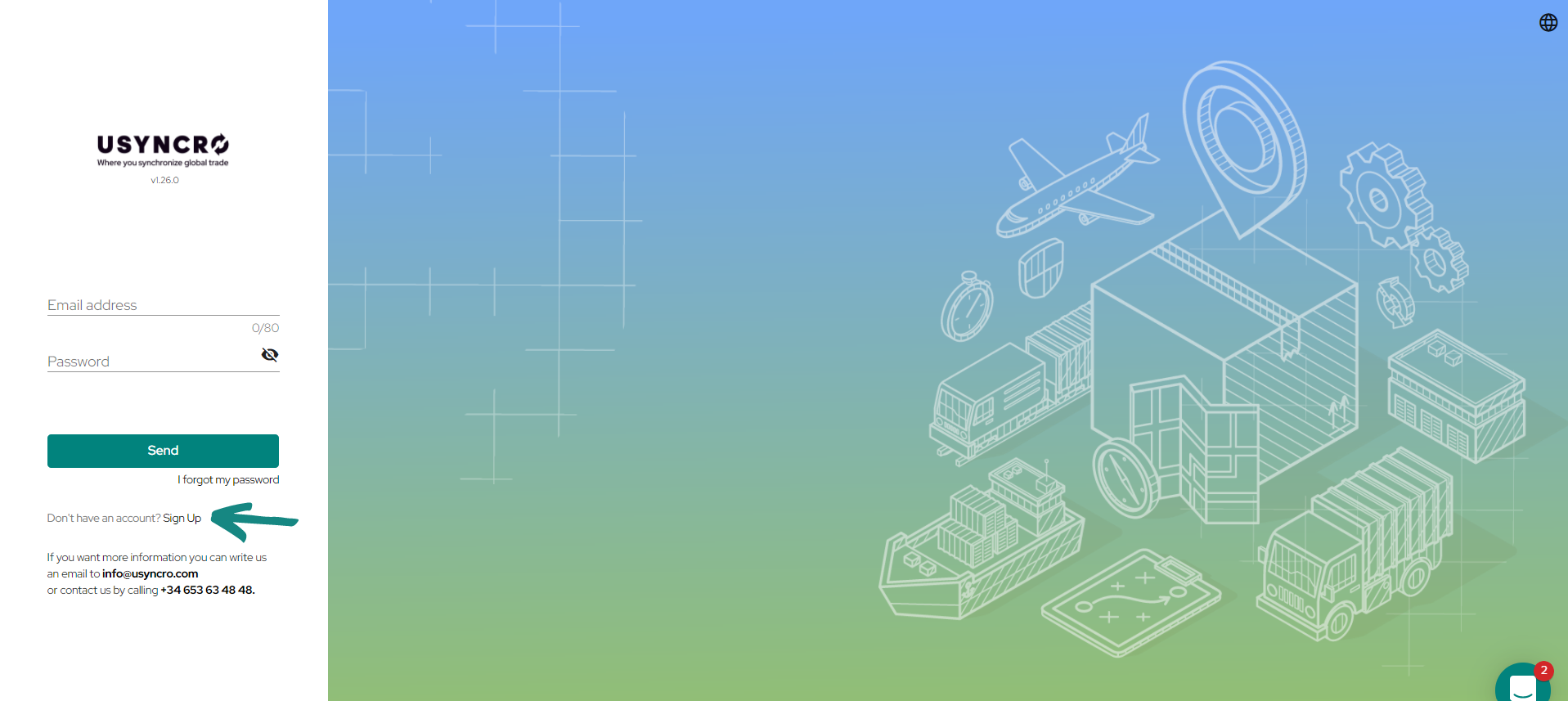
If you have not yet registered, you can start the process by clicking on the ¨SingUp¨ button shown in the image:
From the platform’s home screen you will have a quick access button to register, called ¨Enter Usyncro¨, and by clicking on it you can start the registration process.
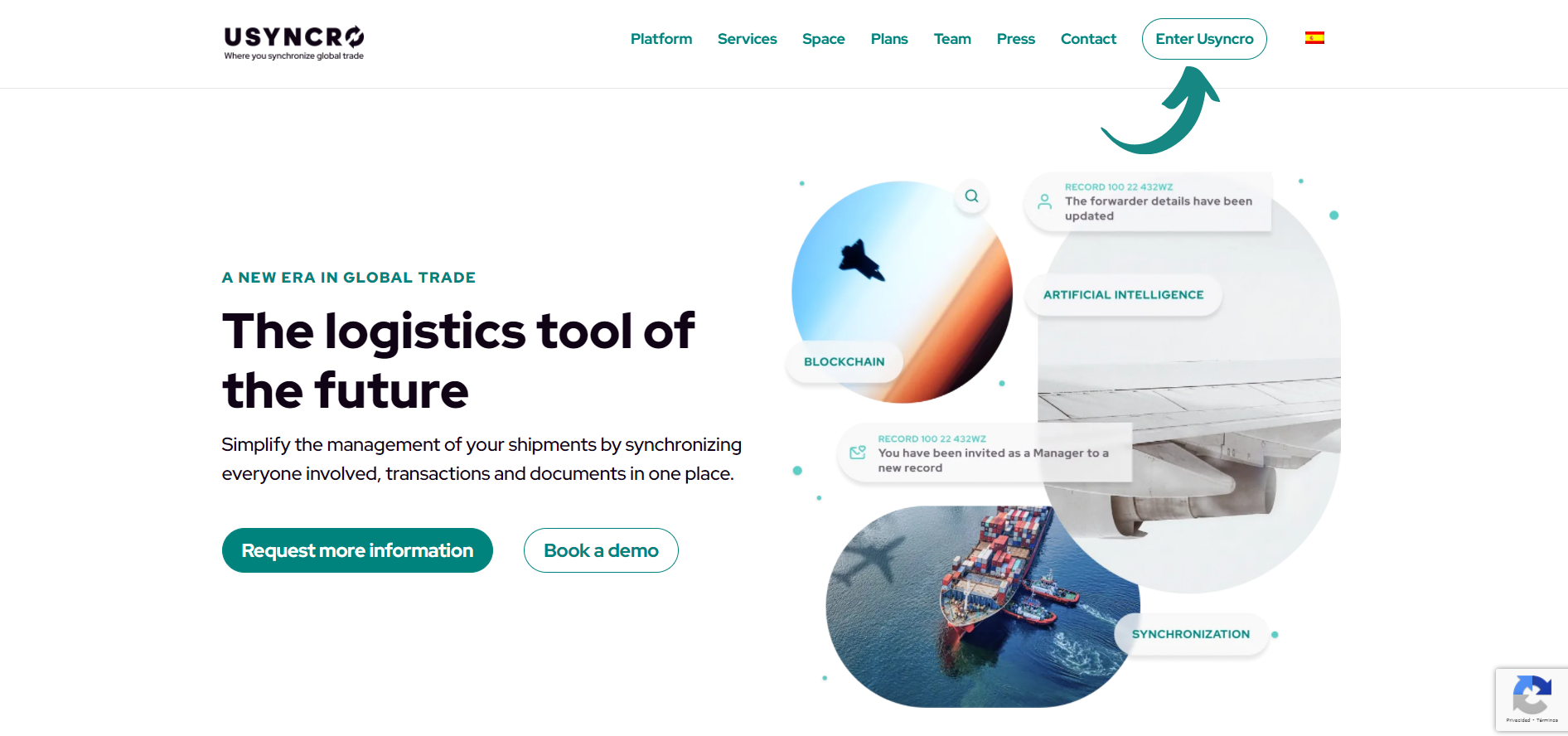
Enter Usyncro

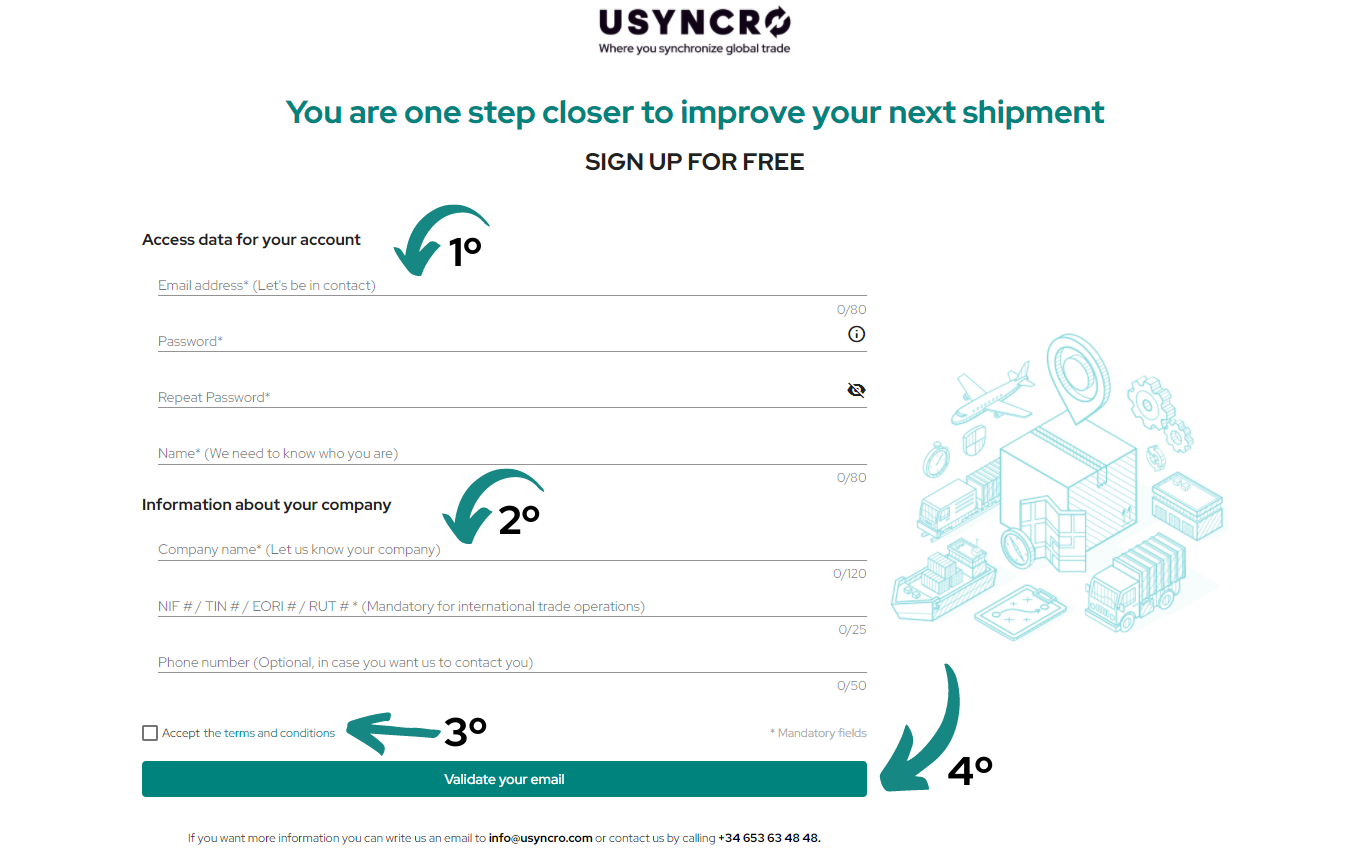
Once the registration window is displayed, follow the steps to enter the requested data:

  1. Fill in the 4 mandatory fields of ¨Access data for your account¨ (email, password with its repetition and user name).

  2. Fill in the «Information about your company» fields (mandatory: company name and VAT number; optional: telephone number).

  3. Read and accept the terms and conditions of the platform

  4. Click on «Validate your email» to receive the confirmation email and start your account.

If necessary, some of the registration data such as password may be changed in the future after registration.
How do I change my password?

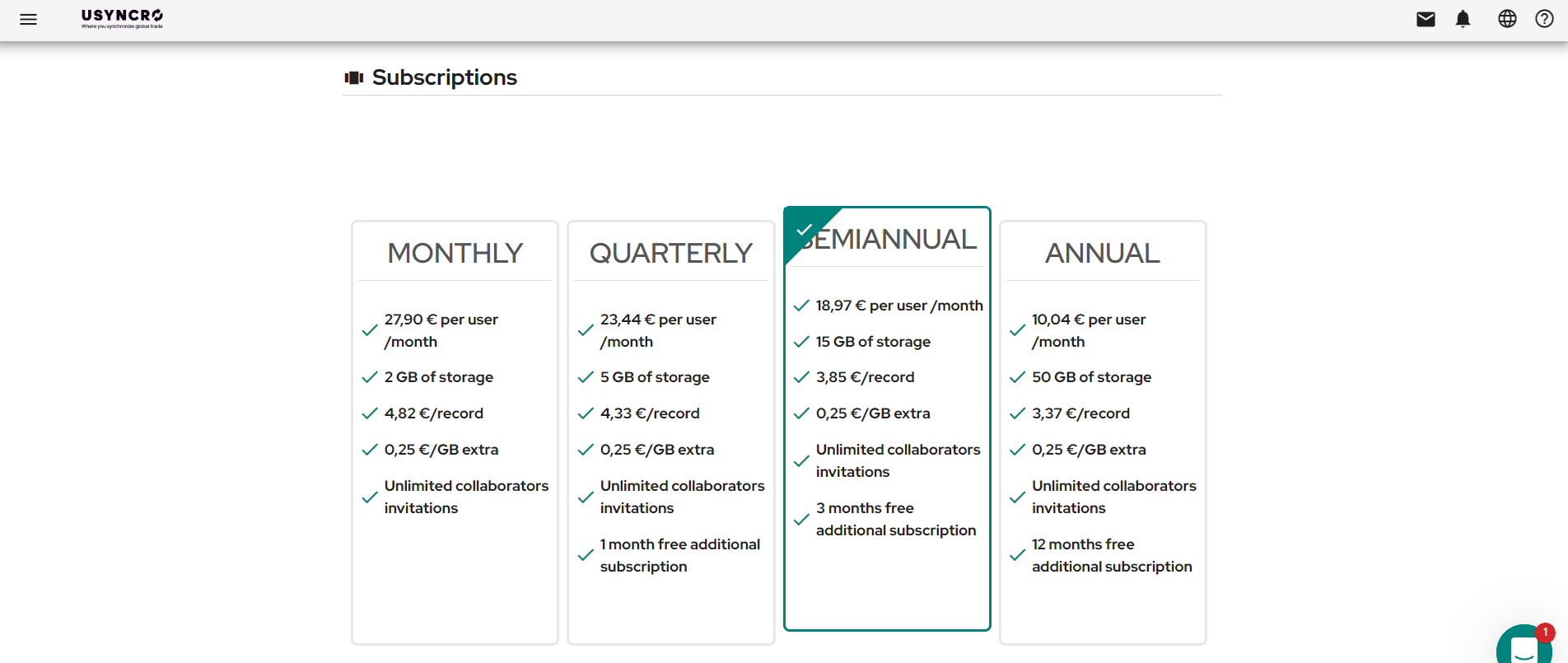
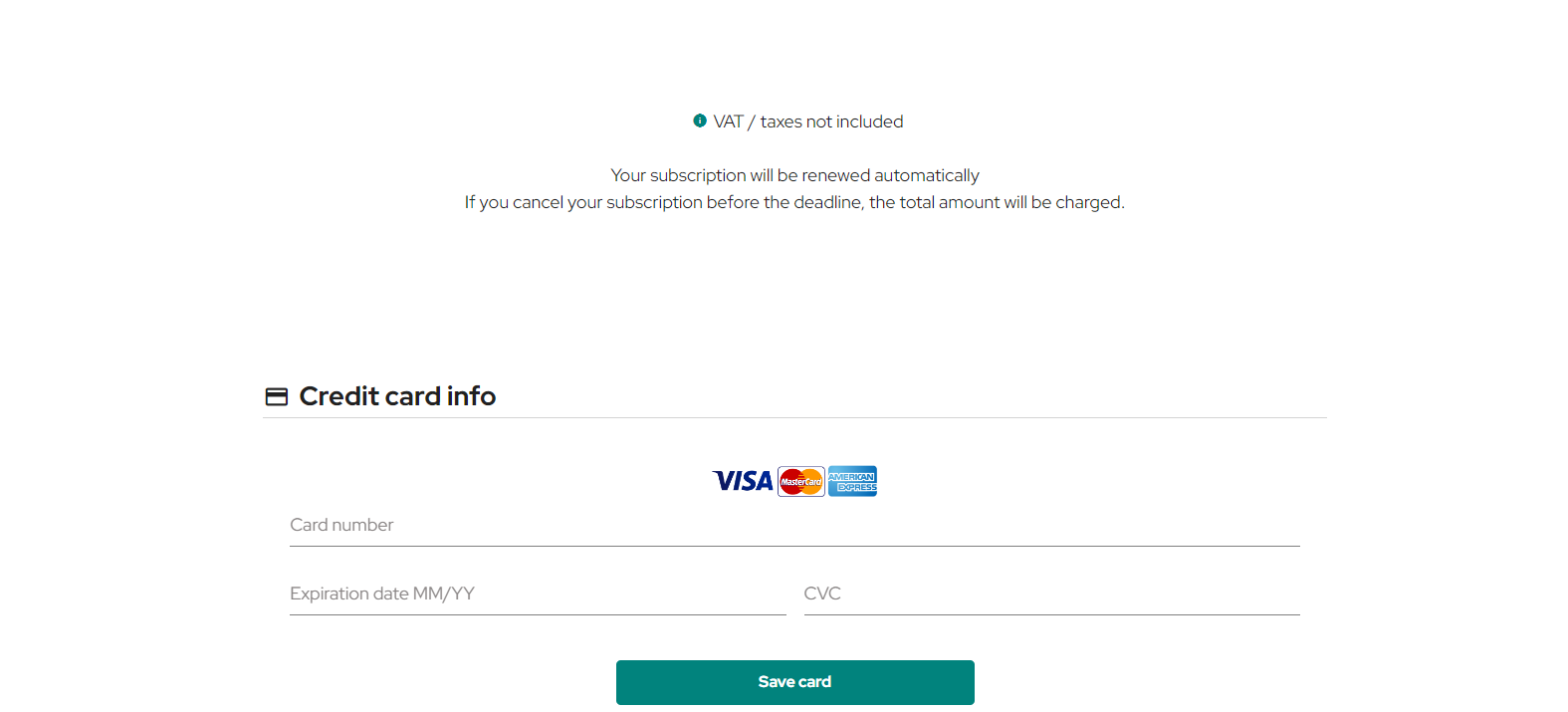
You will then be redirected to the next window, where you will be able to choose the plan you wish to opt for, as long as you have added your payment details at the bottom, along with your billing details.
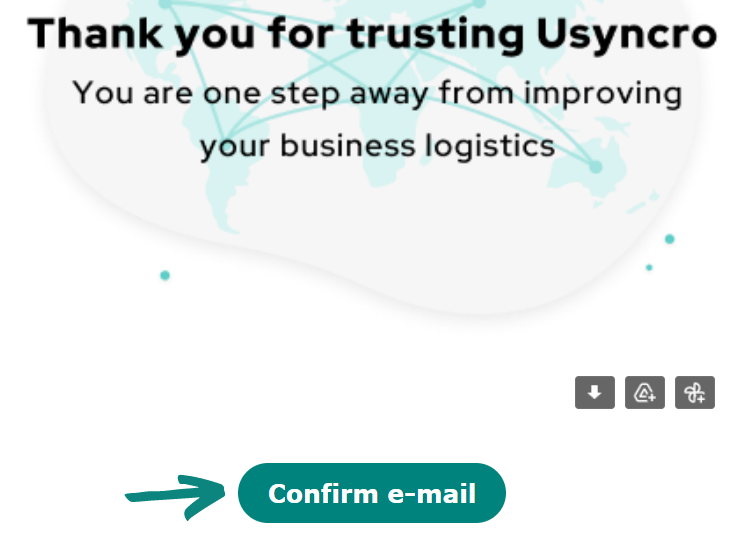
In the following image you can see the confirmation email you will receive after the registration process. Click on «Confirm e-mail» to start using USYNCRO.
If for some reason you did not receive the email shown above, please check your Spam folder or click on ¨Resend validation email¨. The message will appear in a new window after you have included your billing information.

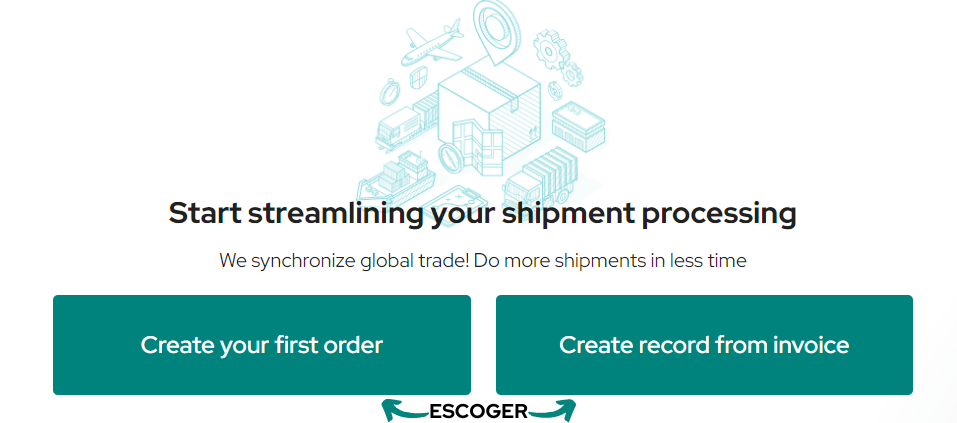
Once you have confirmed the validation email, the following window will open, and you will be able to select how you want to start your first operation:

  • Left: create from 0.

  • Right: create record from an invoice (the Artificial Intelligence will read and complete the data provided in the invoice).
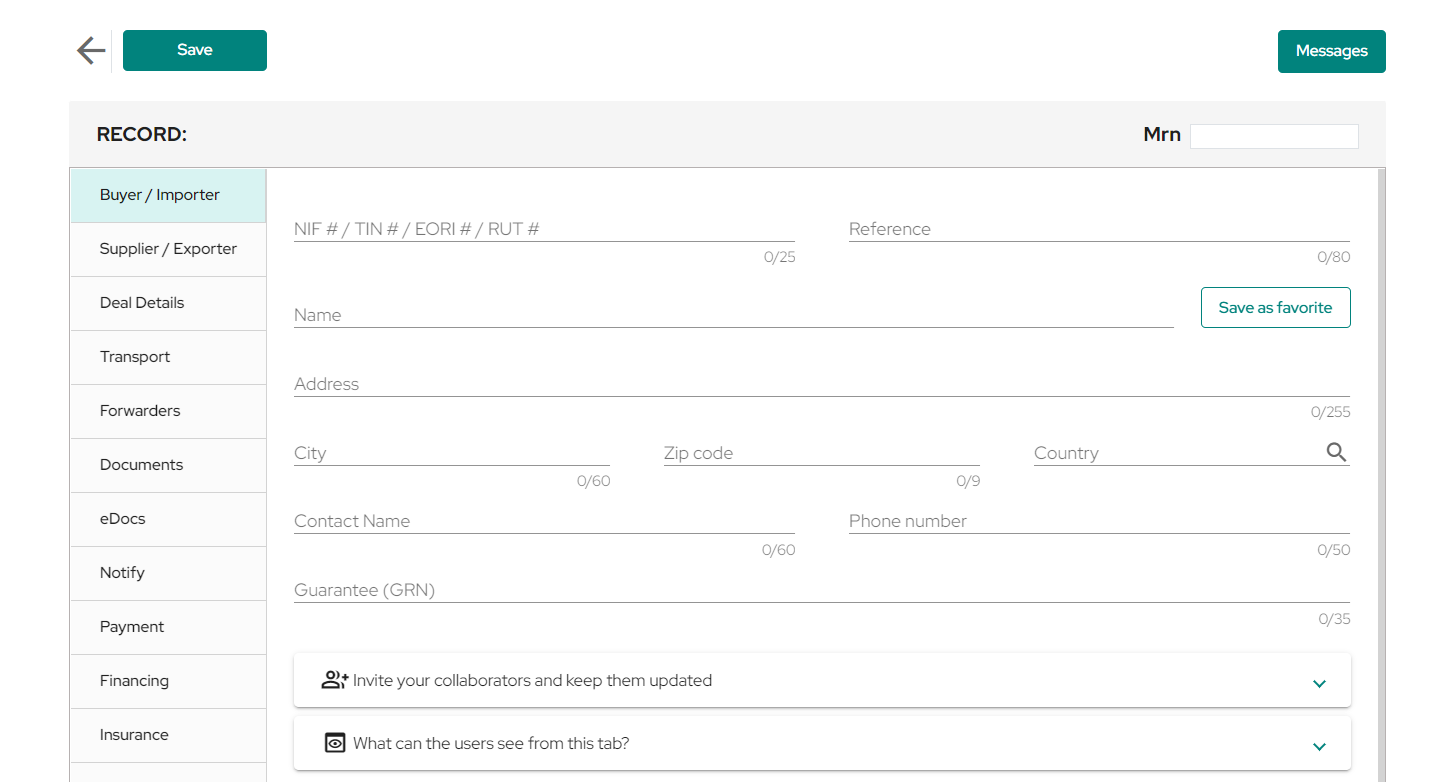
If you selected the option: «Create your first record«, an empty record will be automatically created so that you can start filling in the relevant data and documents. Save the shipment so you can go back to set up your account.
From now on you can start managing your logistic operations digitally. If you want to know how to manage your records you can visit the following article: Steps to manage your shipments.

Updated on septiembre 24, 2026

What are your Feelings

  • Happy
  • Normal
  • Sad

Comparte este artículo:

  • Facebook
  • X
  • LinkedIn
  • Pinterest
How to apply for your digital identity profile in FIATA? V1Initial account setup V1

Deja una respuesta Cancelar la respuesta

Tu dirección de correo electrónico no será publicada. Los campos obligatorios están marcados con *

La plataforma SaaS neutral para la orquestación inteligente de la cadena de suministro global y la digitalización aduanera.

Facebook X-twitter Youtube Linkedin
Manuales Usyncro
Sello PYME INNOVADORA 10/09/2029
B88019286
BLOCKCHAIN CUSTOMS TECHNOLOGY SL
PYME INNOVADORA
Válido entre 11/09/2026- 10/09/2029
escudo de MEIC 10/09/2029
Acceso Clientes

Email: info@usyncro.com

Seguridad garantizada con tecnología Blockchain e IPFS


© 2026 USYNCRO. Todos los derechos reservados.

Aviso Legal | Política de Privacidad | Política de Cookies