
Once you have logged in to USYNRO you can start managing your international operations.
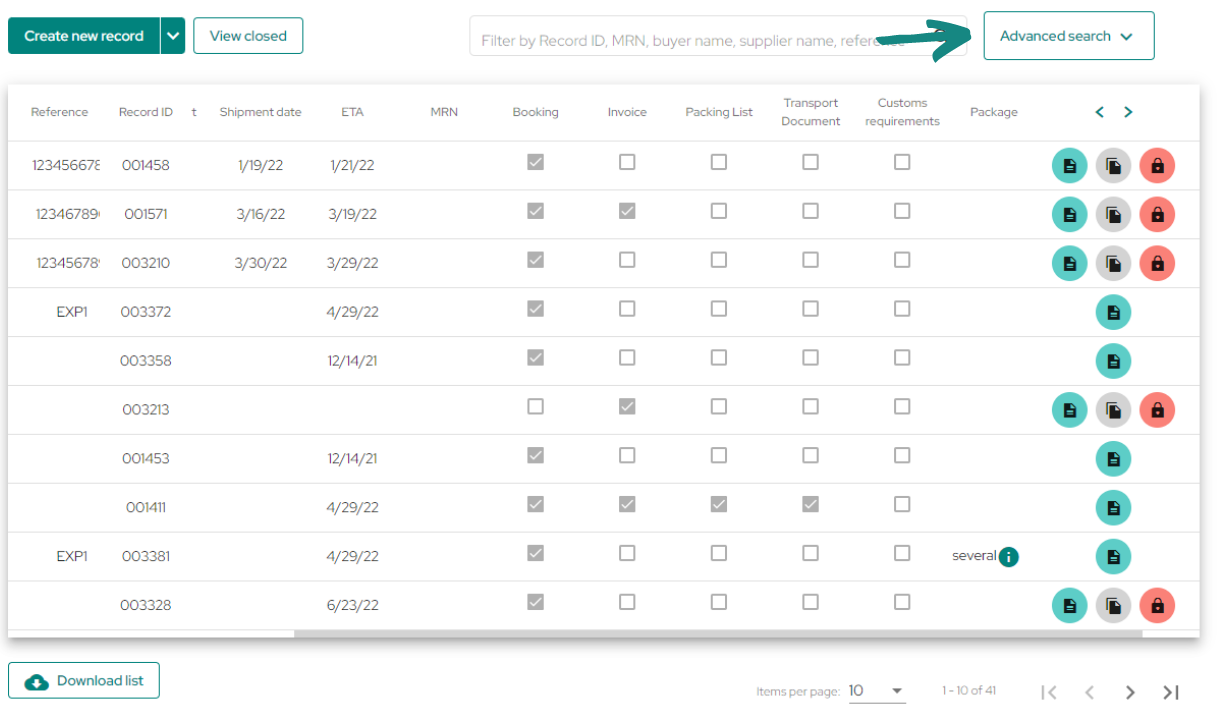
When accessing the «Records» section, the first thing you will see is the following window, represented in the image below, where you will find the list of the saved records that are in progress, the ones you own and those that were accessed by invitation (for the records you were invited to, you will only have the green circle on the right, meaning that you will only be able to open them).
You will have a search engine at the top where you will be able to filter your records according to: Record ID, MRN, buyer or seller name; you can also filter according to whether they have been closed or not, using the button ¨View Closed¨.
If you want to create a new record you can click on the arrow to the right of the «Create new record» button and two tabs will open where you can select how to create your record.
-
Empty order: fill in all the operation data from zero.
-
From invoice: upload an invoice to the platform, which will be read by the IA, and it will proceed to complete the invoice data in the record, this way it will be created with the data already incorporated in the corresponding fields.
Also, by clicking on the «Download list» button at the bottom you can download a document with the list of all filtered records in CSV format. If you have not filtered the shipments, a list including all the records created to date will be downloaded.
In the article ¨How to register in the platform?¨ we show how to create a record from an invoice by uploading it to the platform.
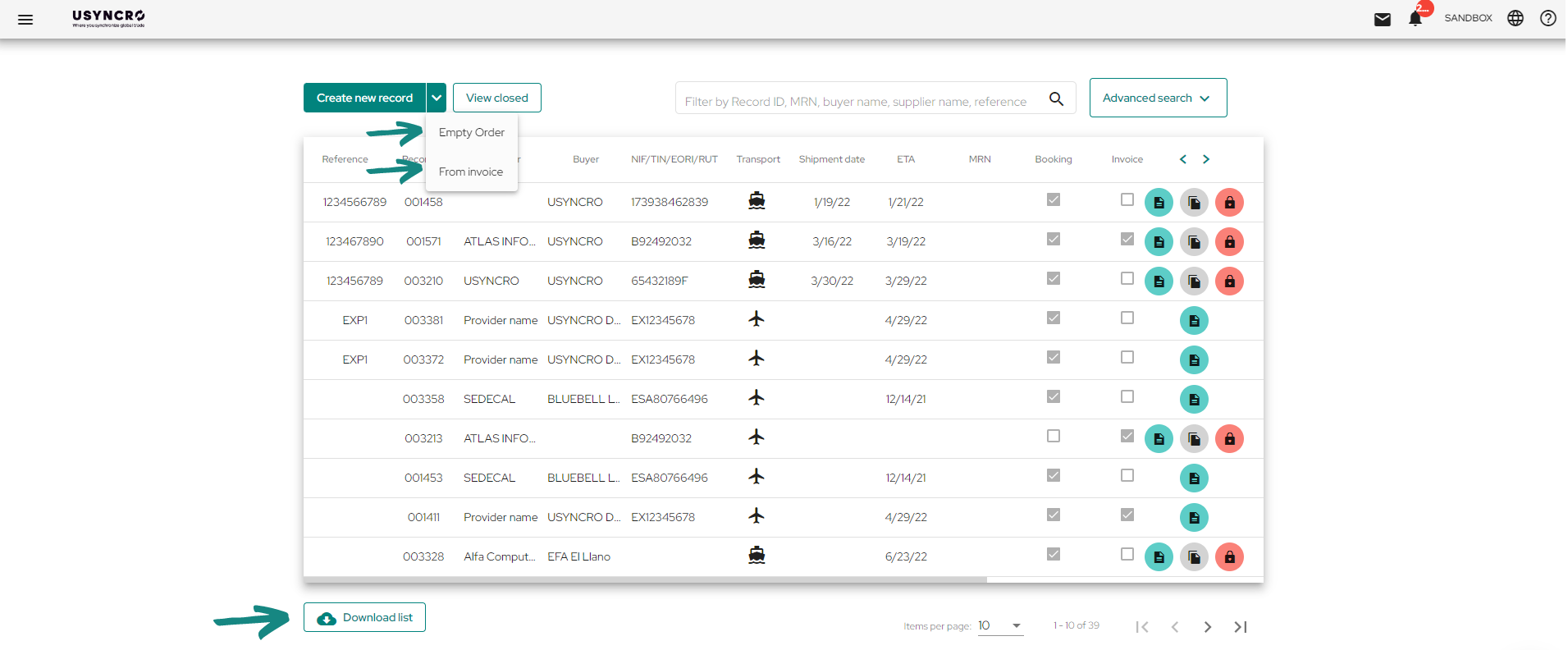
In the panel with the list of records you will find data of the operations in the top row, with which you can filter and identify the shipments through the data and documents they contain.
As you can see in the previous image, among these data you will find the Record Reference, Seller, Buyer, NIF/TIN/EORI/RUT, Transport, Date of shipment, among others.
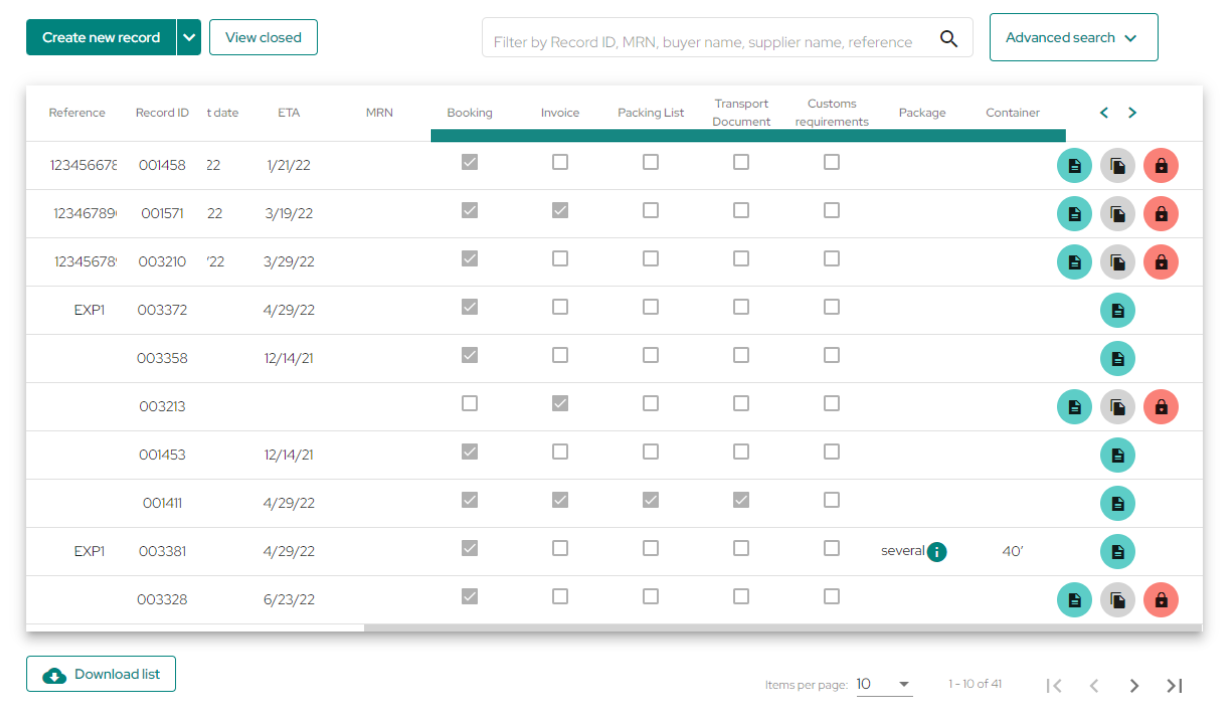
As for the fields of: Invoice, packing list, Transport Document, and customs requirement, they refer to the fact that in that record some of these documents were uploaded if the box below these is checked. As you can see in the example, for the second shipment only the invoice of the operation would be uploaded so far.
For the «Booking» section, it will mean that the record has established an ETA or ETD if the booking box is checked.
Finally, for packages and containers, the information included in the file will be directly reflected in the dashboard. For example, if Pallets will be used for the shipment, in the package section the word pallet will be visible, referring to the packages that are used in the operation and for the container you will be able to visualize the type of container established.
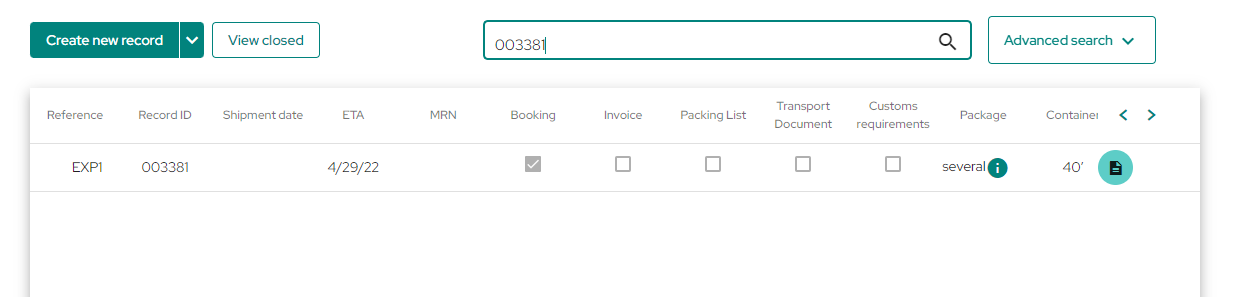
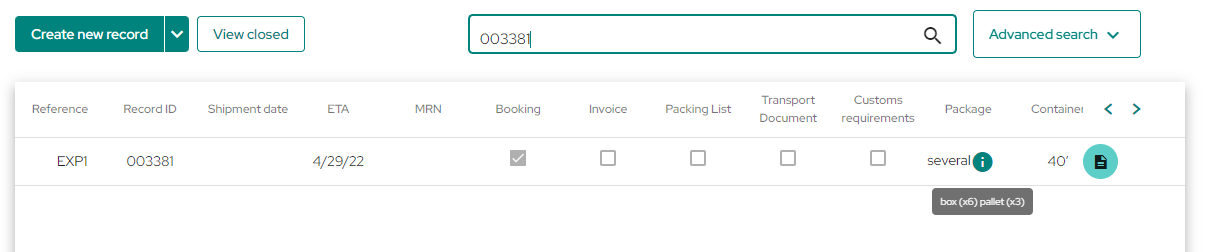
As you can see in the image, in cases where there is more than one type of package, instead of the type of package of the operation, the word «Several» and an exclamation mark will be visible, referring to the use of multiple packages.
If you place the cursor over the exclamation mark you will be able to see which are these packages and the quantity of each one in the shipment.
In case, the contents of the table or the browser at the top is not enough to locate your shipment, you can click on the button at the top right called «Advanced Search» to set more specific filters.
Once you have clicked on advanced search you will see the following panel with all the filters you can set, among them are Record details, transport data, dates, actors, among others.
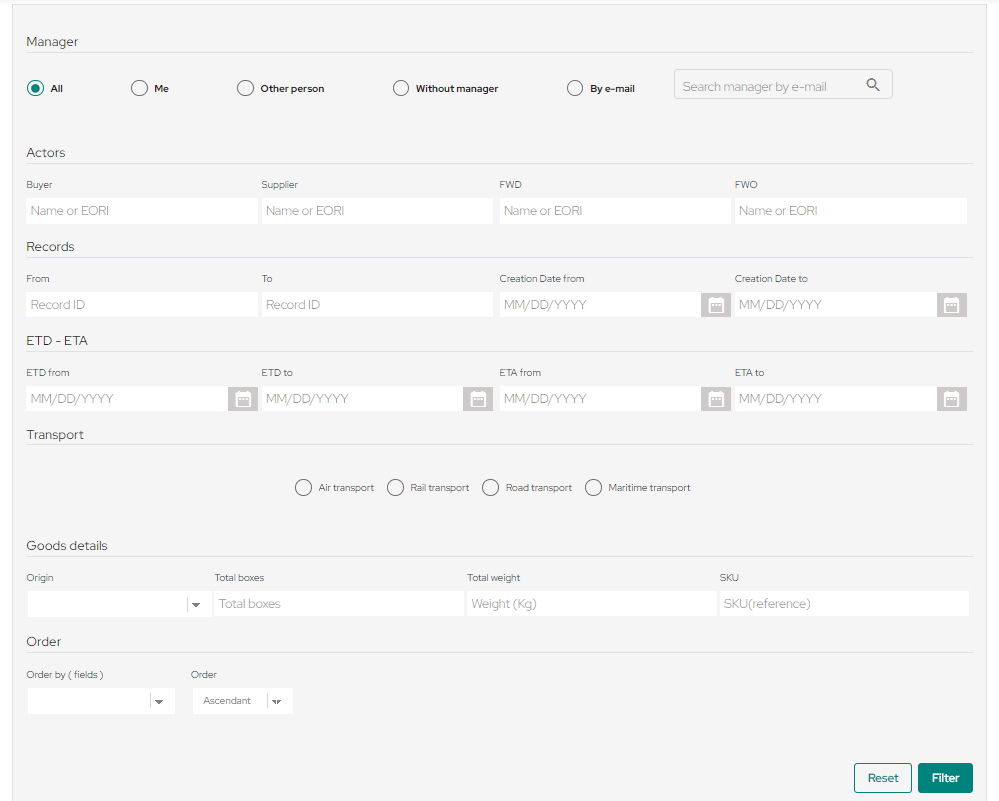
Once you have set the fields by which you want to filter your records, click on «Filter» to make it effective and display the compatible operations or click on «Reset» to reset the filters.


