By clicking on the links in the table of contents below, you will be automatically directed to the section of the article you are interested in, in order to be informed of the changes that have occurred on the platform:
New tab «Activity«. #
Once you are located in your record/shipment, go to the last tab labeled «Activity«.
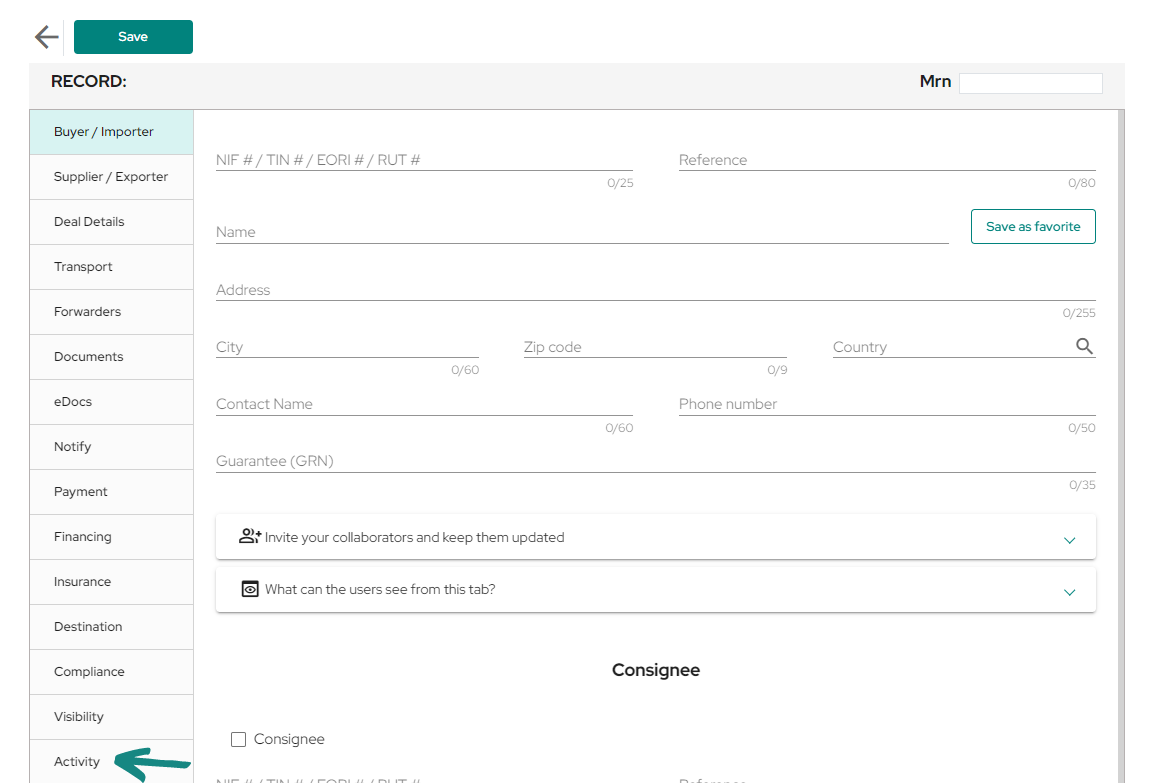
In this tab you will find a list of all the activities that have occurred within the record from the moment of its creation, any change or modification in the data or documents of the shipment will be reflected in this tab.
By including data in the tabs of the record and saving these changes, you can see how the list of activities is updated immediately, showing which changes have been made in the shipment and which participant has made them.
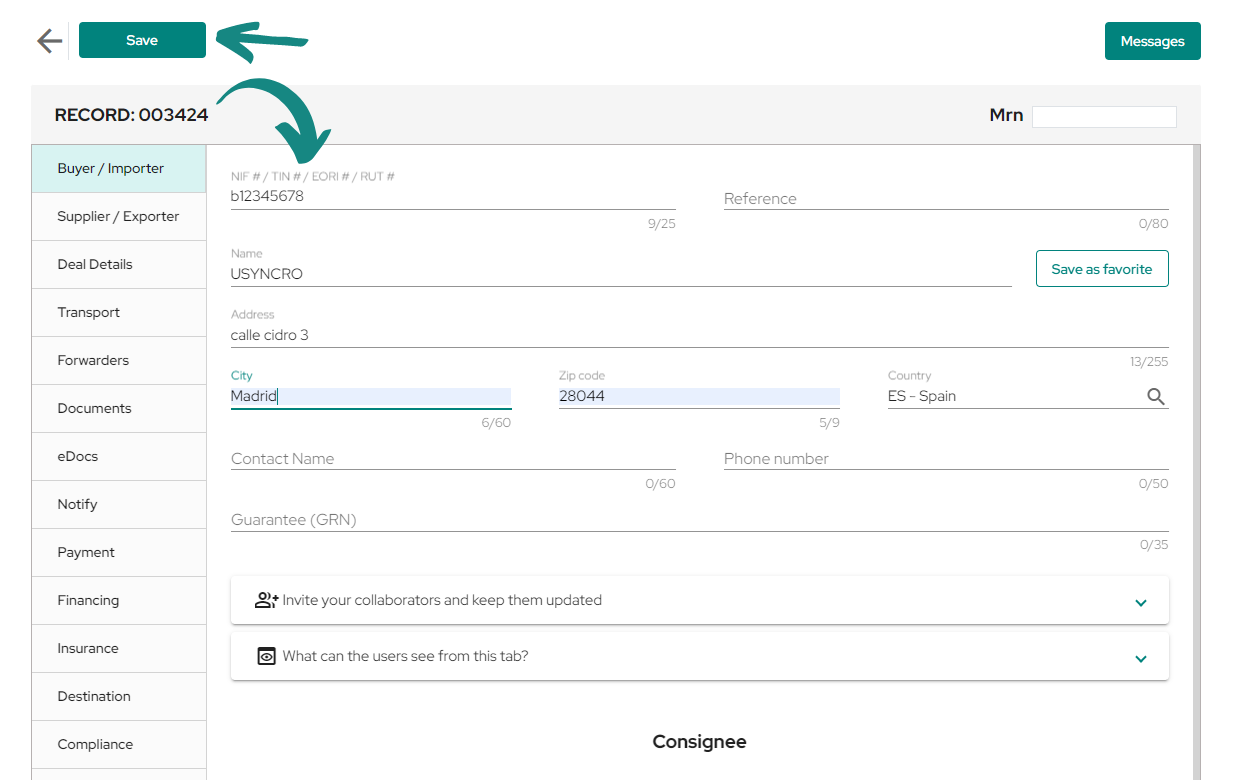
As shown in the following example, the data included in the «Buyer» tab is translated into the «Activity» tab, organized from the most recent to the oldest, with the time of their execution on the left side.
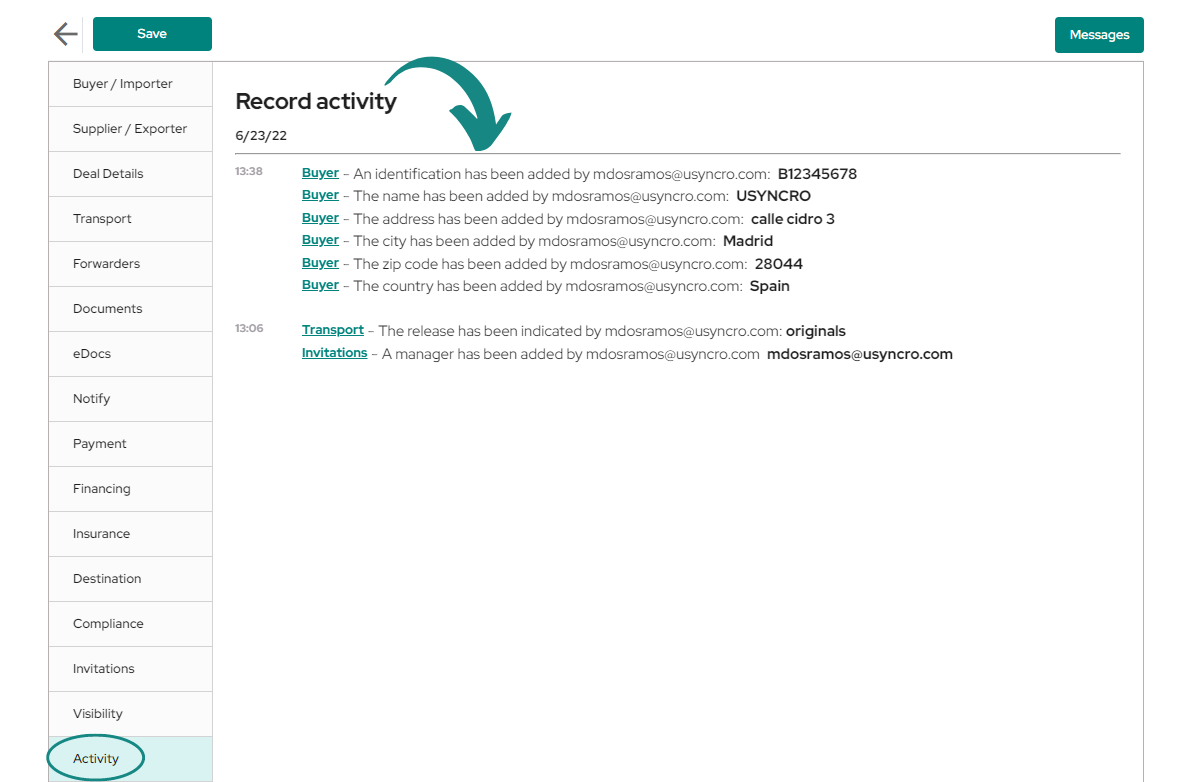
By clicking on the link visible in the activities performed, you will be directed to the tab in question where the change occurred. This list, initially, can only be viewed by the creator of the record, who also can authorize the access of other participants to this tab.
PS: The changes will become effective and will be registered in the list once the record is saved, all changes made will be grouped together at the same time the save button is pressed.
Freemium plan #
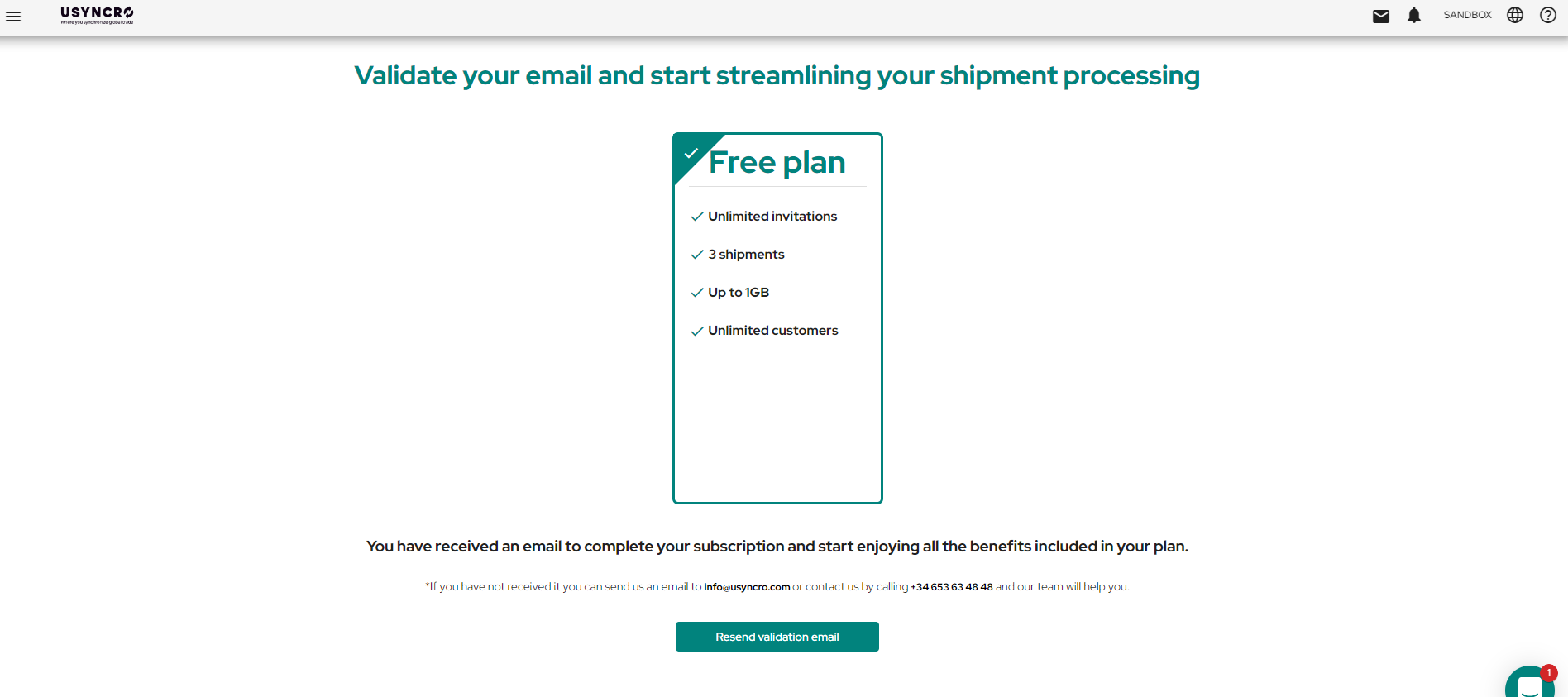
In the following image, you can see the new free Usyncro plan along with all its benefits. This plan will be assigned to your account once you are registered on the platform.
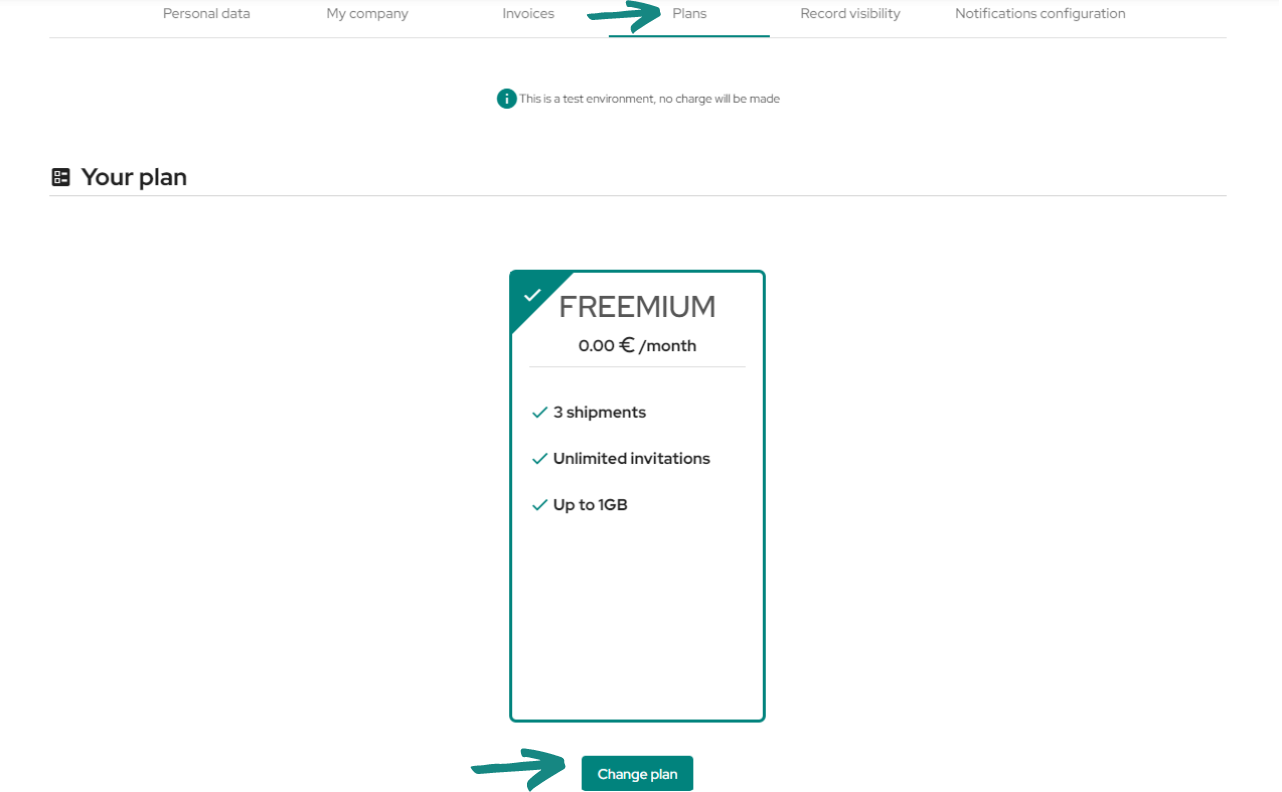
By going to the «Plans» tab in your account settings you will be able to see which plan is currently in place, with the option to change it by clicking on the «Change plan» button.
Download list of records #
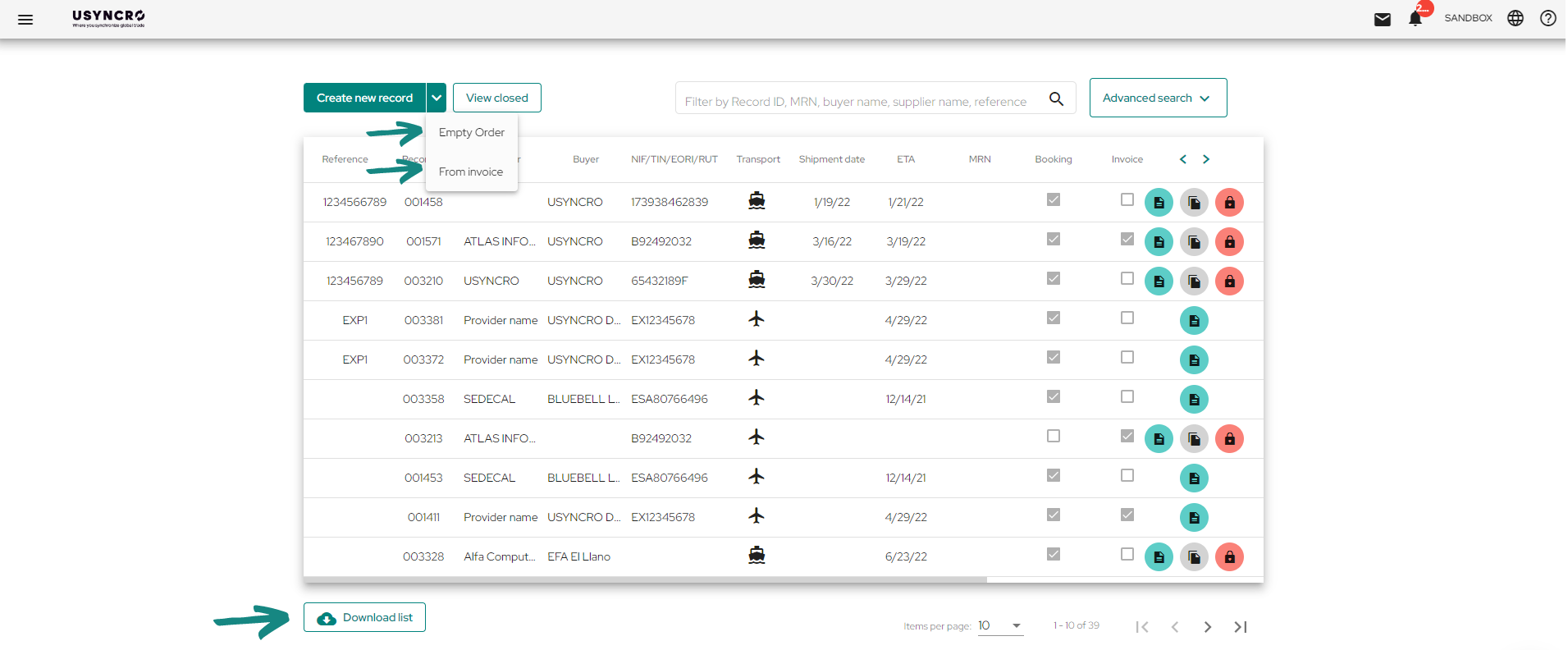
For the next update go to the Records Dashboard, where you will be able to view a list of the saved shipments in progress, both your own and those you have been invited too. By clicking on the «Download list» button (located at the bottom) you can download a document with a list of all filtered records in CSV format. If you have not filtered the records, a list including all the shipments created to date will be downloaded.
Adding actors’ data as «Favorites«. #
Once you have selected the way you want to create your record, the following window will open, which shows in the left column all the different sections that each actor (according to their role) can complete, also according to the visibility permissions established.
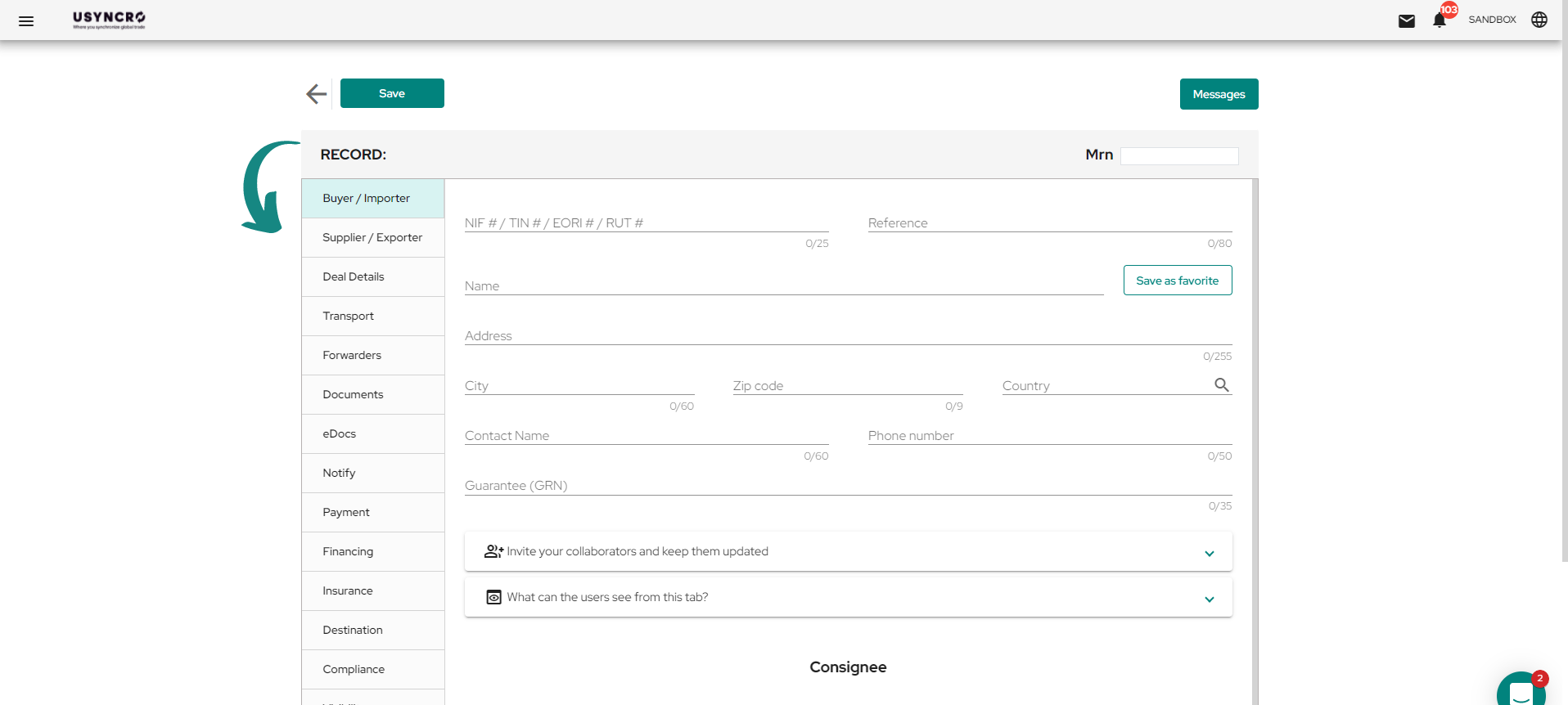
After completing all the data from one of the participants of the record you can save this information for future operations by clicking on the «Save as favorite» button.
PS: The data that will be saved when clicking this button includes both the tab fields that were filled in and the email address of the actor who was invited with that role.
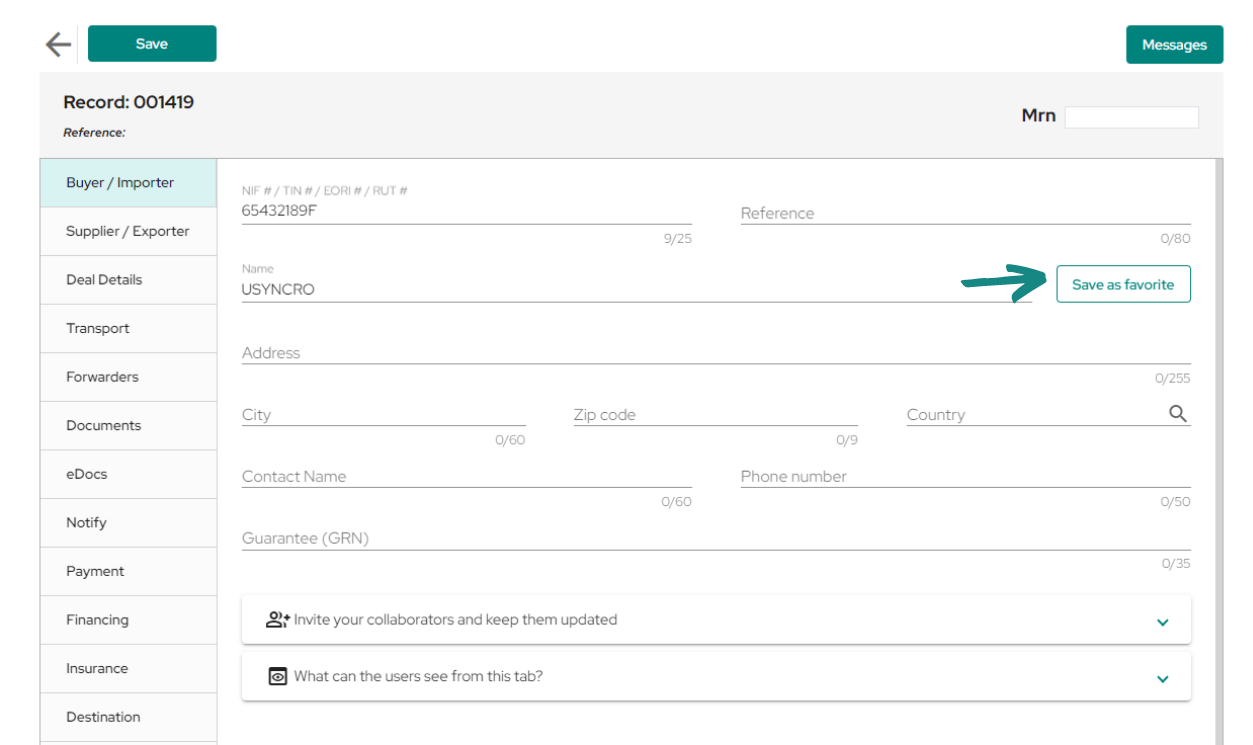
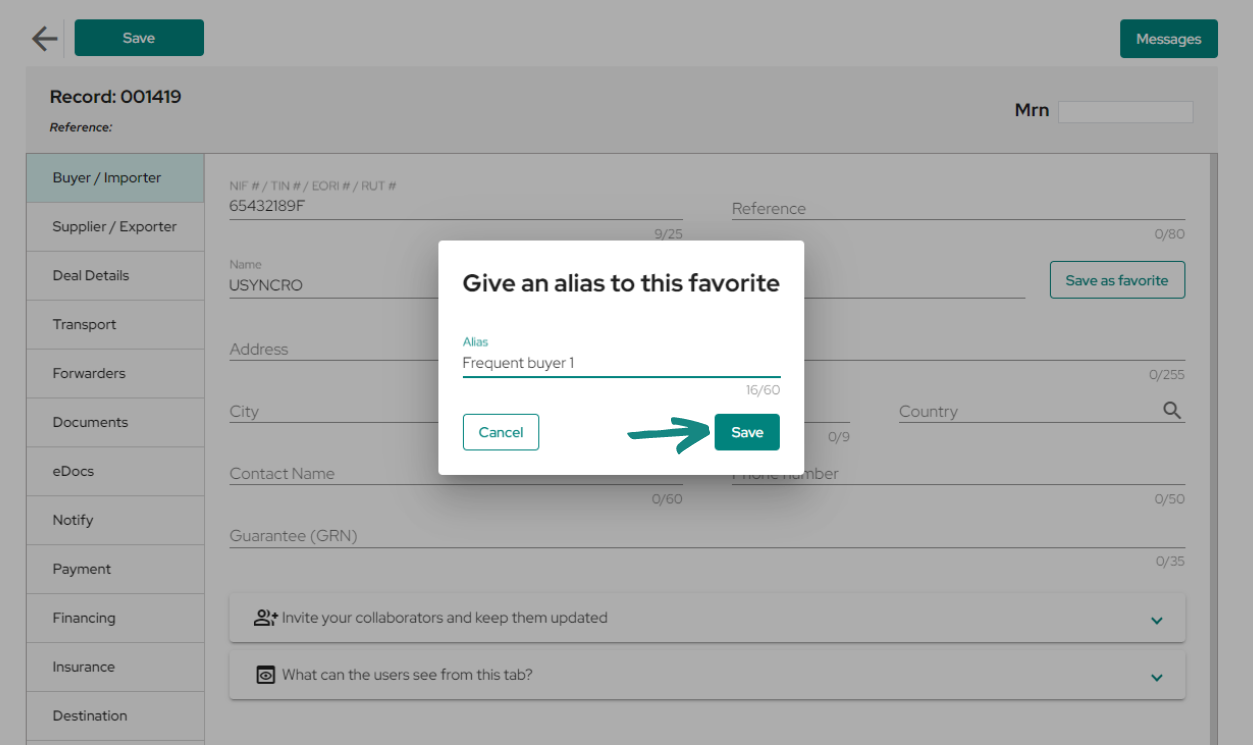
By Clicking on «Save as favorite» the following window will open where you can write the name that will be used as a reference to identify this group of data. Be sure to choose an alias that is representative of the data and can be identified for the future.
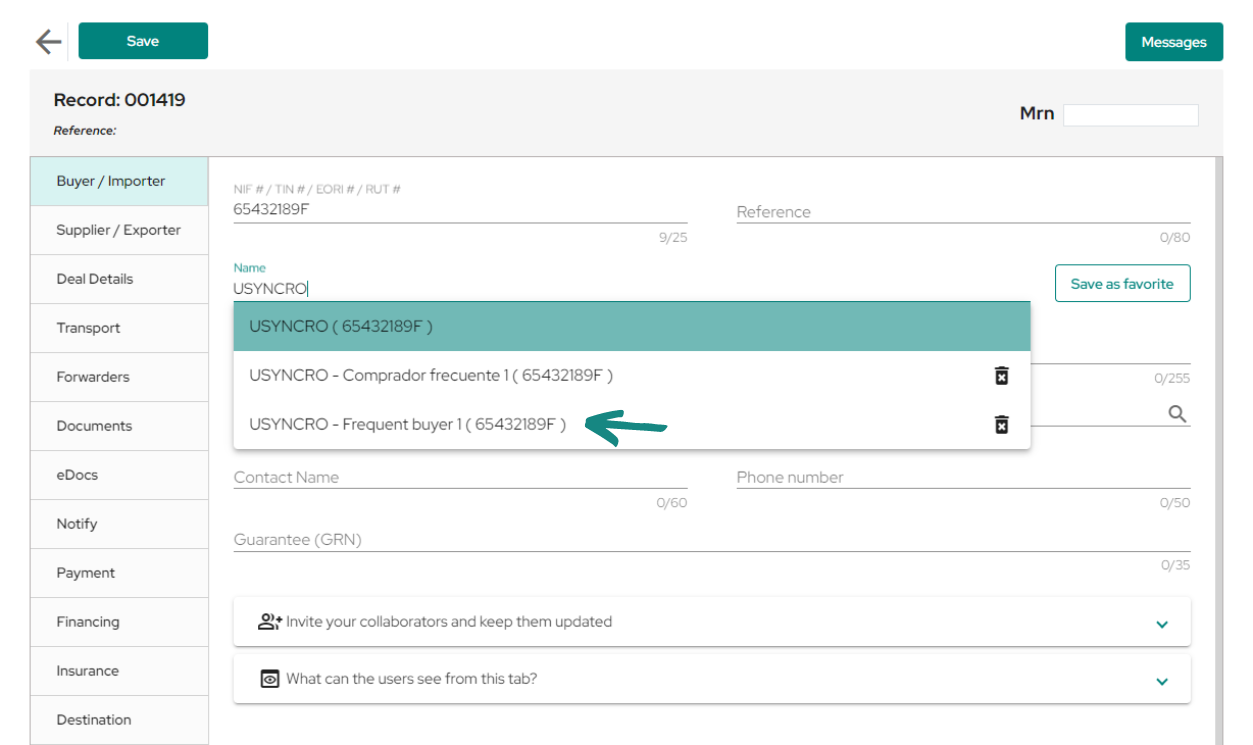
Once the alias is saved, the group of data will be registered in the favorites list under that name and for future records when starting to enter the buyer’s or other actors data, the platform will recommend you to automatically fill in the information using the group of saved data as shown in the image.
Invitations to participants. #
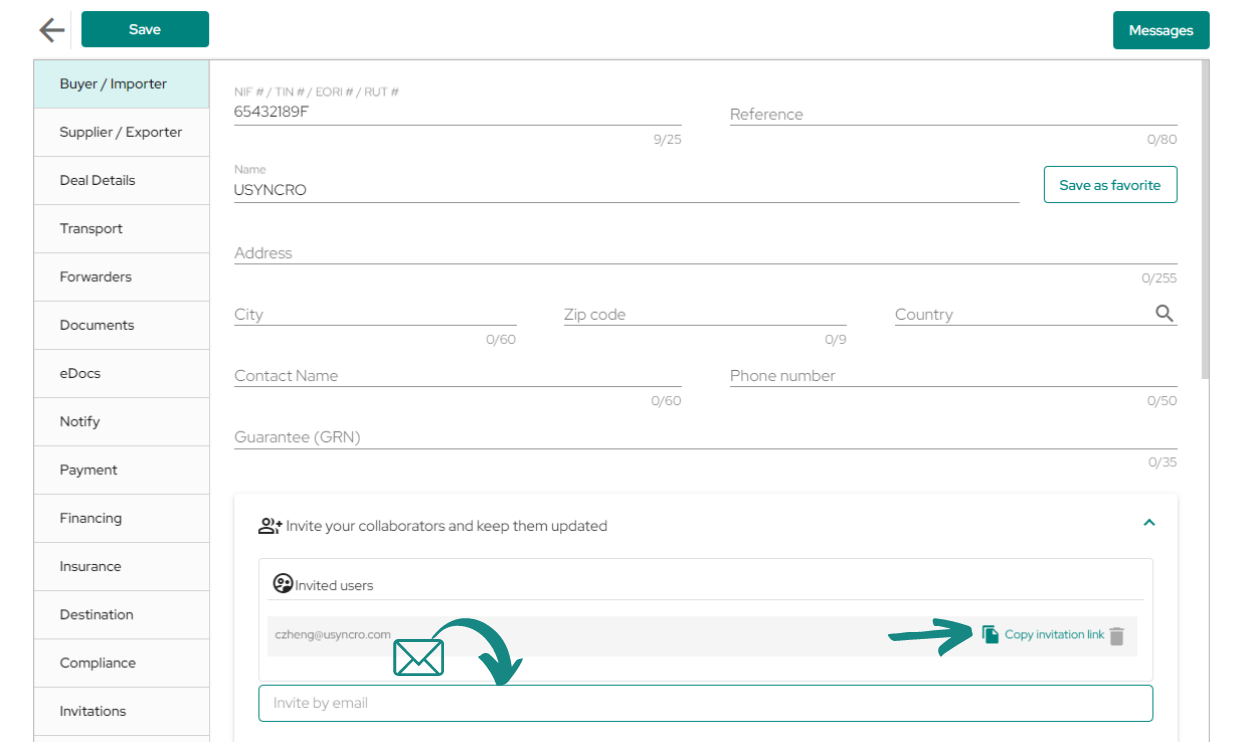
Finally for the invitations to the participants the only change made will be that when you save the record and the invitation is sent you will see in the dropdown, next to the email of the invited participant, a link which can be copied by clicking on it and it will work in the same way as an invitation email.
In case your collaborator does not receive the invitation email or cannot access the record for any reason, you can copy the link and send it manually so that the invitee can access the shipment thought that link.