
Article content:
Views of your shipments #
When you access your account on USYNCRO, the first screen you’ll encounter displays a table showing all the shipments you’ve created to date, along with any preliminary information already uploaded to the record.
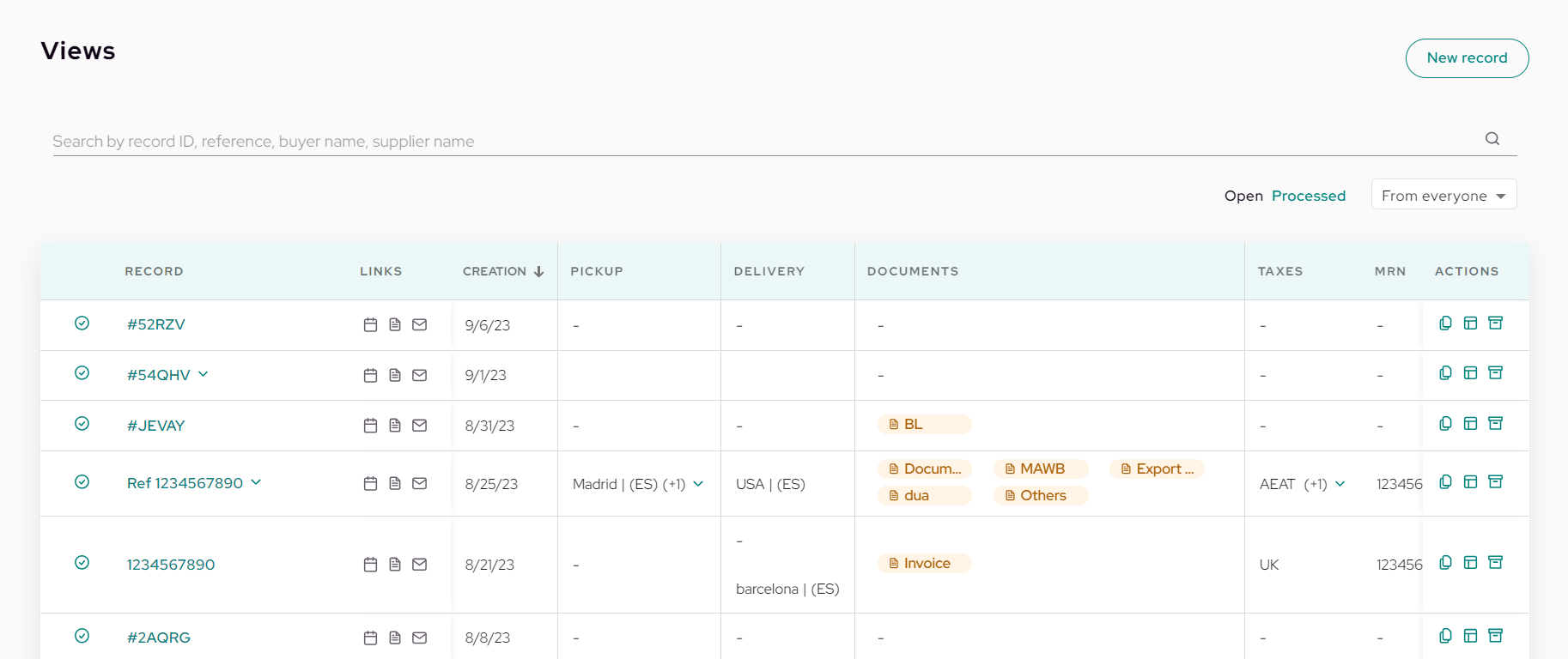
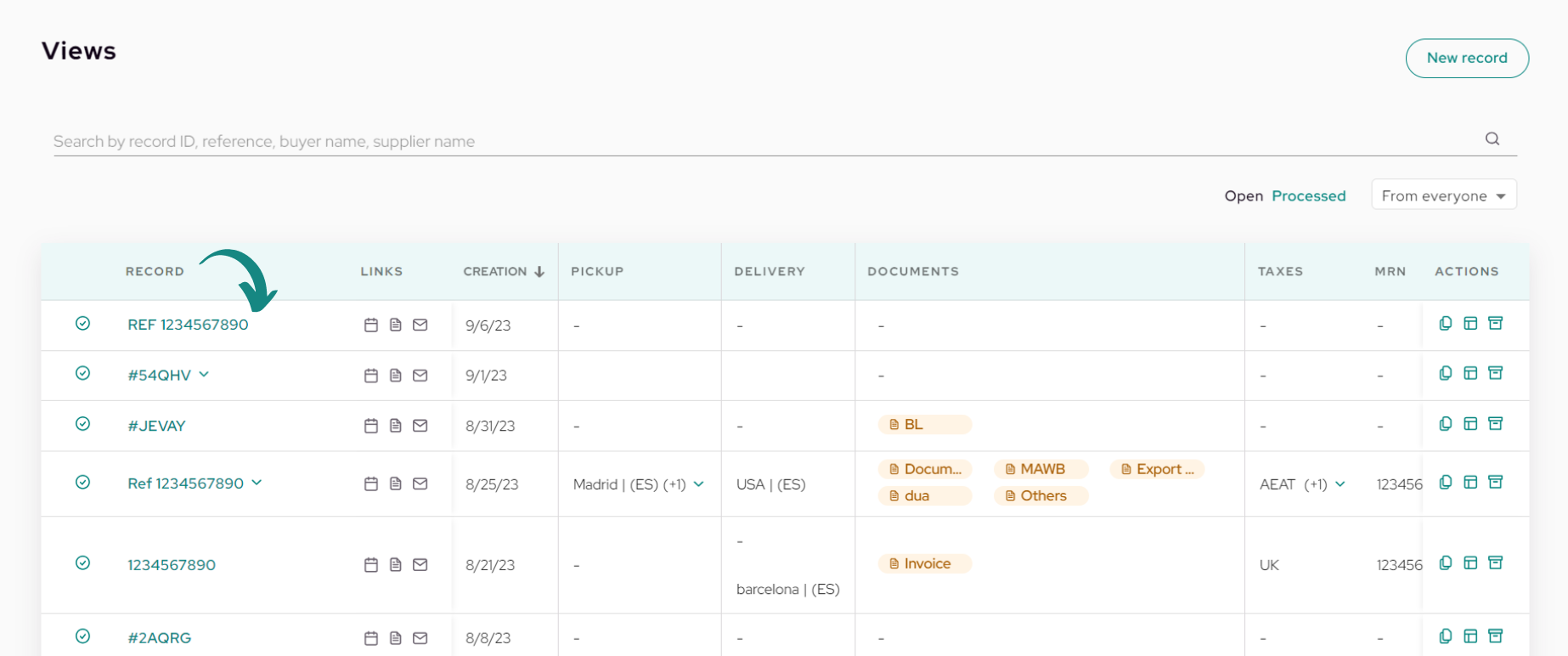
The first field labeled «Record» corresponds to the shipment reference assigned by the creator. By clicking on it, you can access the respective shipment.
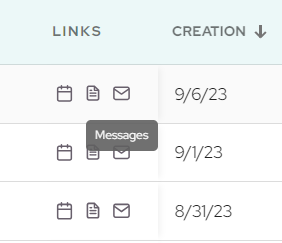
The next field, «Links,» corresponds to quick access buttons for the record. Clicking on any of the icons will take you to the respective section within the shipment. The sections with quick access include:
-
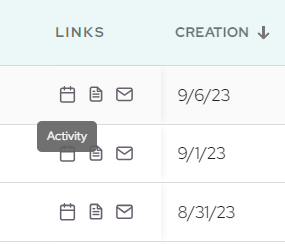
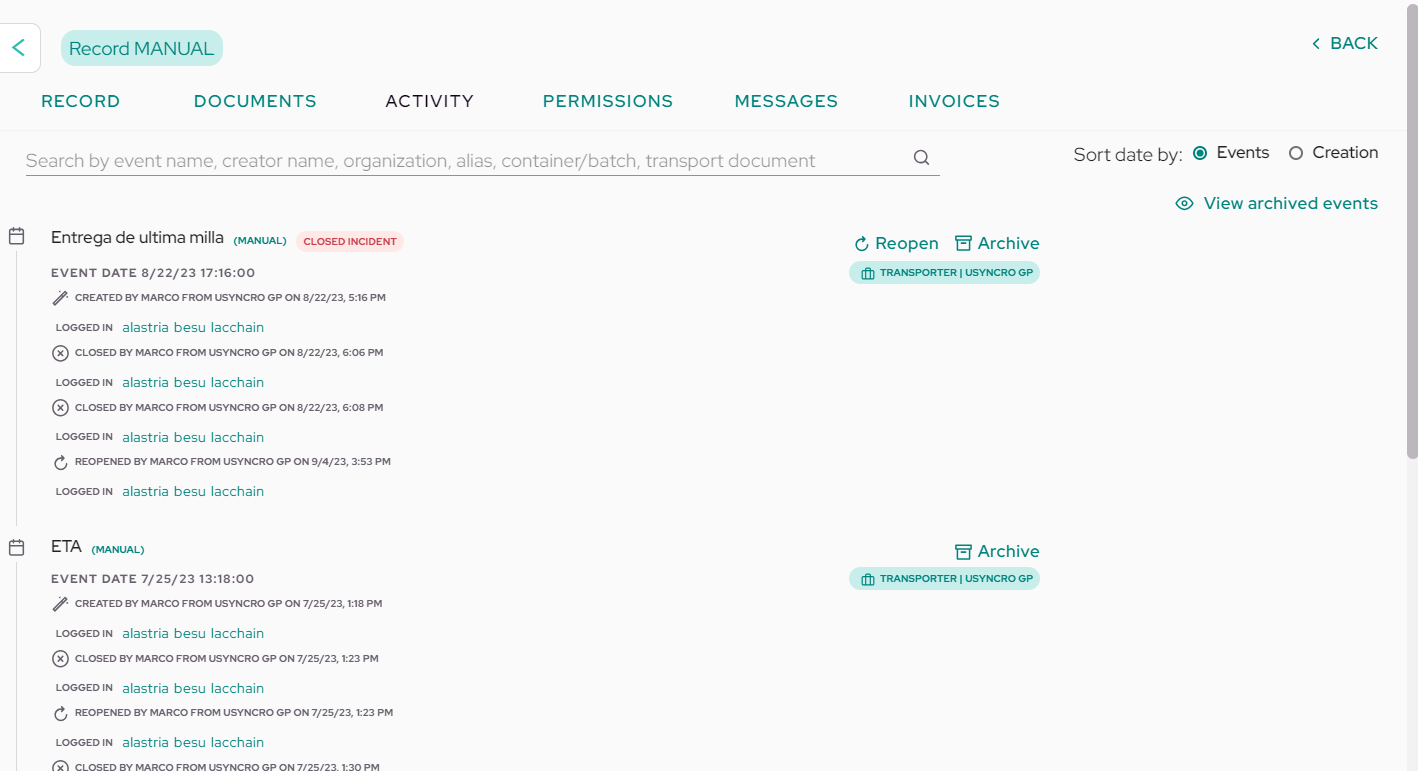
Activity (calendar): Clicking on this button will take you to the list of events created in the shipment up to the current date.
-
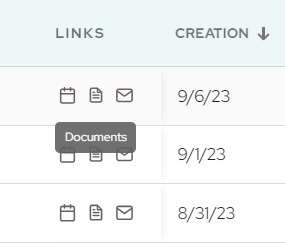
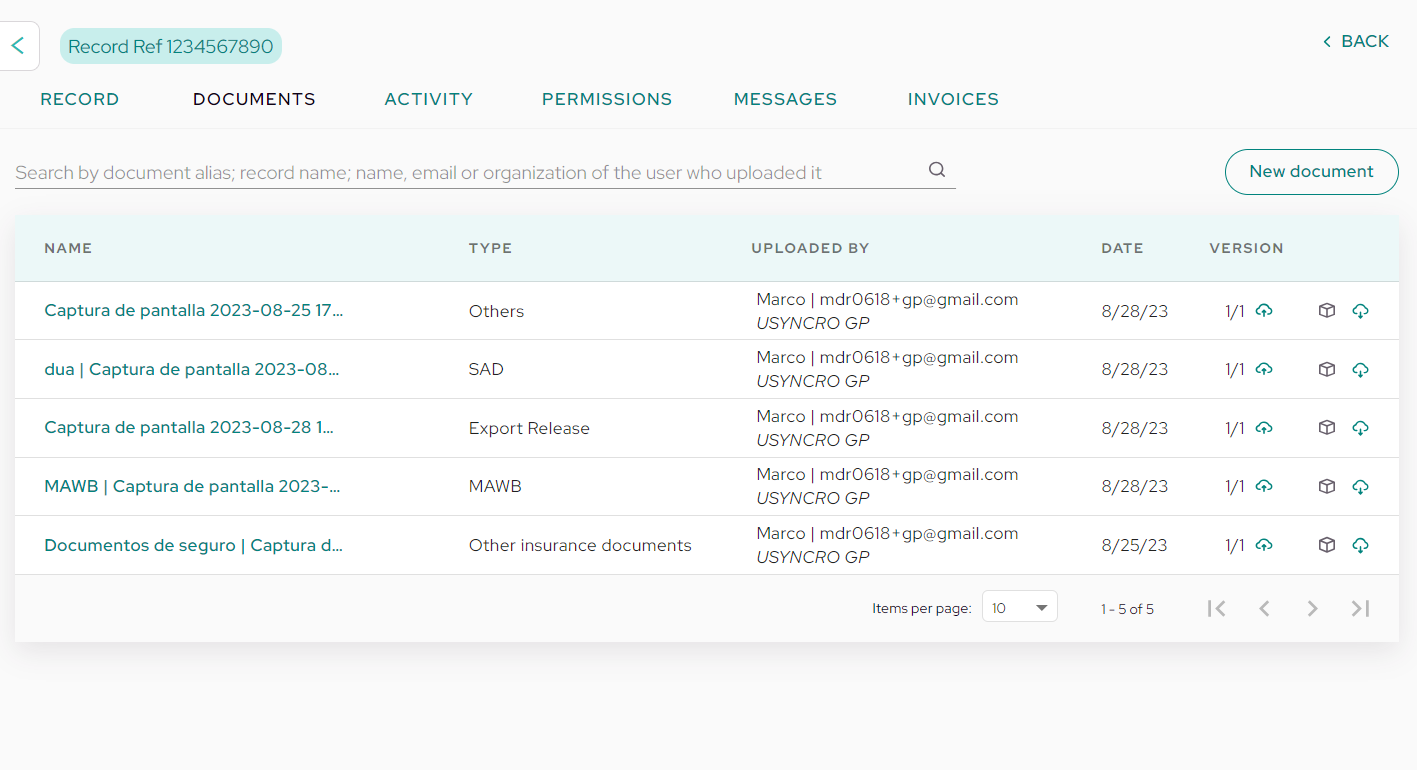
Documents (sheet): Using this link will take you to the documents section, where you can view uploaded documents or upload new ones.
-
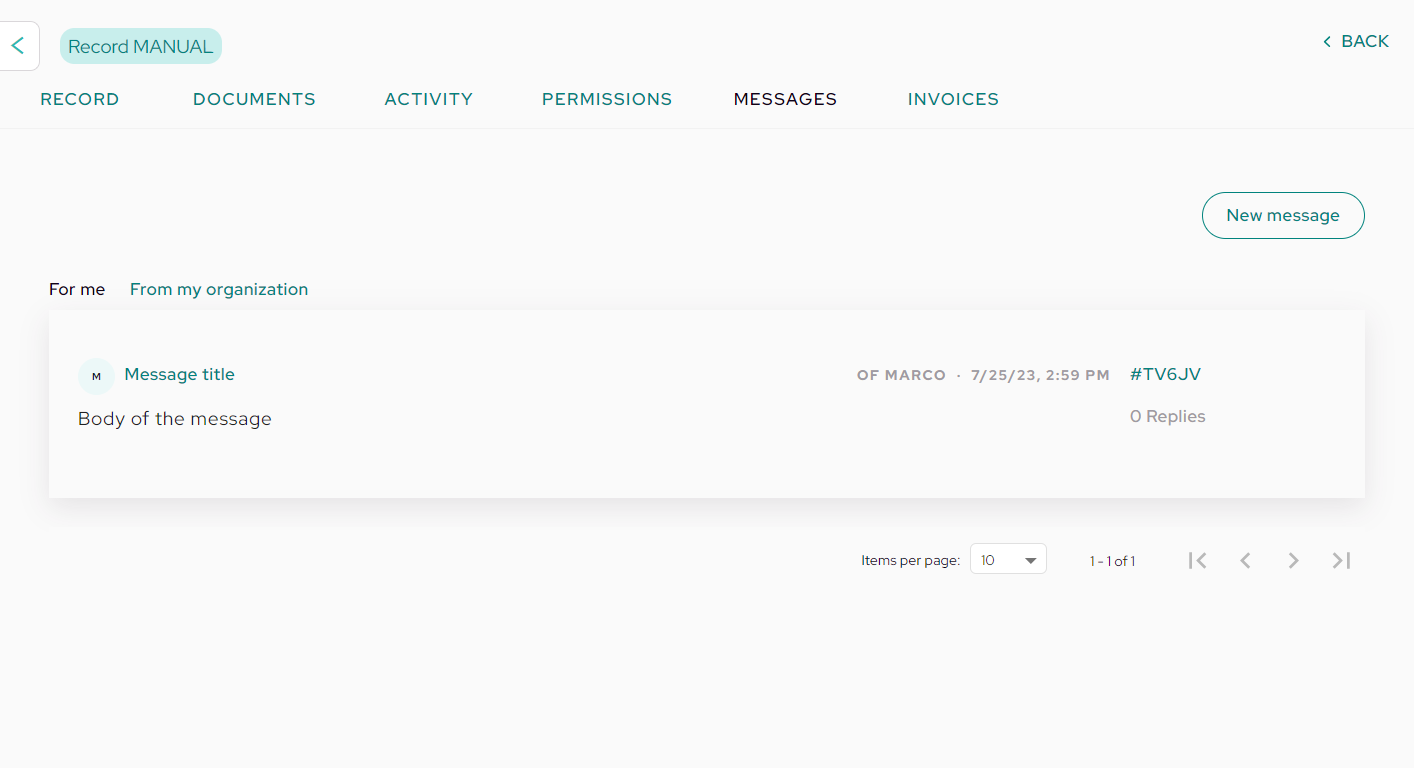
Messages (envelope): Finally, this icon will redirect you to the internal messaging system for this shipment.
 |
 |
 |
 |
 |
 |
The «Creation» field indicates the date when the record was created. Also, by clicking on the column title, you can organize the list of records based on their creation date, from oldest to newest and vice versa.
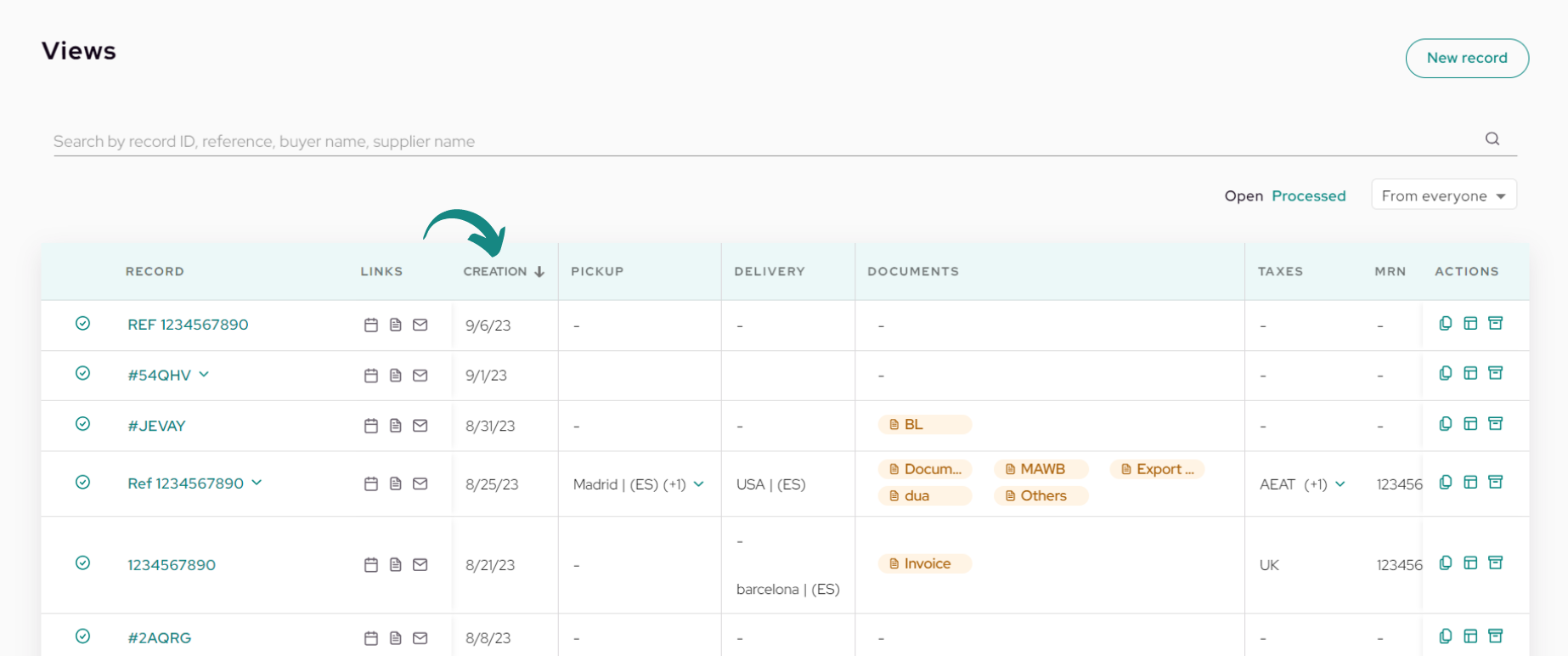
The next 2 fields labeled «Pickup» and «Delivery» will correspond to the geographic points (yellow boxes) that have been established in the shipment. For the names of these locations to appear in the table, it will only be necessary that the pickup or delivery box has its name included or that the field «Place of reference» is also entered in the box.
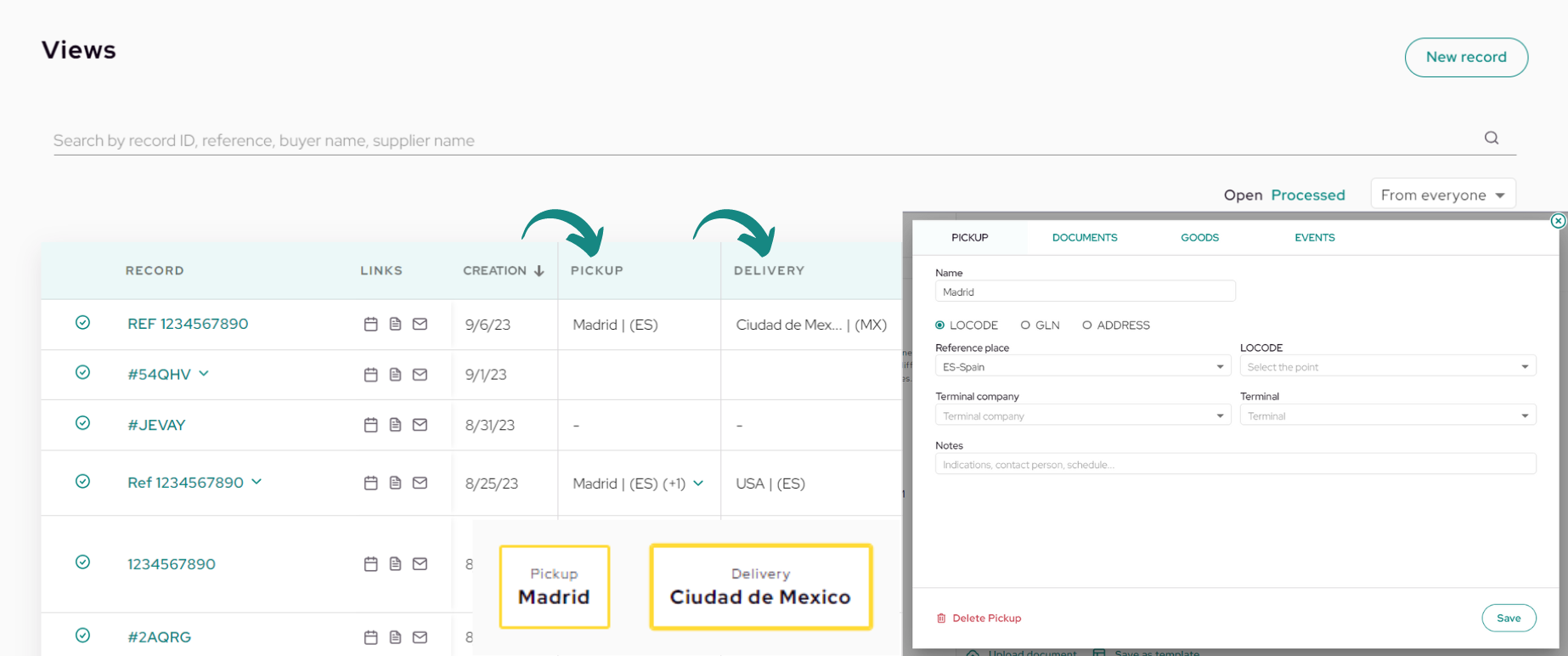
In the case of multiple pickups and deliveries, all of them will be displayed in the table. To view them in their entirety, click the arrow next to the field to expand the row and see the remaining pickups or deliveries.
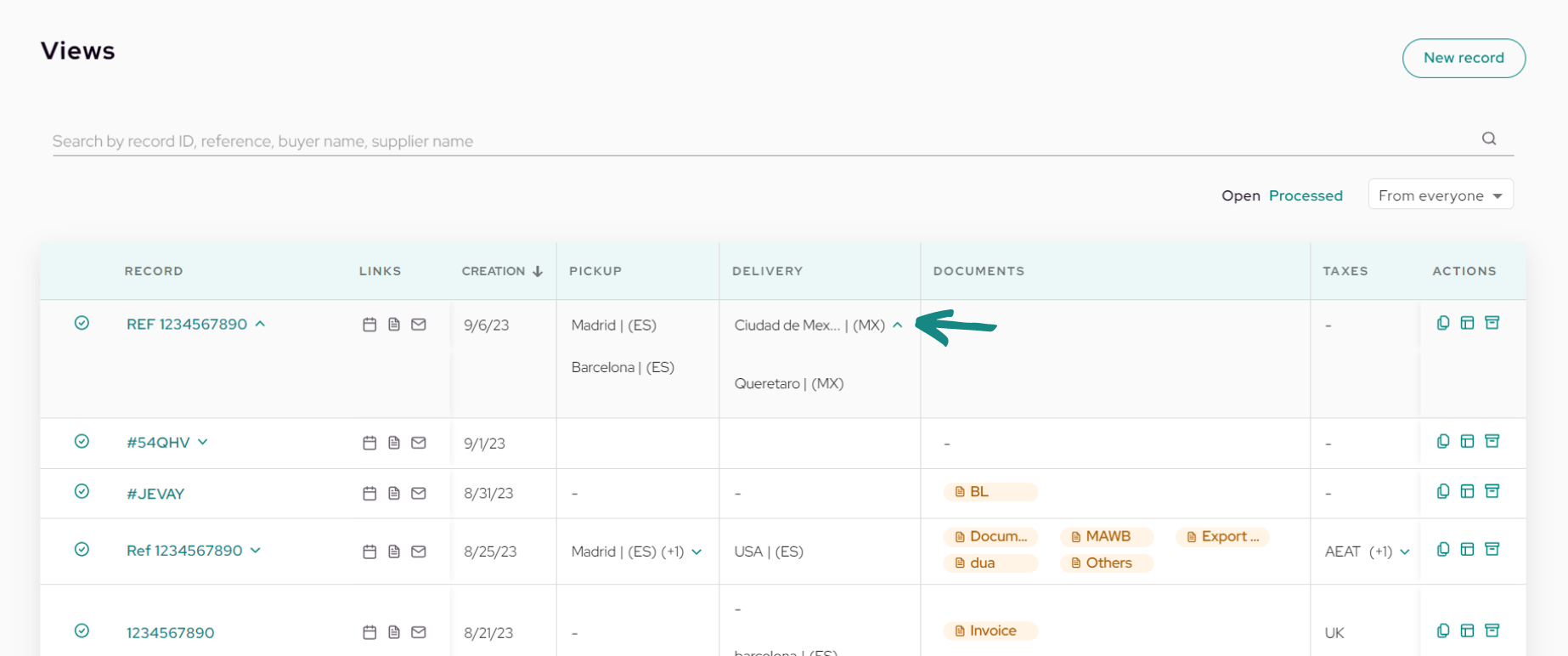
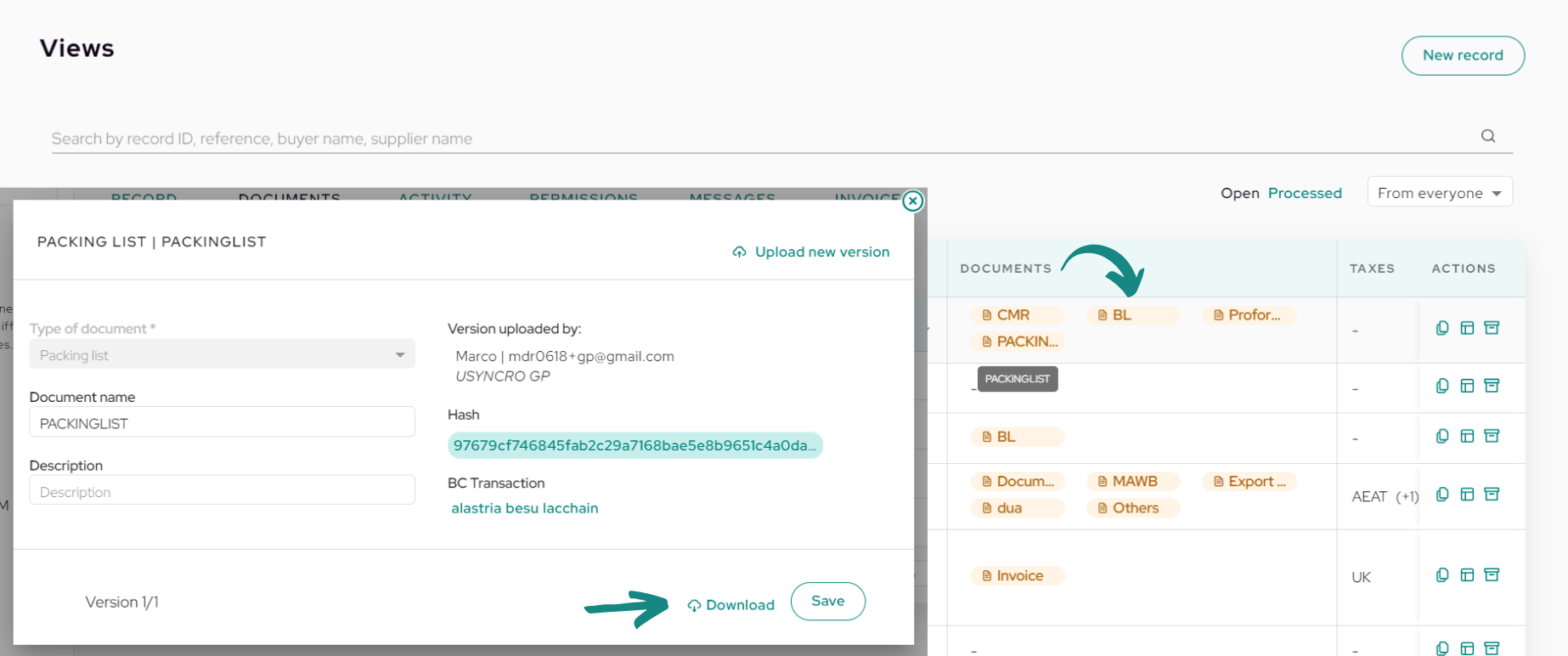
In the «Documents» field, you will find a series of labels with the names of the documents uploaded to date. Here, you can check which documents have been uploaded for each record you are managing.
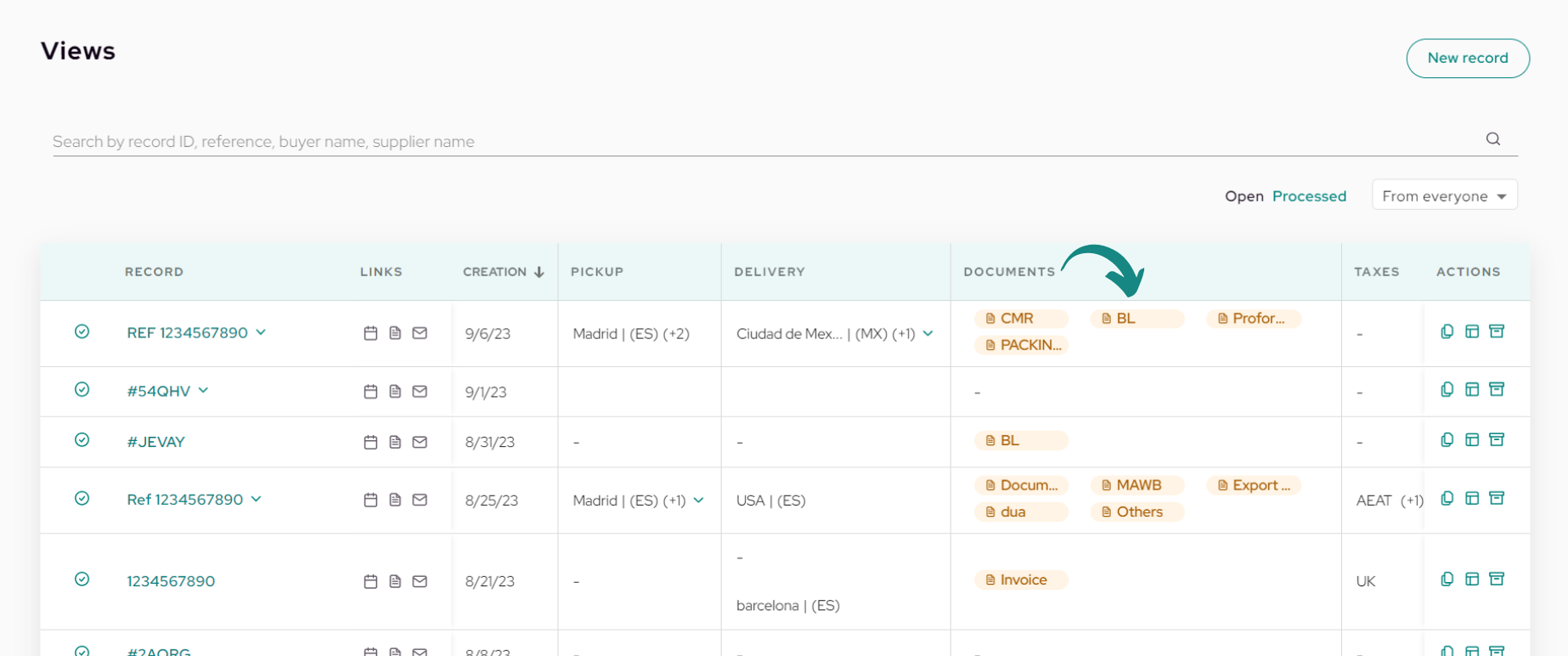
If you click on any of the labels, you will be directed straight to the relevant document, taking you to the window where you can download/view the document or upload a new version of it.
The last visible field will be the «Customs» field, in which you will see the names of the customs added to this shipment. Slide to the right in the table to also view the «Registration Number» and «Status» of the respective customs.
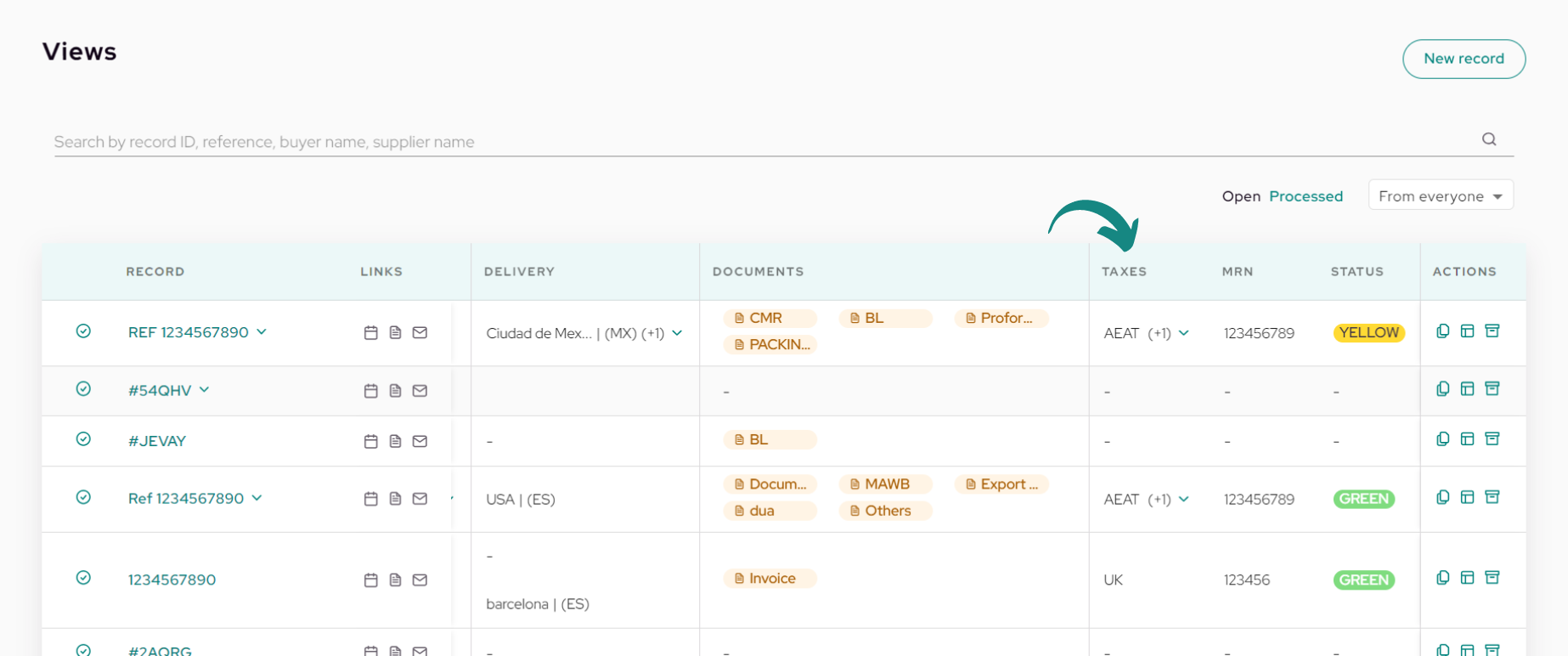
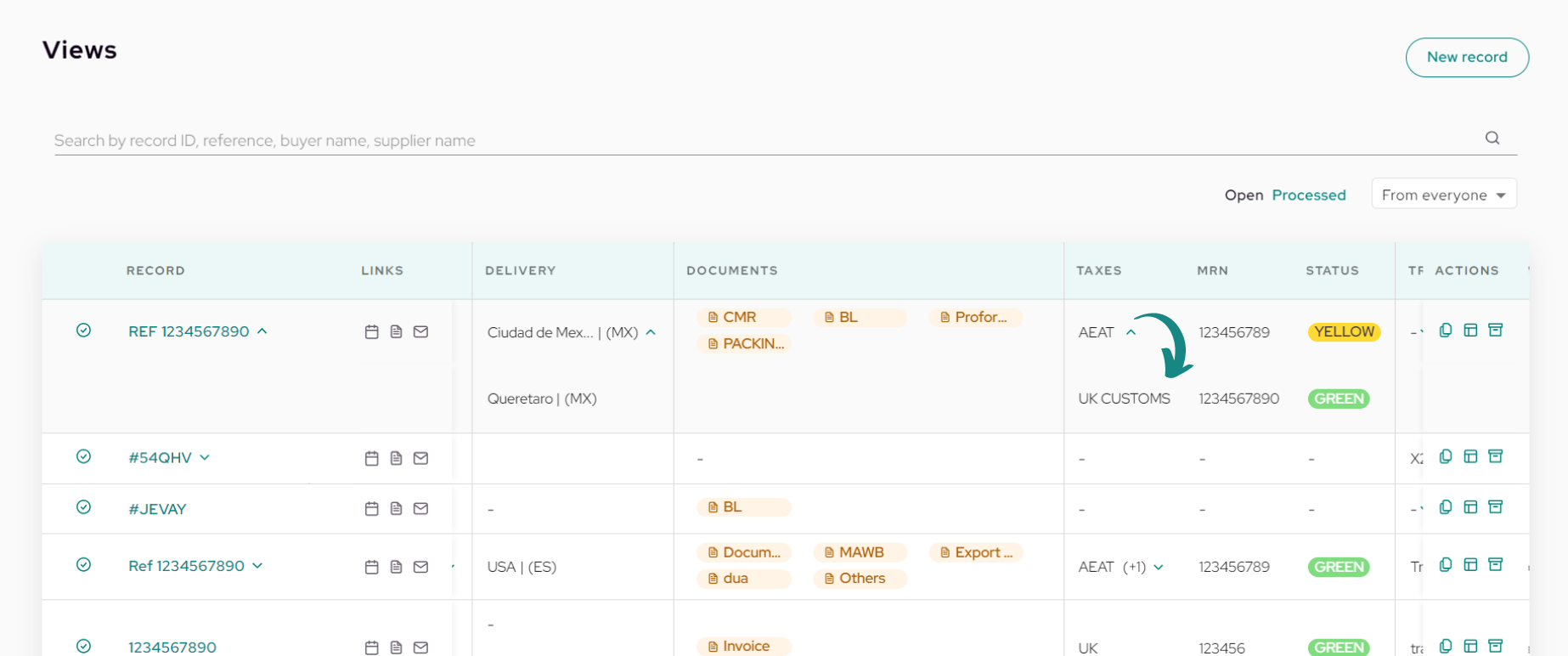
To the right of the customs, the MRN entered for clearance will be displayed, along with the assigned status of the shipment, whether it’s green, yellow, or red. In case of multiple customs in the shipment, click the arrow next to the name to open the dropdown.
This will display the rest of the customs included in the shipment, with their names and their respective «Registration Numbers» and «Status» to the right. The customs data will always correspond to the information found to their right in the table.
Slide to the right again to view the remaining hidden data in the table.As shown in the following image, the table will display information related to the shipment’s transport. The transport fields shown are:
-
Type: Icon indicating the mode of transport.
-
Transport Name.
-
Transport ID.
-
ETD, ATD, ETA, ATA: Real and estimated arrival and departure dates corresponding to the transport on the left.
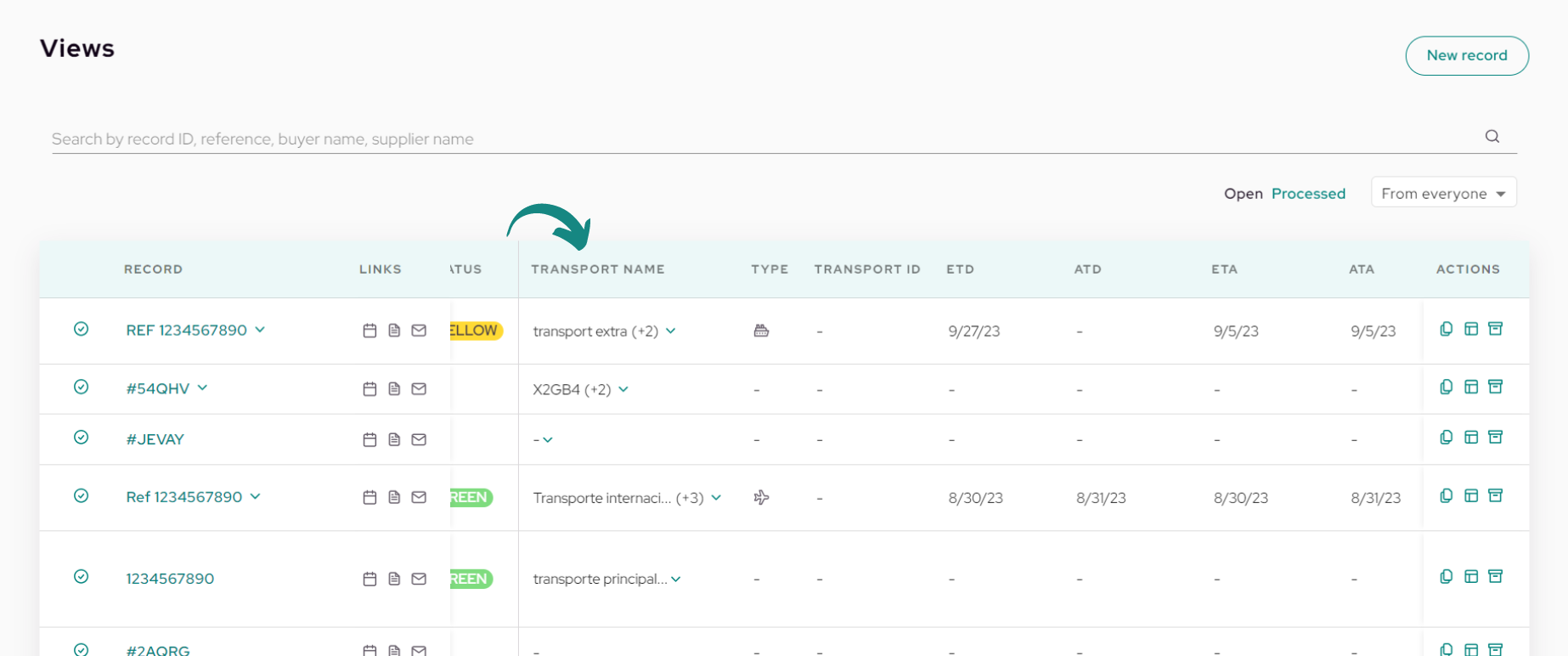
Similarly to customs, if there is more than one transport in the shipment, you can click the arrow to the right of the «Transport Name» to expand the dropdown and view all transports with their corresponding dates.
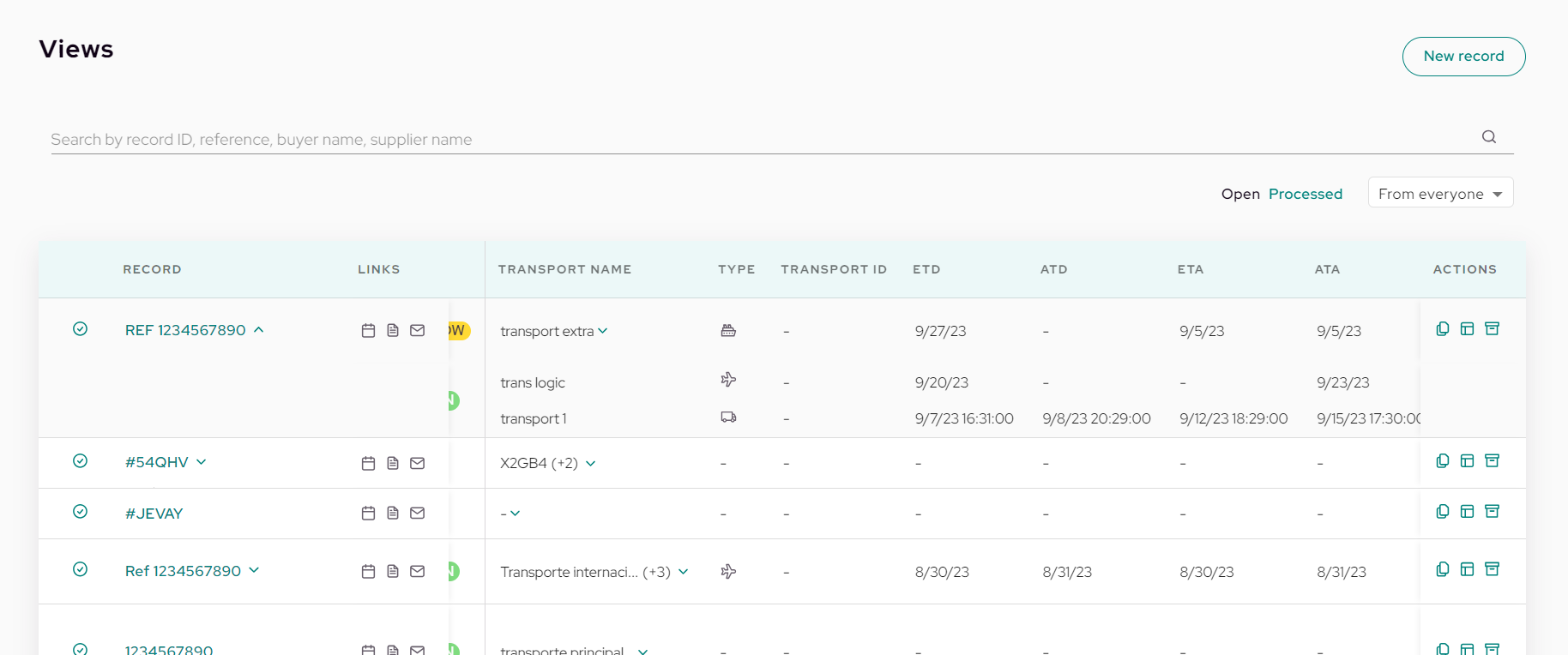
Finally, at the end of the table, you will find three additional buttons in the «Actions» field, which serve the following purposes:
-
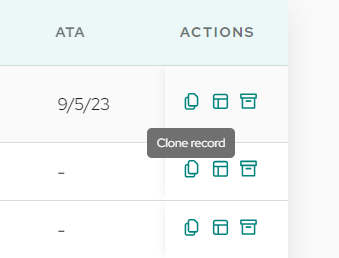
Clone Record: Clicking on this button will create an identical record with the same data and permissions but without the uploaded documents. When cloning, invitations to participants who have been saved at that moment will be sent automatically at the time of creation.
-
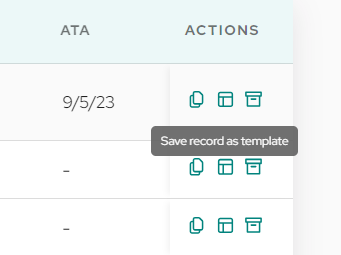
Save Record as Template: Save the current shipment as a personalized template.
-
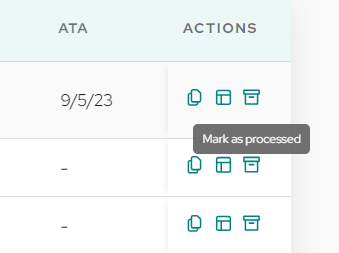
Mark as Processed: Close the finished shipment so that it no longer appears in the table and is saved in the «Processed» folder.
 |
 |
 |


