Article content:
Transport Data #
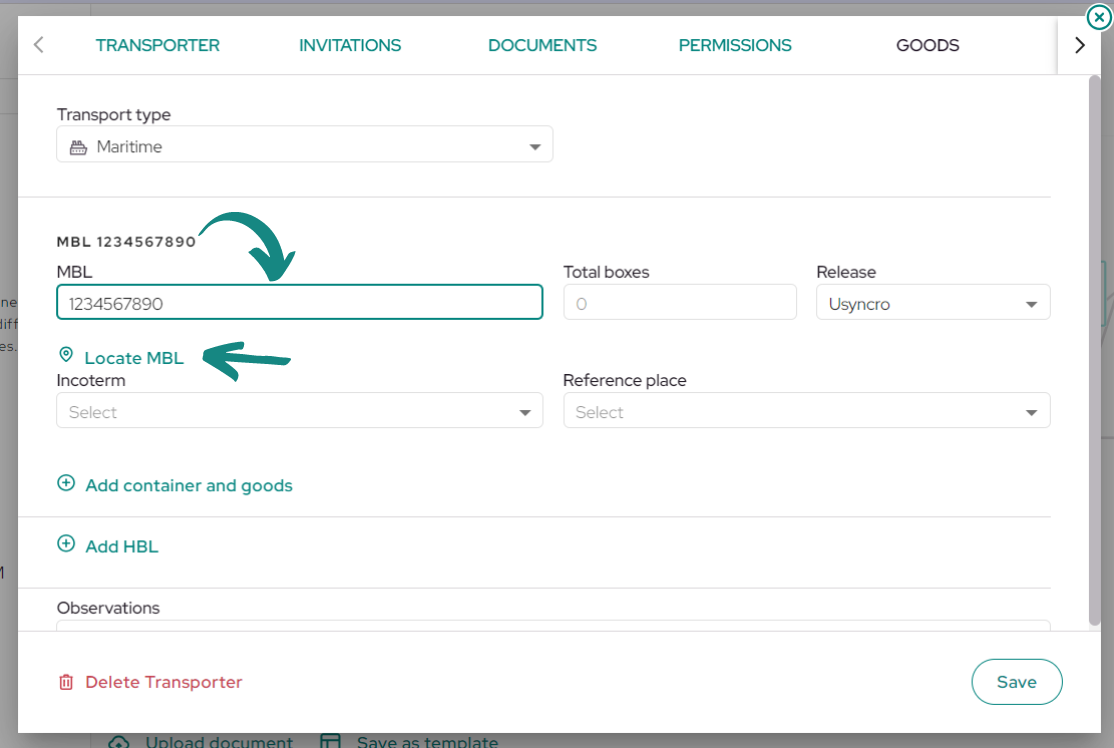
To manually enter transportation information into the shipment, locate and click on the «Transport» box within your flow.
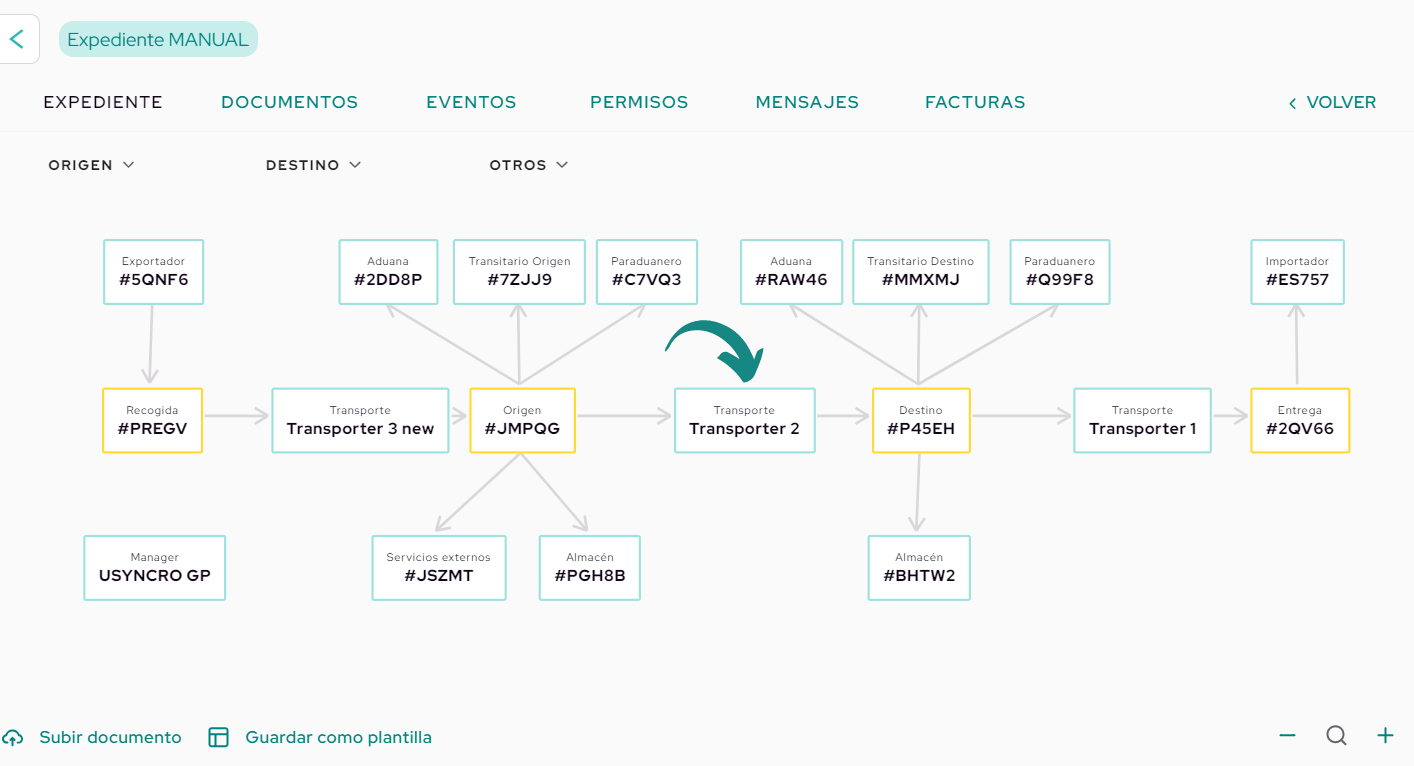
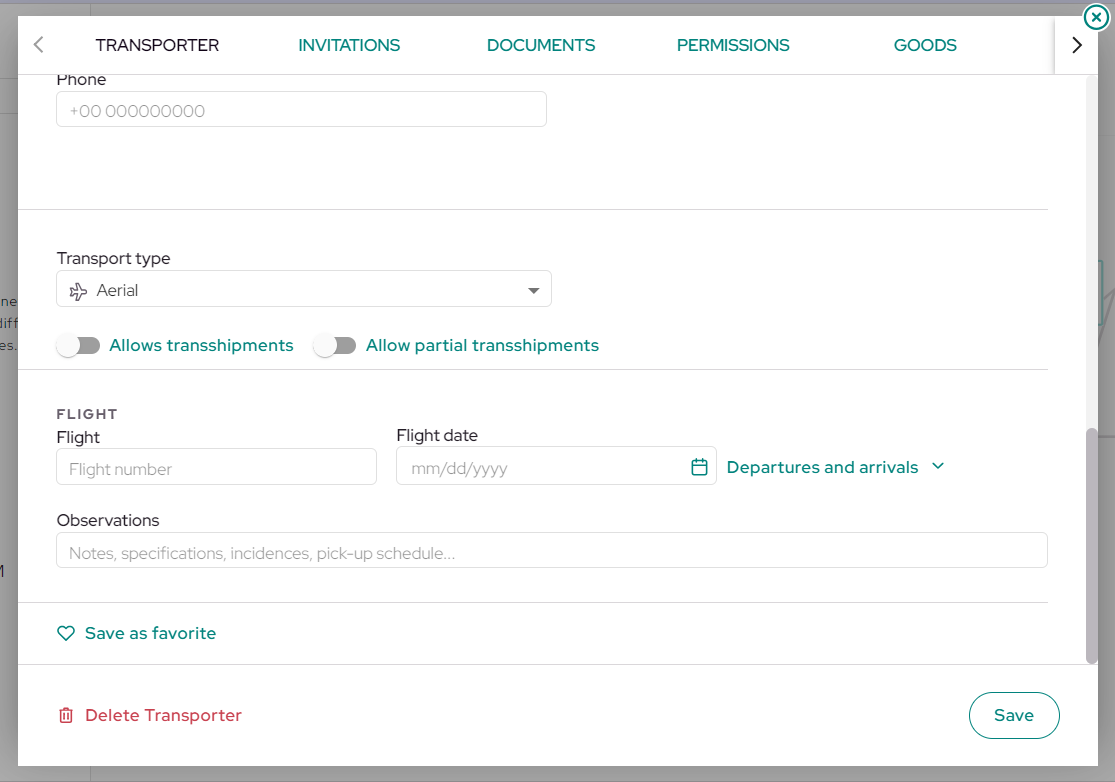
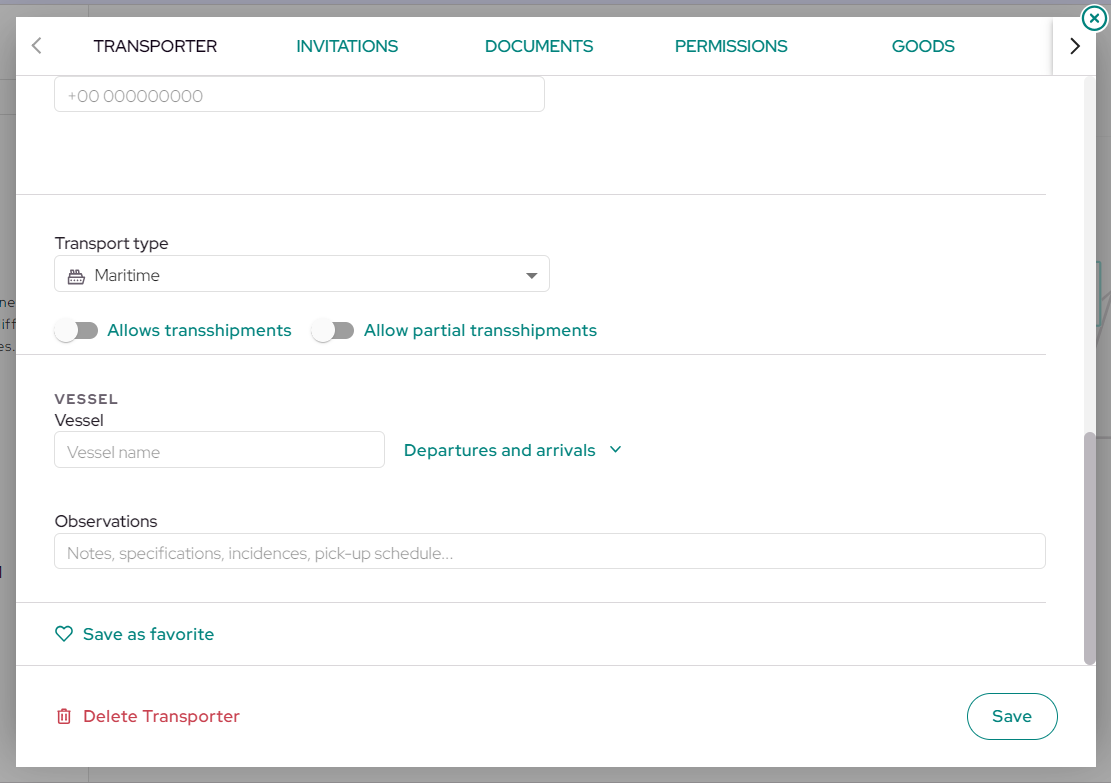
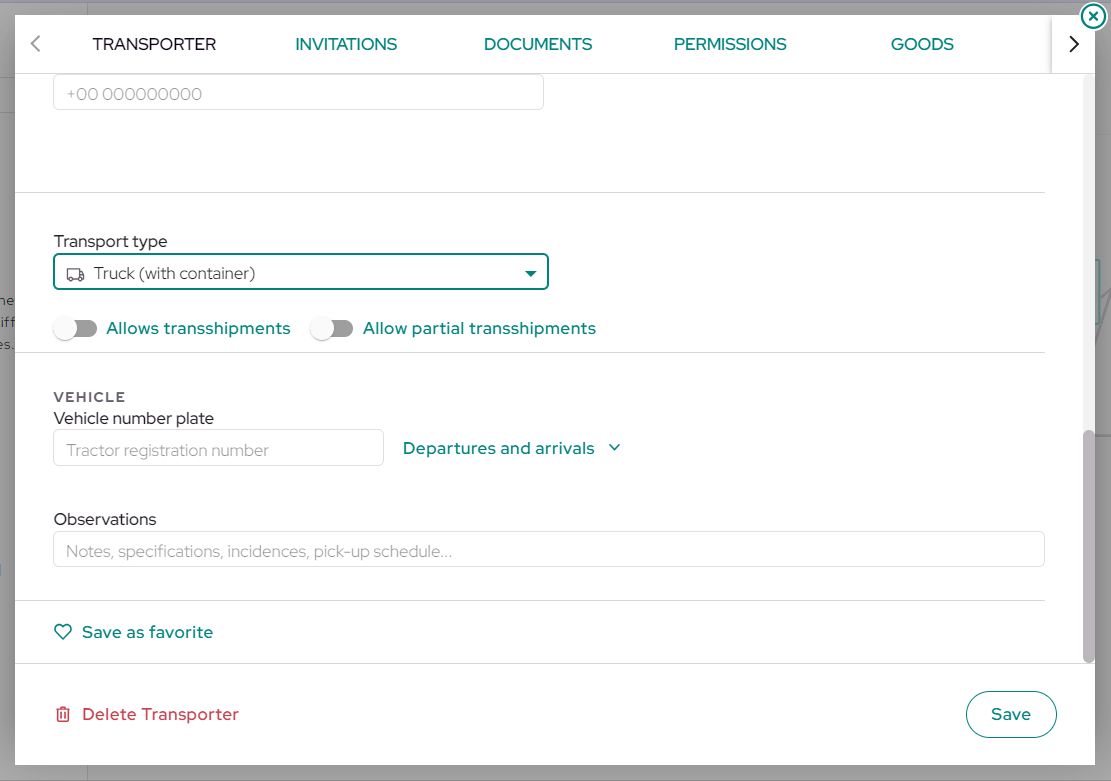
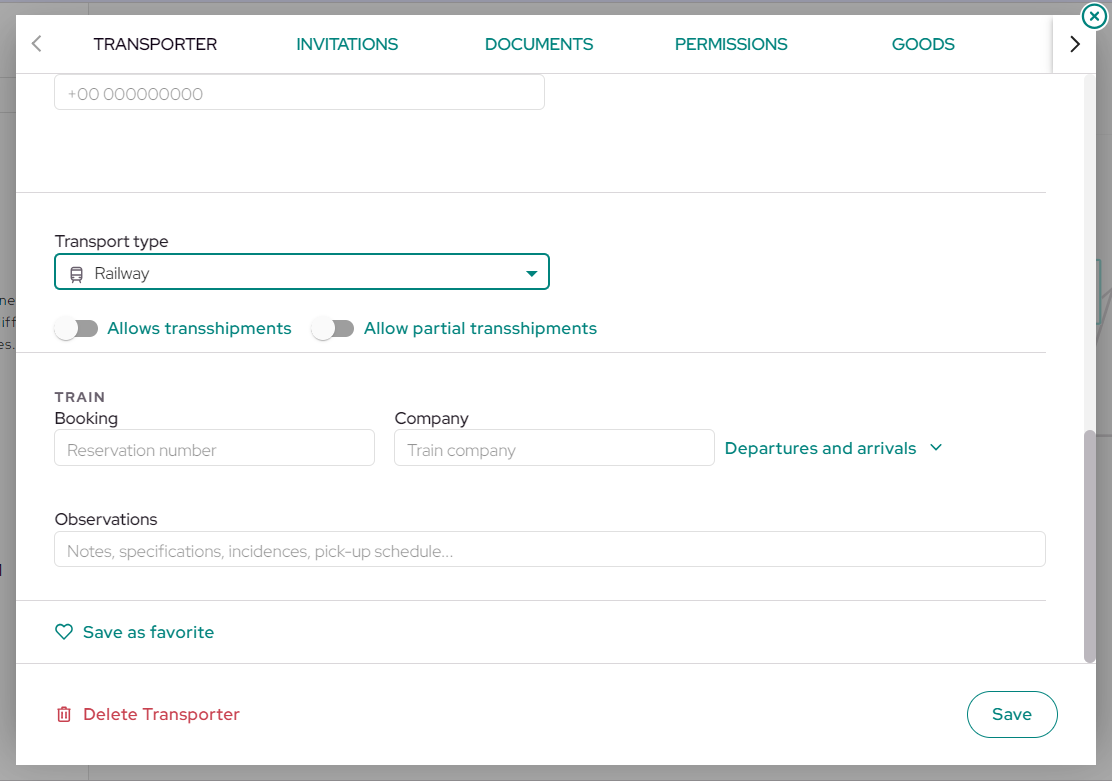
Once inside, scroll to the bottom where you will see the field labeled «Transport Type» Click on it and select the correct transport type. Remember that each transport box can have a different mode depending on its stage.
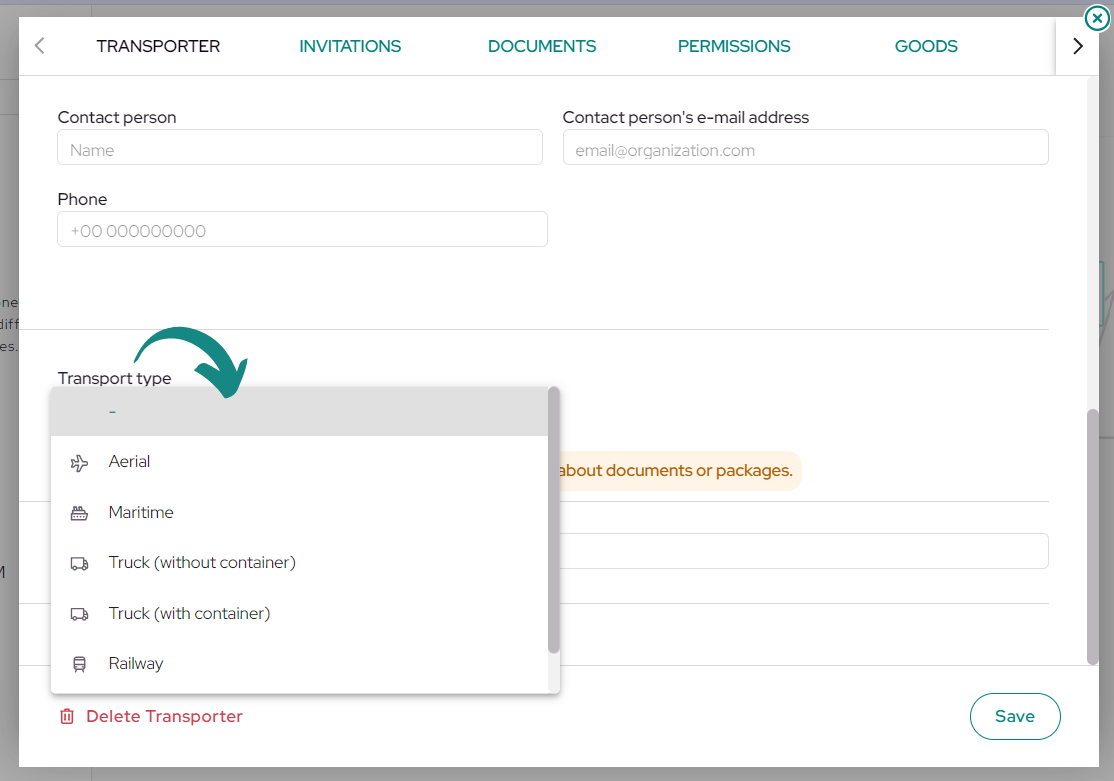
After selecting the correct transport type, new fields will be enabled at the bottom.
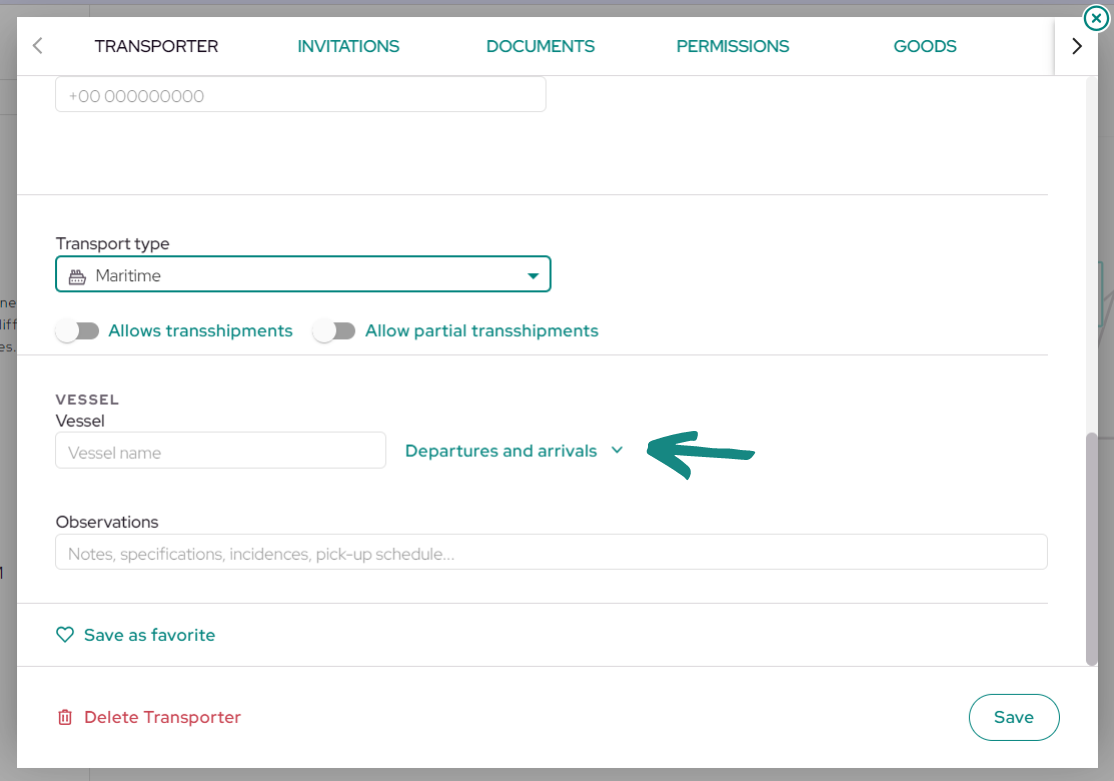
Click on «Departures and Arrivals» to enter the dates and times of the actual and estimated departures and arrivals in the enabled fields.
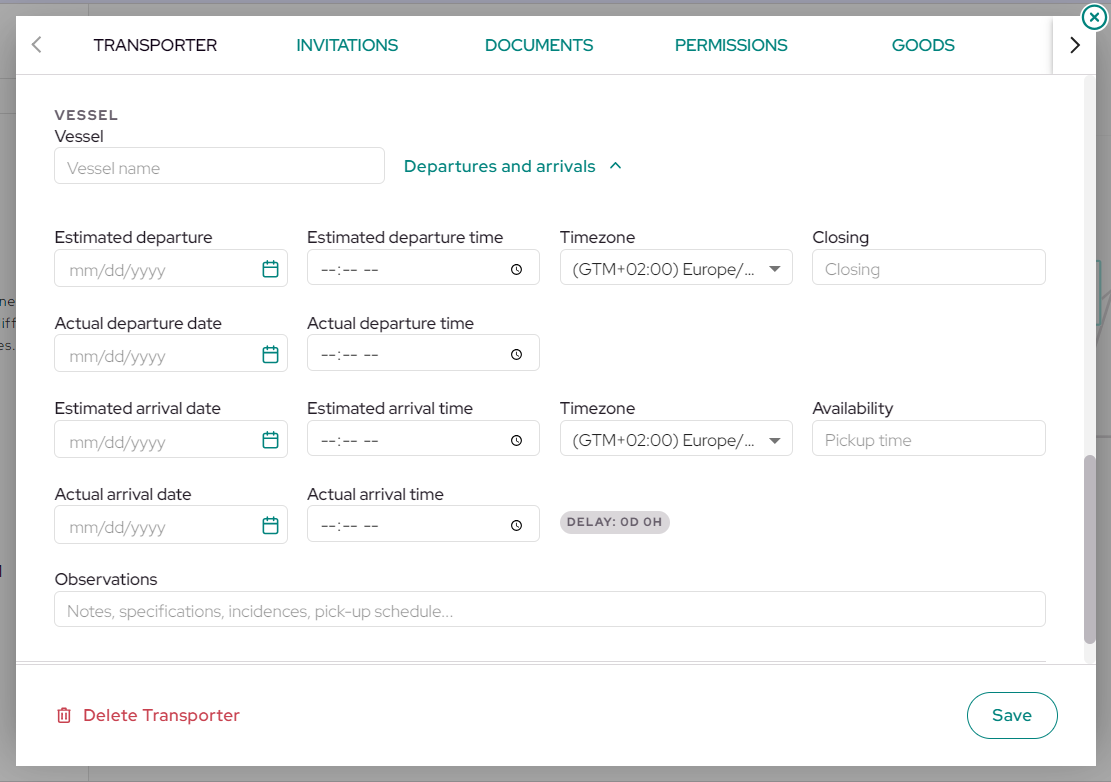
Depending on the selected transport type, you will have a different field to the left of «View Departure and Arrival» Enter the correct information for each mode:
-
Air: Date and flight number
-
Sea: Vessel name
-
Road: Vehicle number plate
-
Rail: Booking and company
 |
 |
 |
 |
Click on the «Goods» tab at the top right to complete the remaining transportation data.
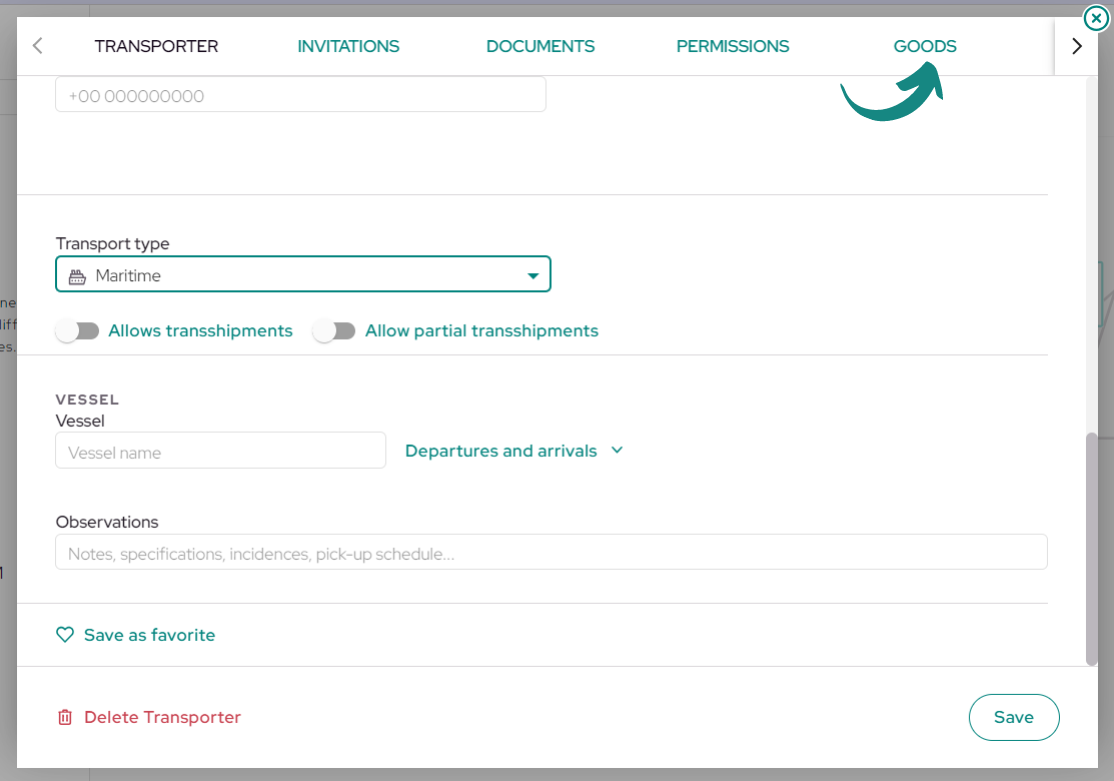
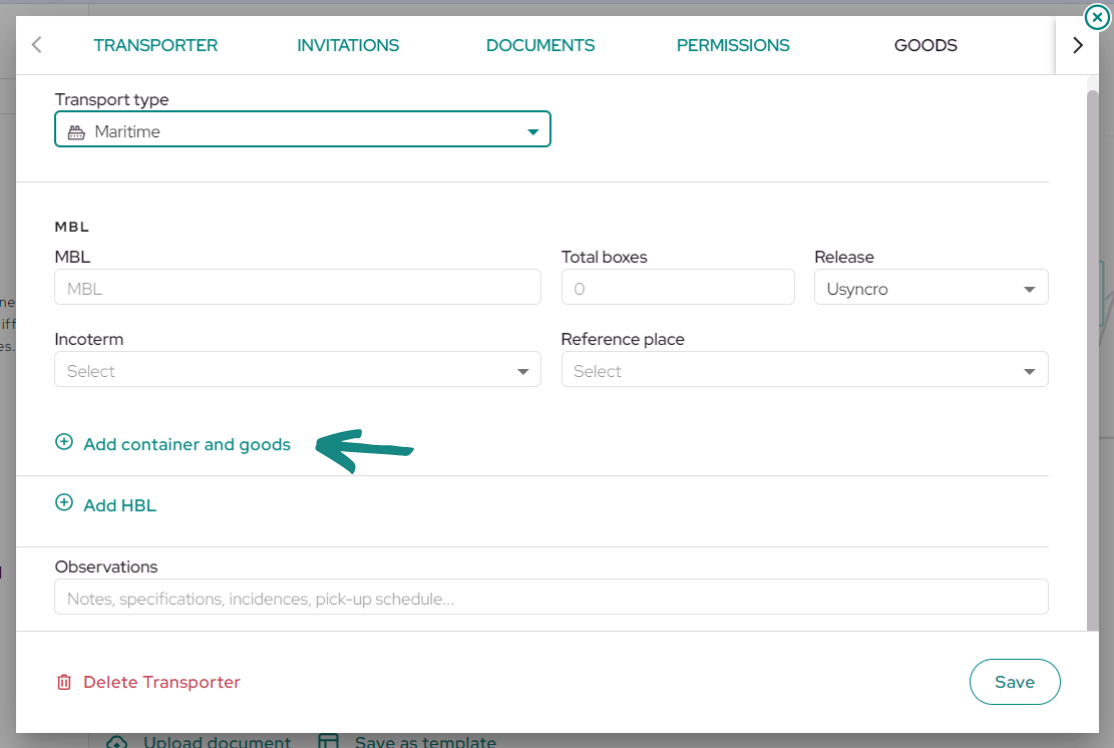
Here, depending on the selected mode, you will see different fields to complete. In the case of selecting maritime transport, you will see the fields shown in the image, along with the buttons «Add Container and Goods» and «Add HBL«.
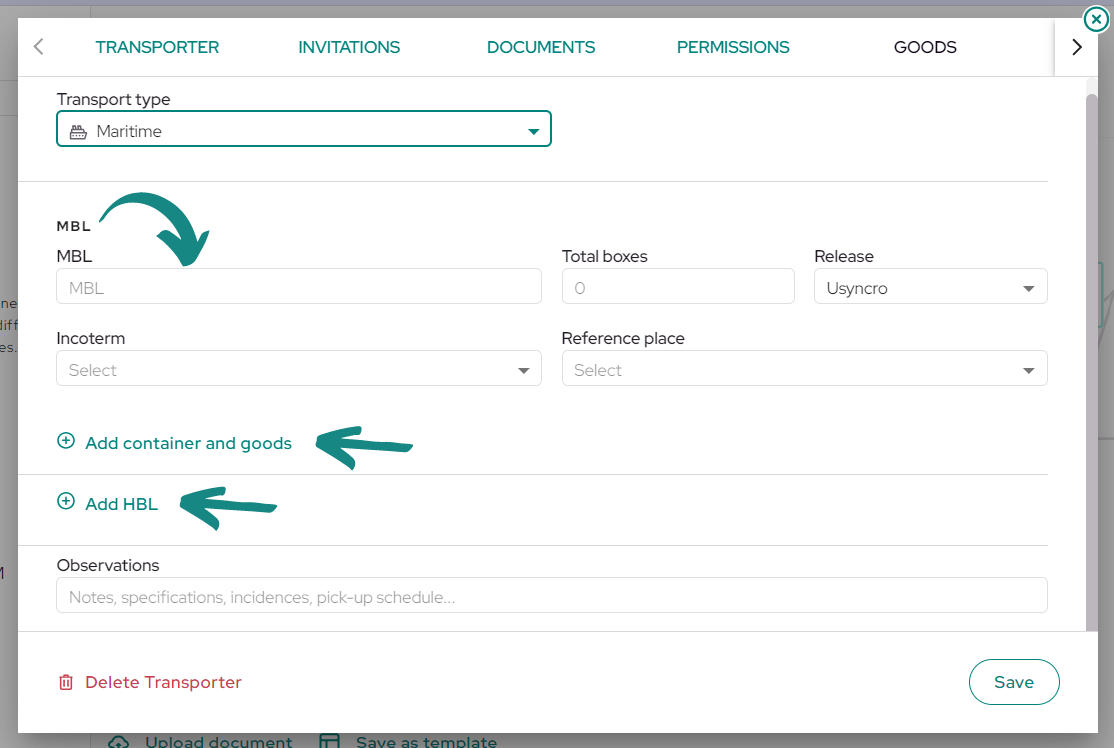
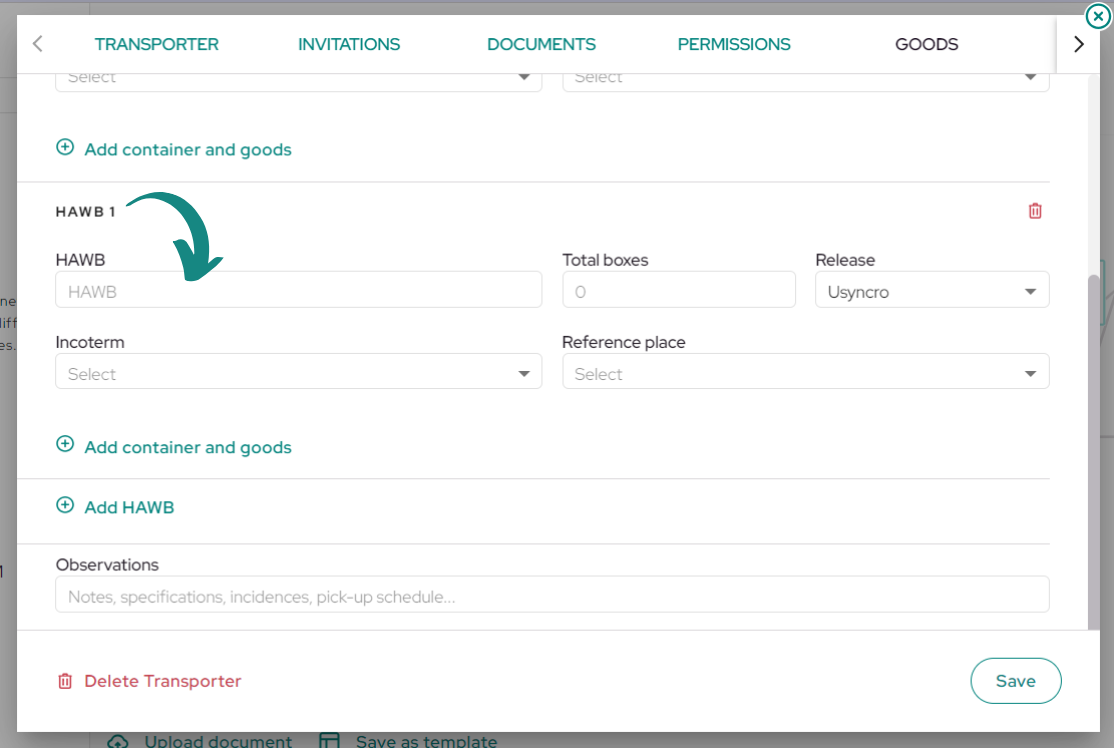
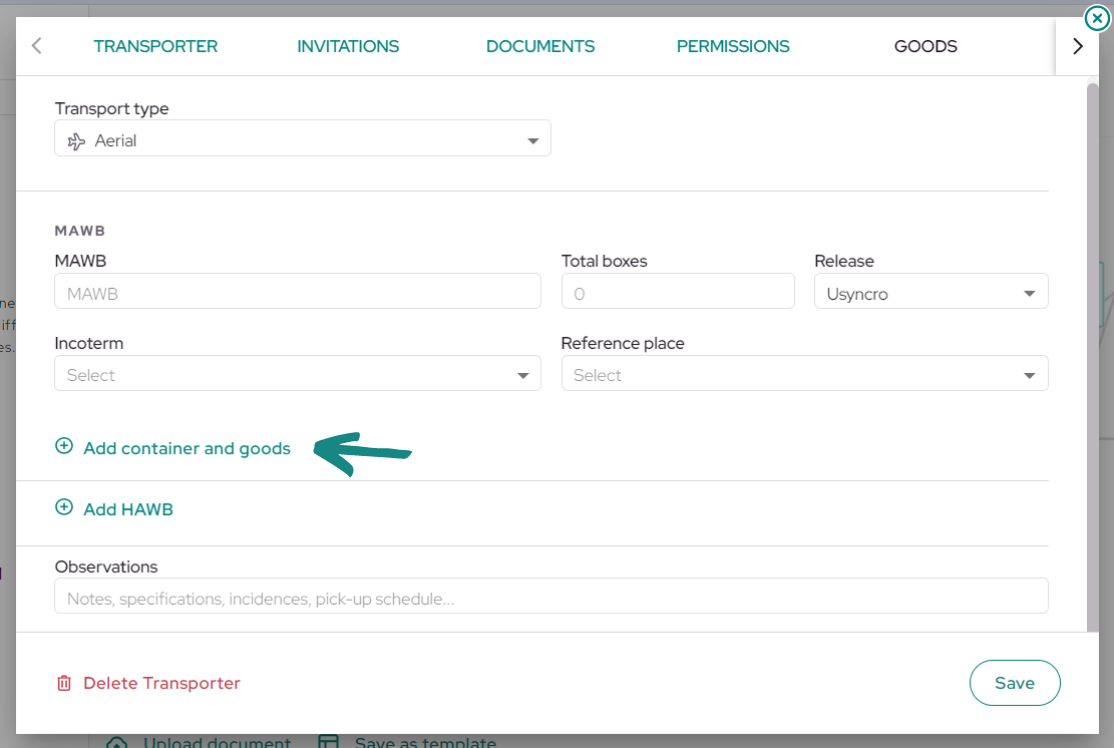
For air transport, you will see the same fields as maritime transport, with the difference that you will be able to include the MAWB instead of the MBL.
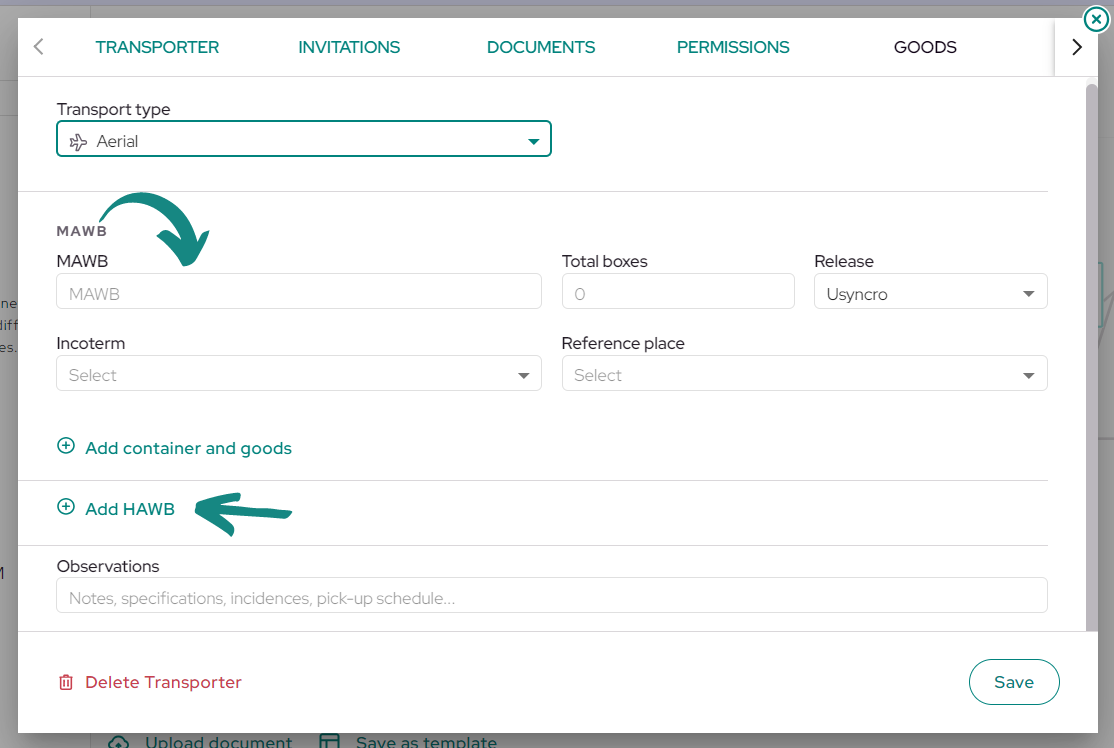
Instead of adding HBL, you will see the button «Add HAWB» at the bottom.
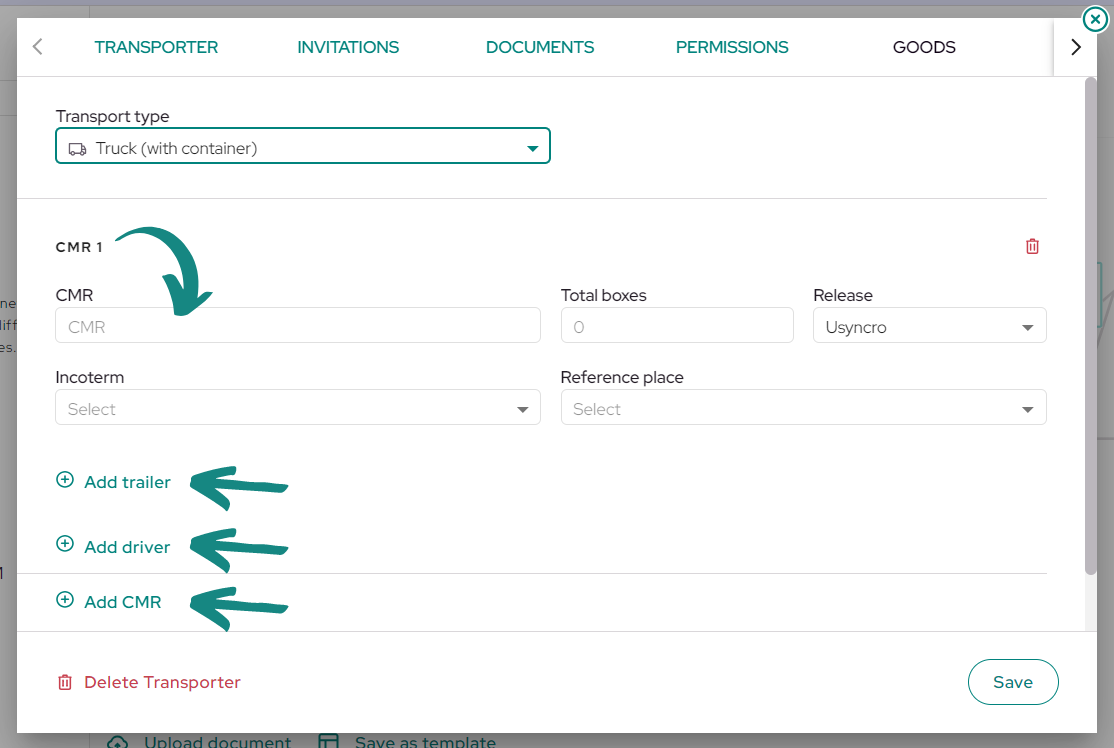
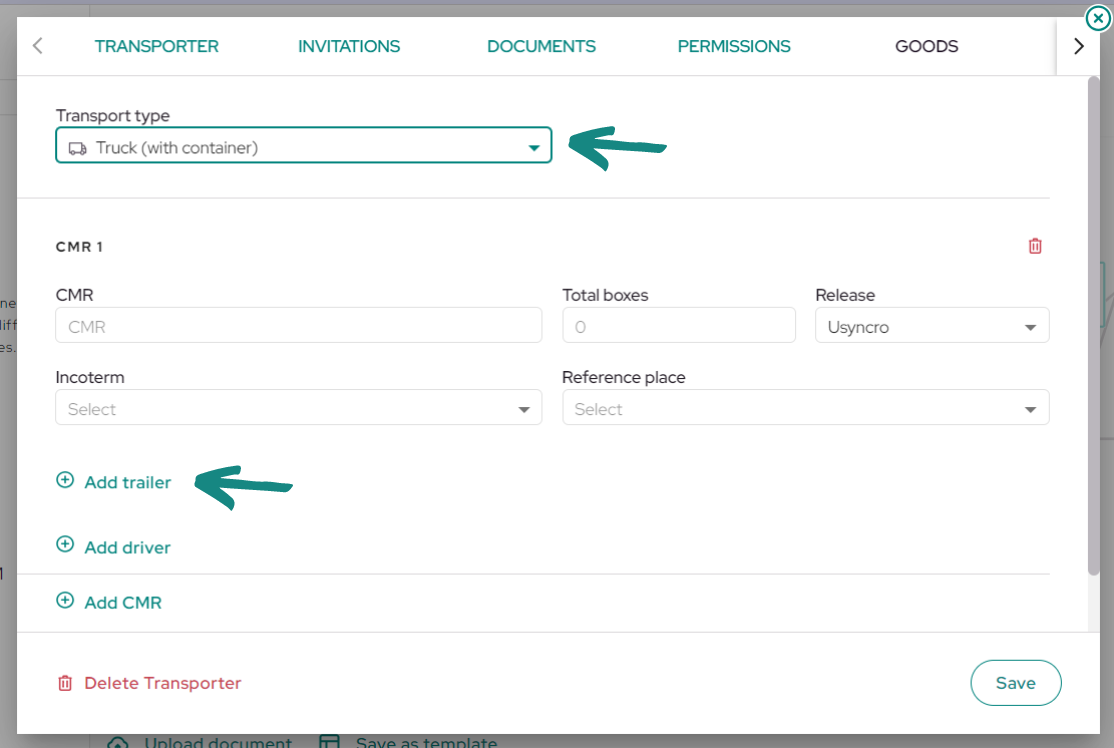
Regarding road transport, with or without a container, you will see the same fields with the difference of the field to include the CMR.
At the bottom, you will find the buttons «Add Trailer» and «Add Driver» to include their respective information, or you can add more CMRs if necessary by clicking «Add CMR«
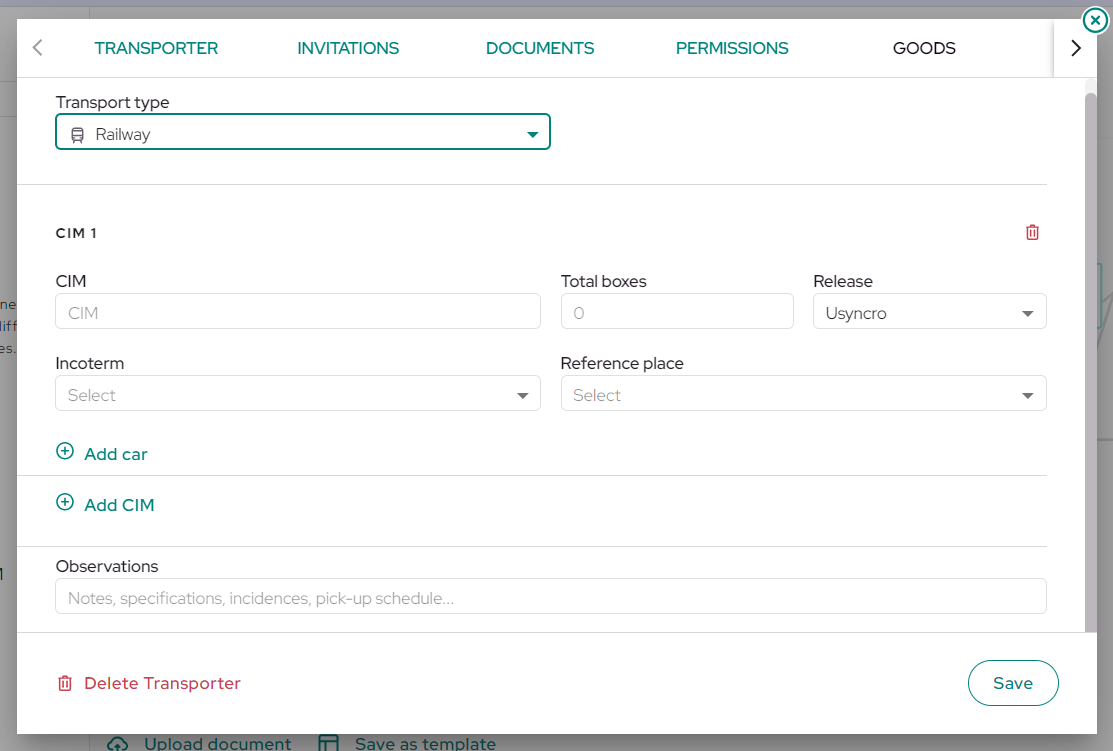
Finally, for the railway mode, it will be the same as for the other modes, including the field to add the CIM of the operation. You can include multiple ones in the shipment by clicking on «Add CIM«.
In addition, you will see the «Add wagon» button to include its details in the shipment.
Container data #
To include container data in the maritime and air modes, the process is the same.
In both cases, you will need to click the «Add Container and Goods» button to enable the container fields and complete them. You can add as many containers as necessary by clicking the button multiple times.
 |
 |
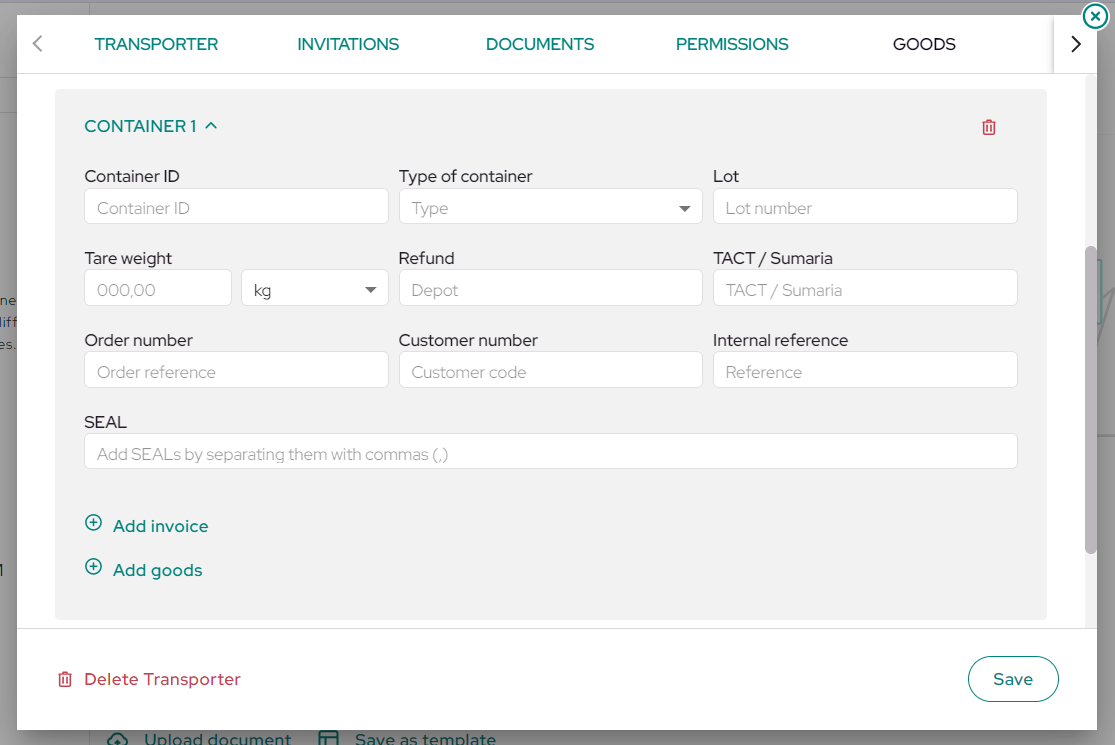
Subsequently, a window will be enabled that contains all the fields related to the container. You will be able to add the container’s ID and type along with the T, SEALs, tare, among others.
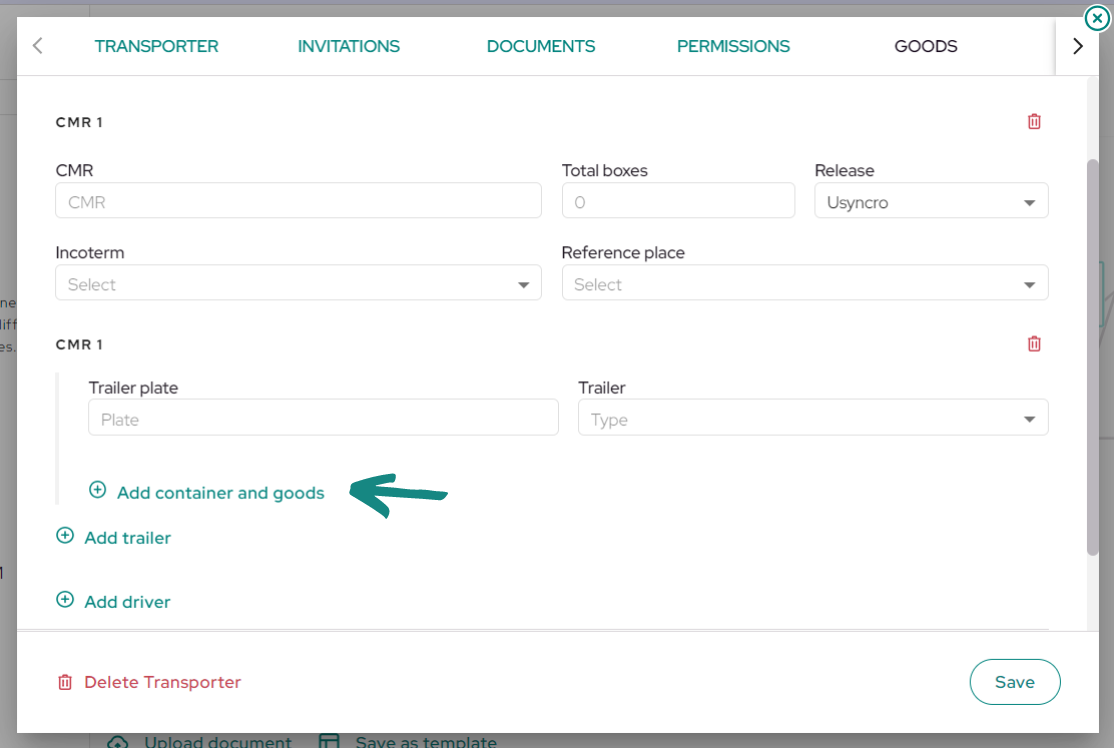
To add a container in road transport, you will first need to add a trailer to display the «Add Container and Goods» button.
After clicking there, all the fields will be enabled for you to include the container information. Remember to select «Road with container» as the transport type.
 |
 |
Goods data #
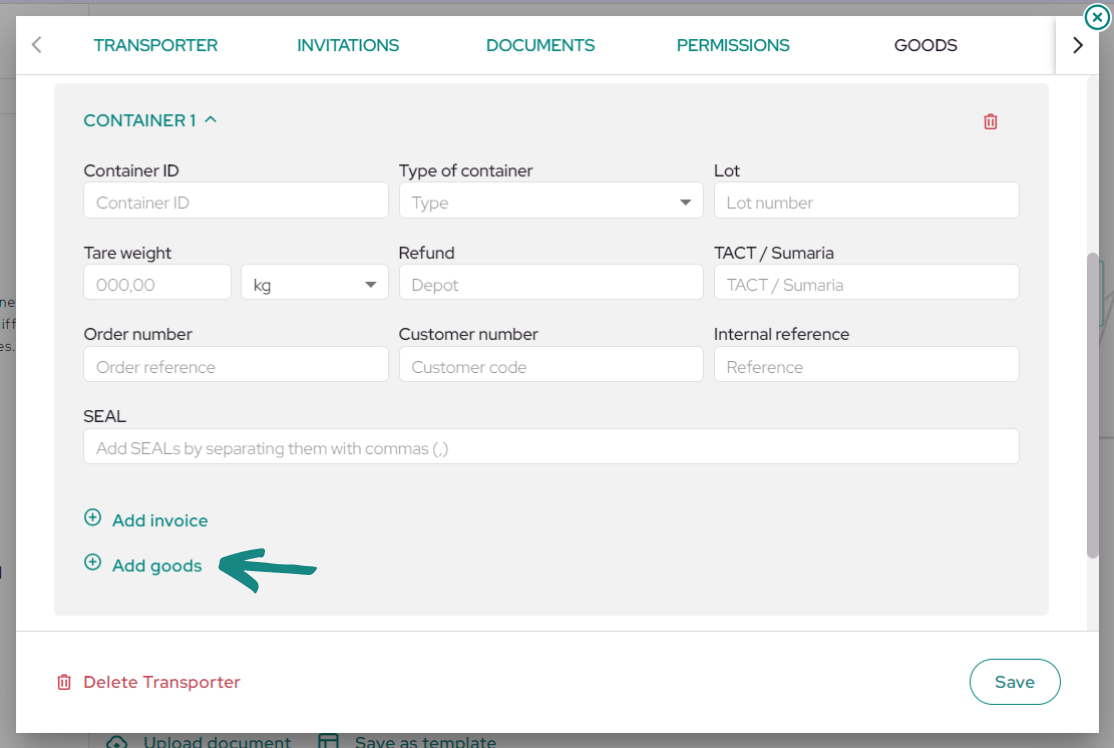
To add goods to your shipment, you must first have a container created as shown in the previous section.
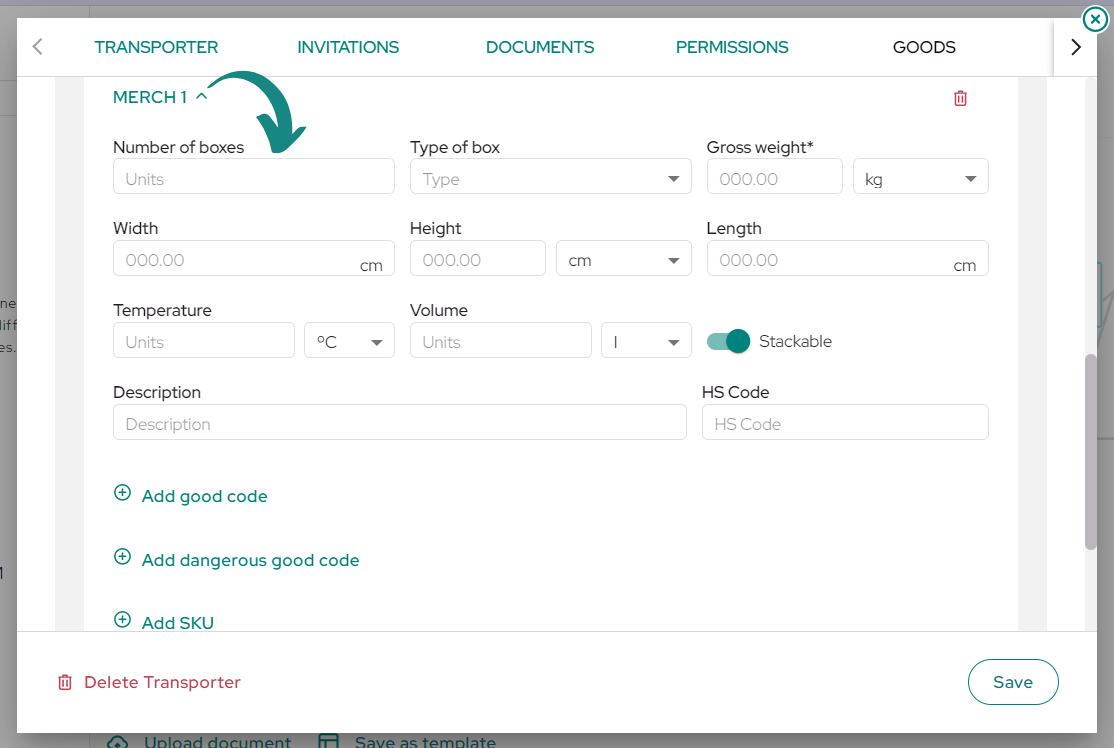
Go inside the created container and click on «Add Goods» to enable the fields where you can enter the goods information. You can add multiple sets of goods within the same container by clicking «Add Goods» again.
 |
 |
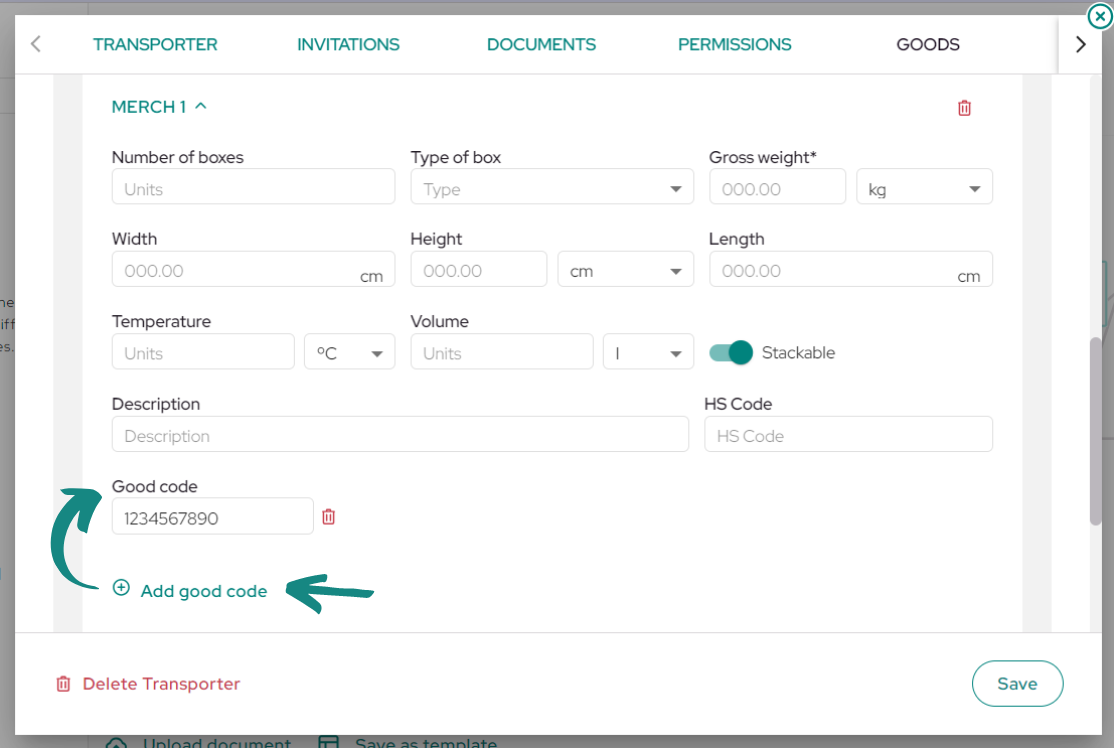
You can assign a code to each batch of goods in «Add Goods Code» to identify each batch within the container if there are multiple batches.
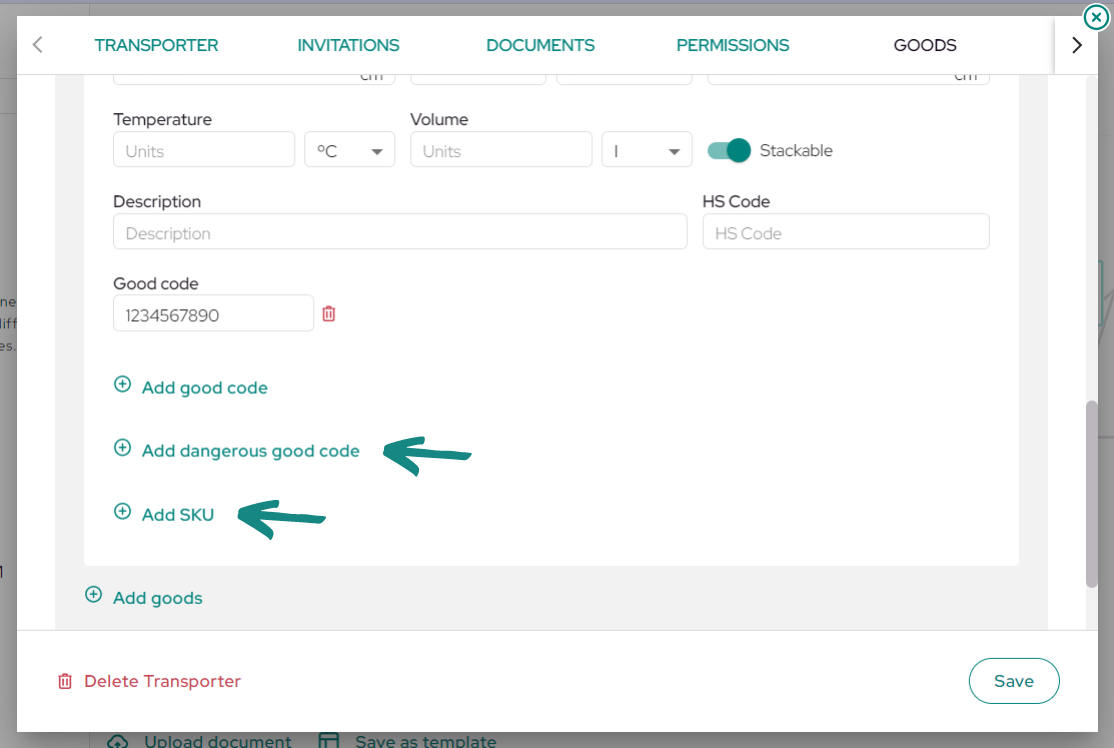
If necessary, you can also «Add Dangerous Goods Code» and «Add SKU» using the buttons at the bottom.
To add goods to road transports without a container, you will first need to add a trailer, and then you can directly add the goods and invoices inside the trailer without opening a container.
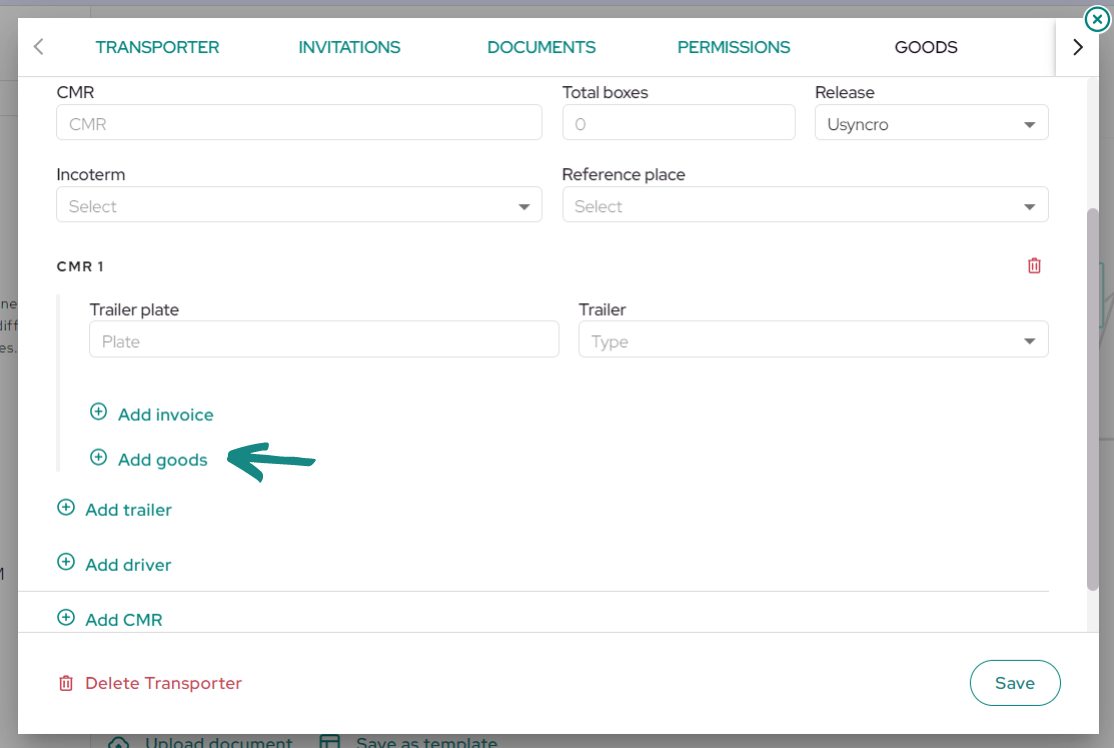
After clicking «Add Goods» you can follow the same steps to complete the information as in the other transports.
Shipment Track and Trace #
To check the real-time status of the shipment, click on the «Transport» box within the record.
Once inside, click on the «Goods» tab at the top right of the box.
Once inside, locate the field for MBL/MAWB (depending on the transport mode). If it is not entered, proceed to enter the corresponding transport document number for the shipment.
When the field is completed, you will see a button at the bottom to «Locate MBL» the transport. Click here to be directed to the transport company’s track and trace system and view the latest update on the status of your shipment. This will allow you to track the shipment in real-time and stay informed about its progress.