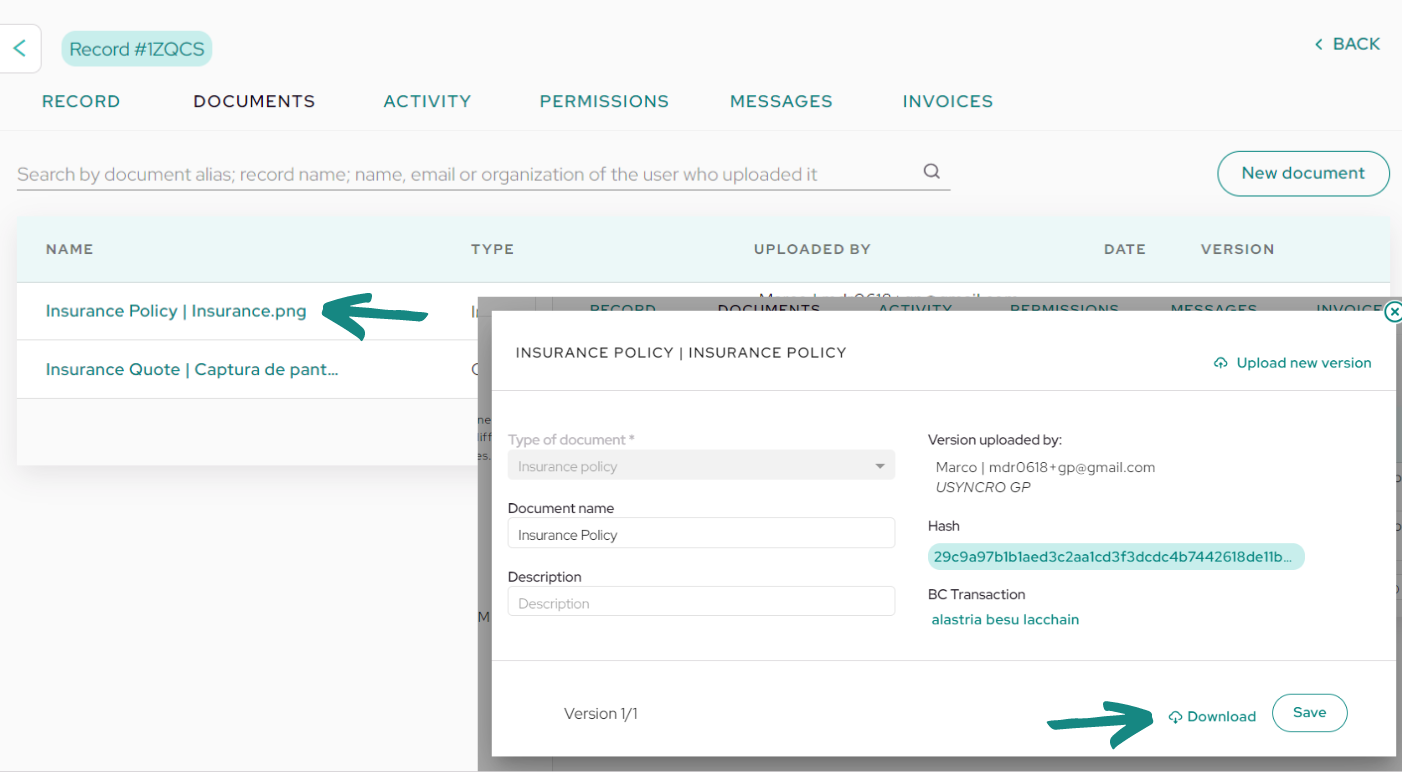
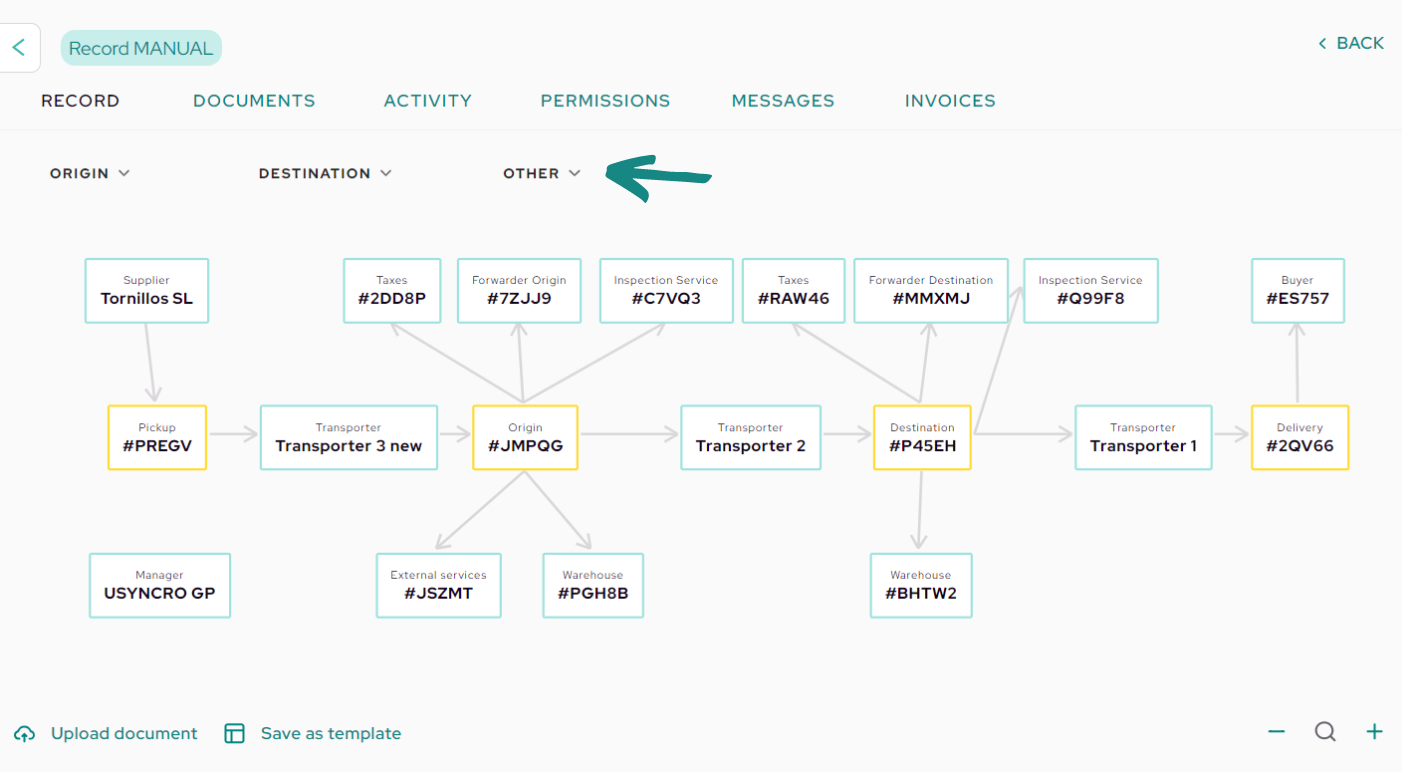
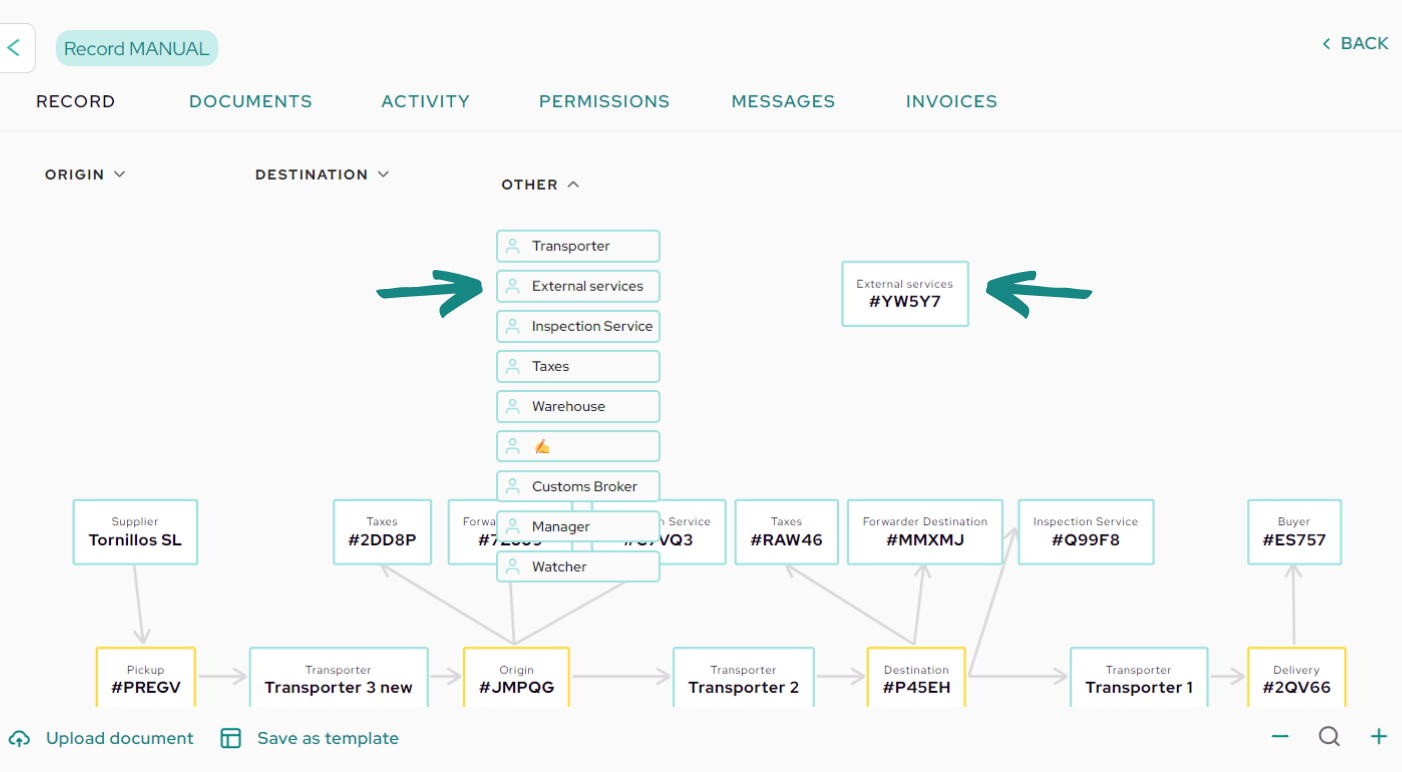
In order to request insurance for your shipments, you will first need to enter the shipment you wish to insure. Once inside, you will see the window with the usual flow of your shipments. Proceed to locate the «Other» dropdown at the top and click on it, then drag the box labeled «External Services» to the canvas.
 |
 |
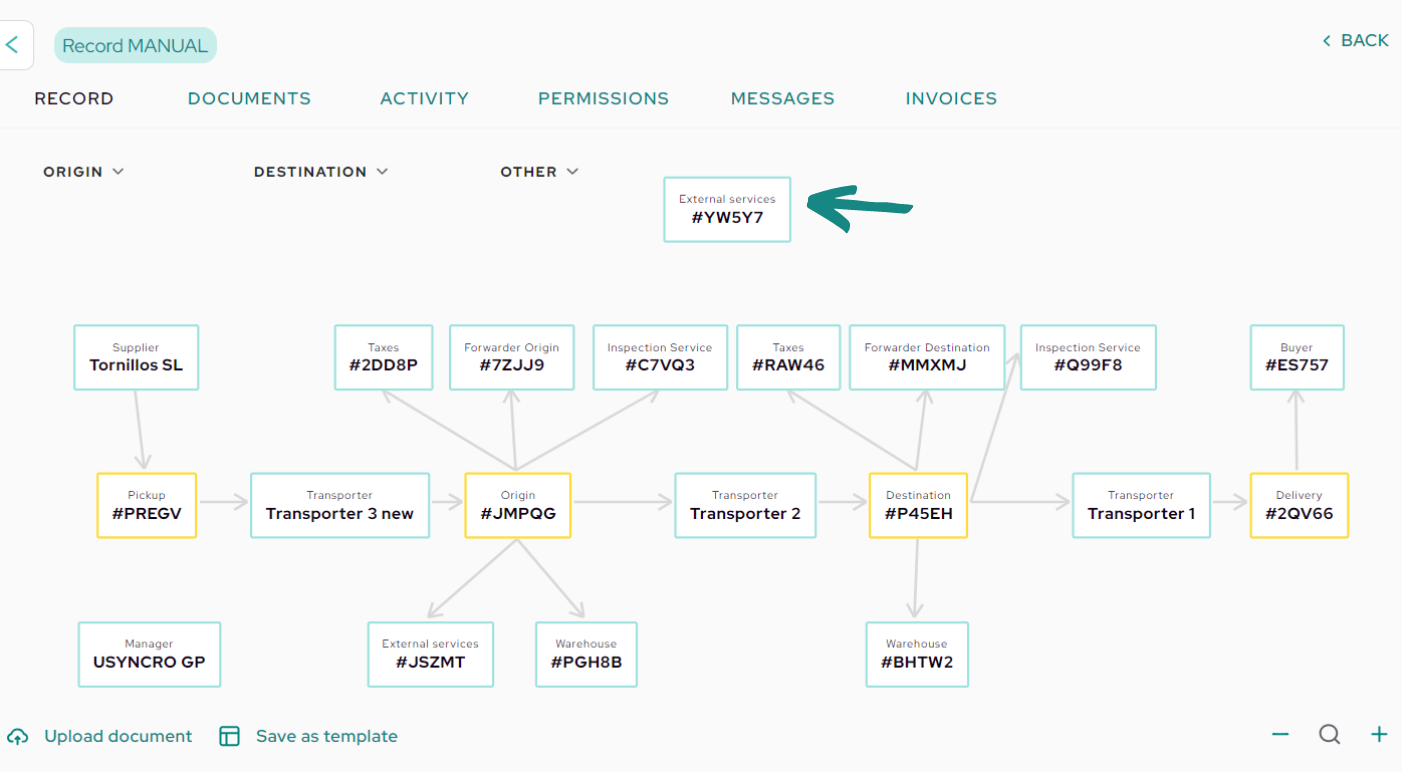
Then click on the added box.
A window with the box’s fields will open. Once inside, locate the «Search organization» button at the top of the window and click it.
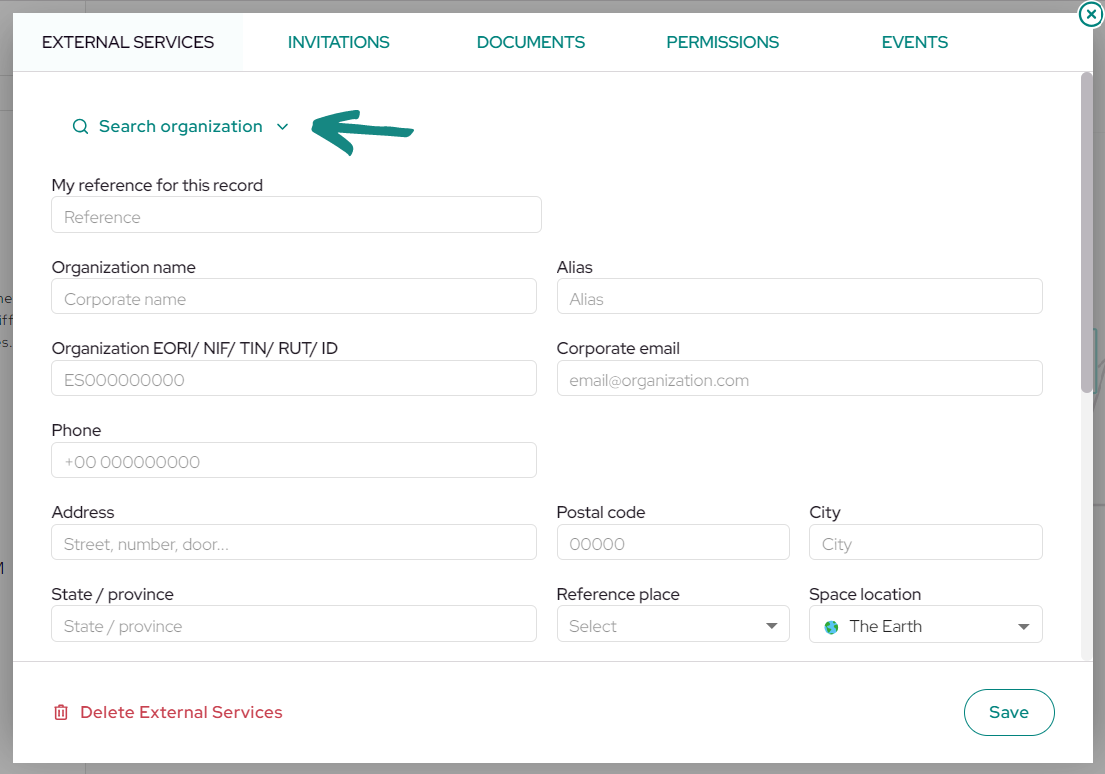
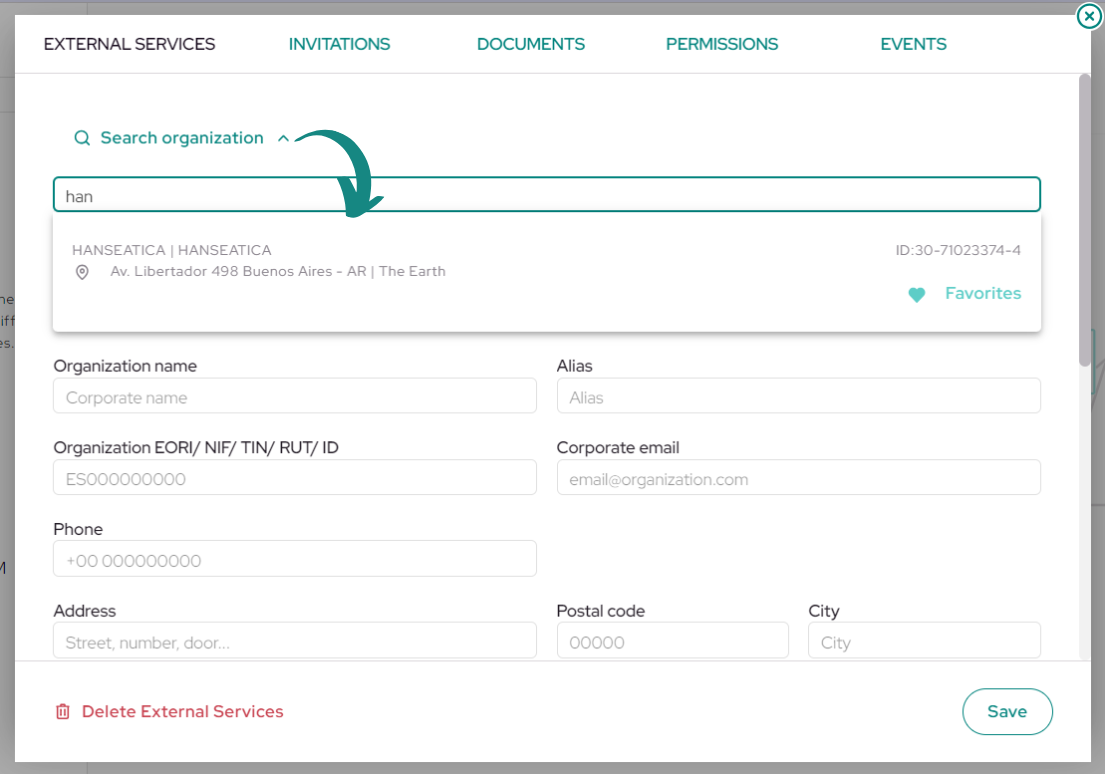
Enter in the search engine, the saved favorite of the insurer «Hanseatica» and select it to enter all the information automatically. Then save the box at the bottom right.
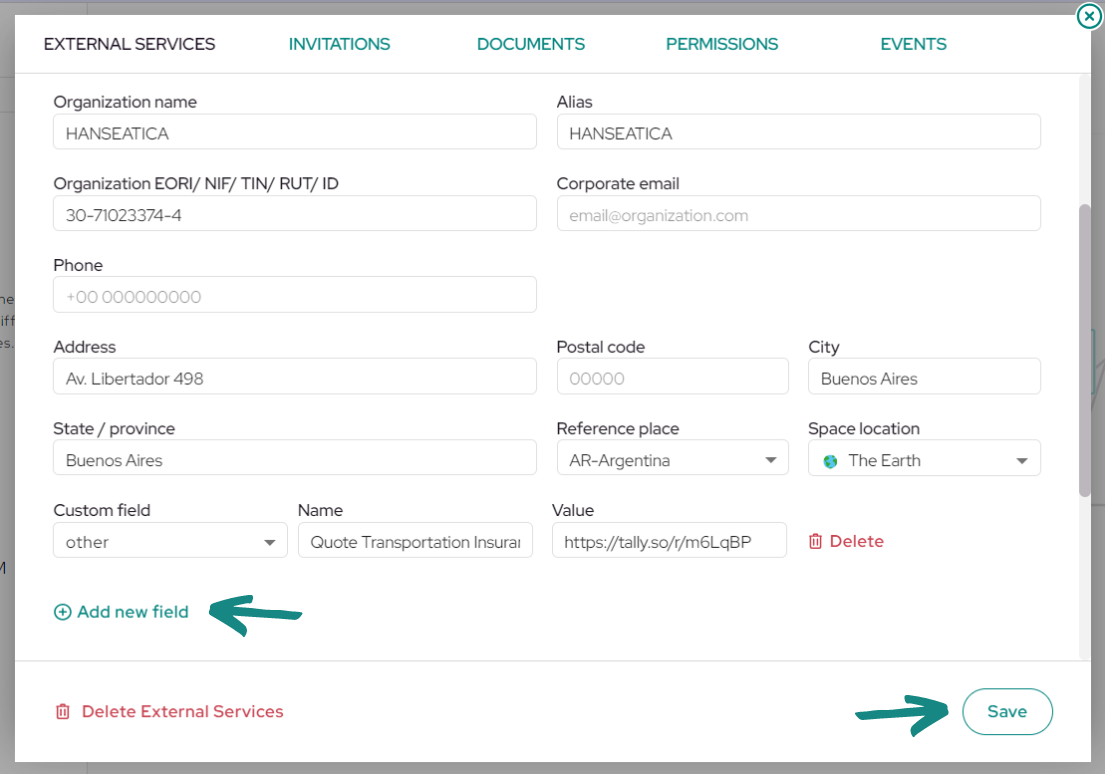
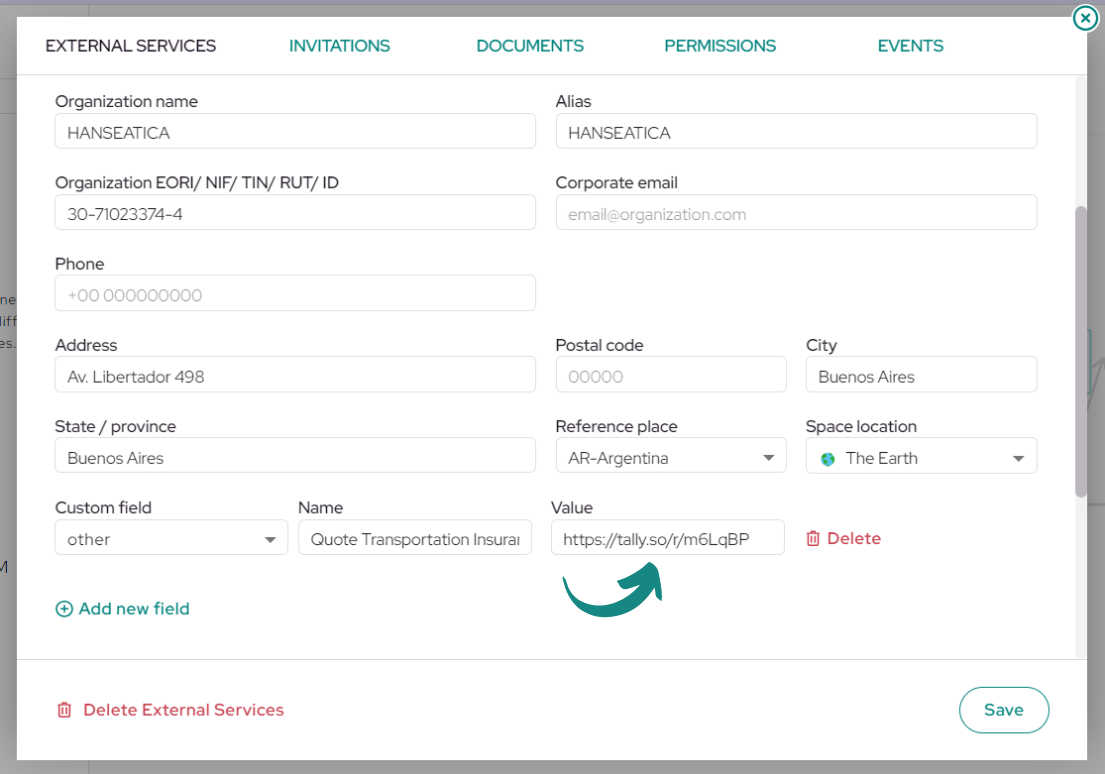
In case you do not have the favorite registered, proceed to save it following the steps of the article «Invite collaborators & save favorites«, using the data shown in the image, inside the «External services» box.
Remember that you will have to add the "Quote Transportation Insurance" custom field and include in the "Value" field the link to the form: https://tally.so/r/m6LqBP.
Data:
-
Name and Alias: Hanseatica
-
EORI: 30-71023374-4
-
Address: Av. Libertador 498
-
Province and City: Buenos Aires
-
Location: Argentina
-
Customized field: https://tally.so/r/m6LqBP
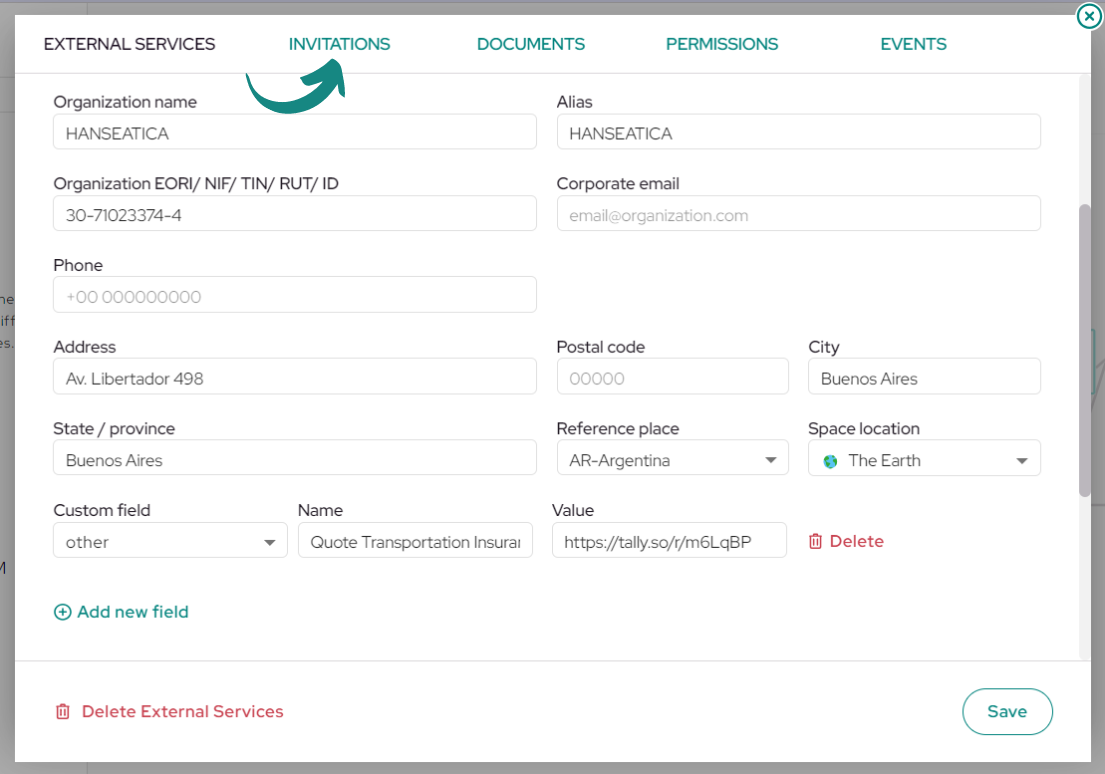
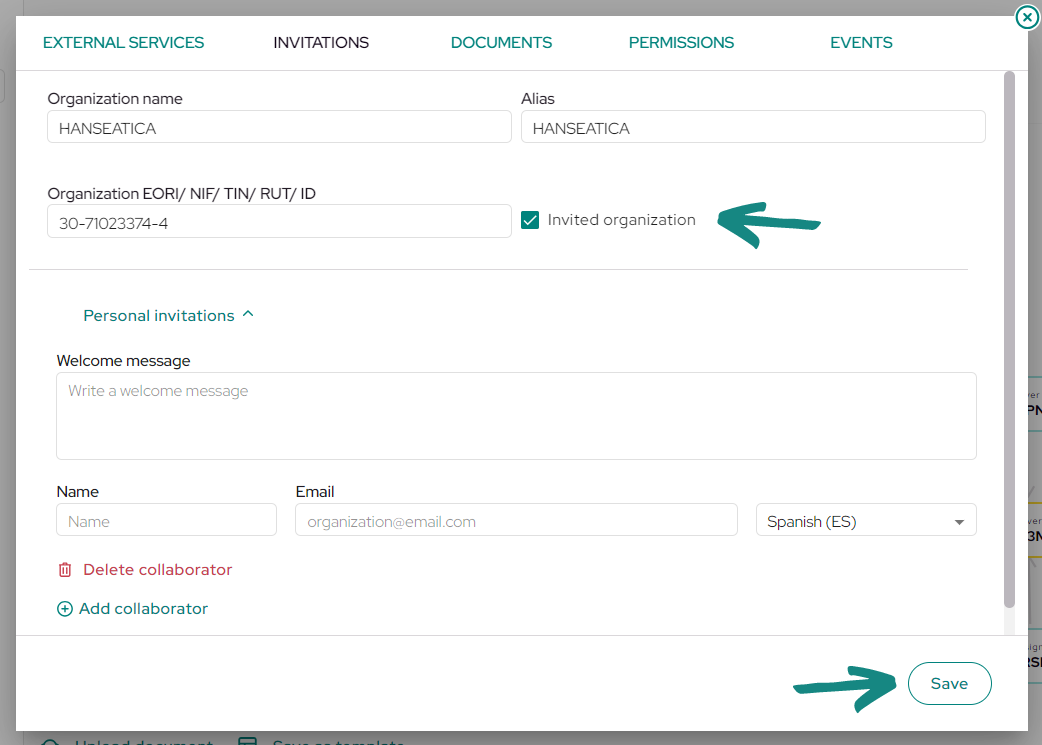
Within the external services box, click on the «Invitations» tab at the top.
Inside, you will see that the company’s tax ID was also copied in this section. Next to the tax ID, select the «Invited Organization» checkbox to invite the insurer. Then click save again.
Go back to the «External Services» tab. Here, at the bottom, you will see a field called «Quote Transportation Insurance» with a link on the right.
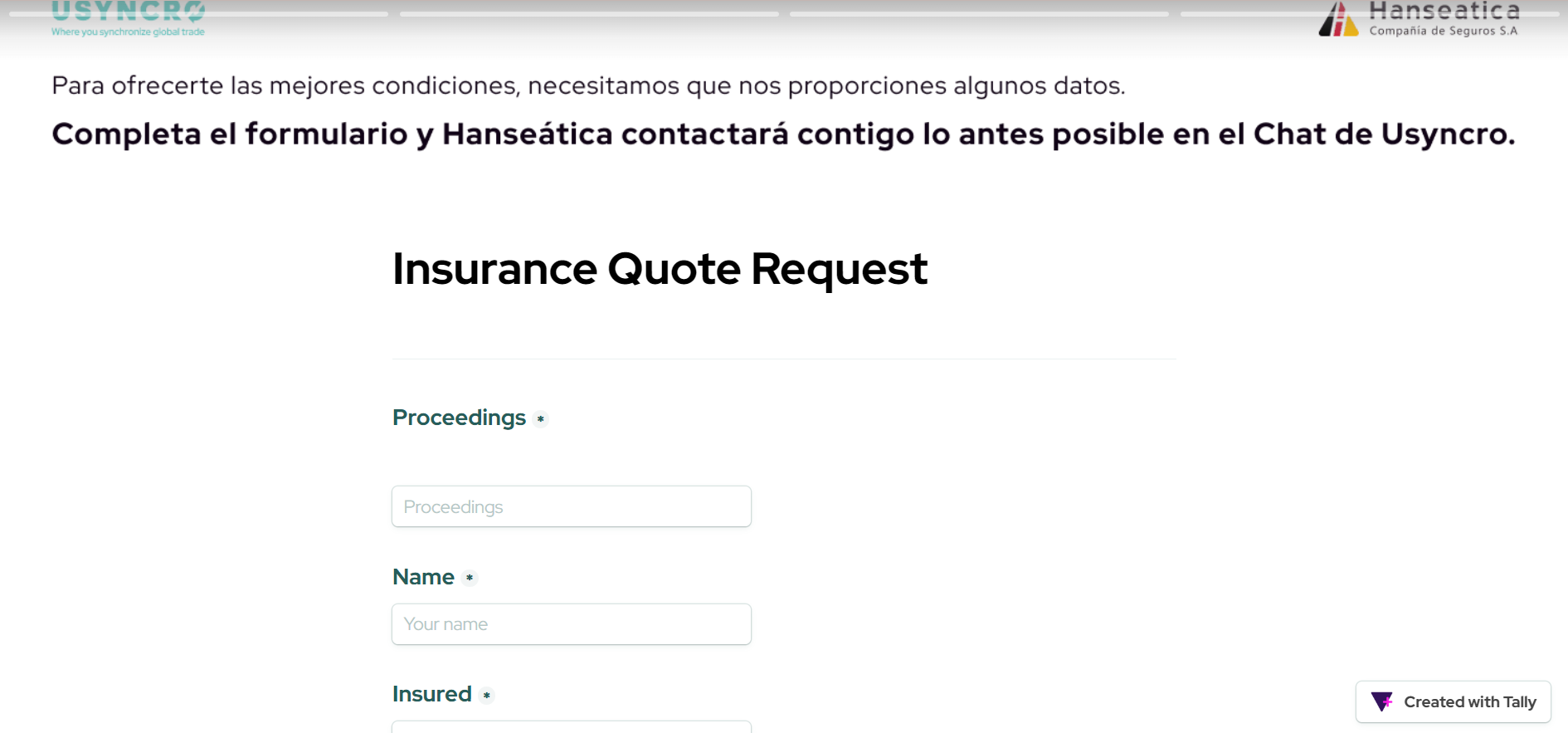
Copy the link and paste it in a new tab to open the form. Fill in all the requested information and submit it once all sections are completed.
In the first field, you will need to enter the USYNCRO record ID.
You will receive a notification in your email and platform indicating that the insurer «Hanseatica» has uploaded a new document to the shipment.
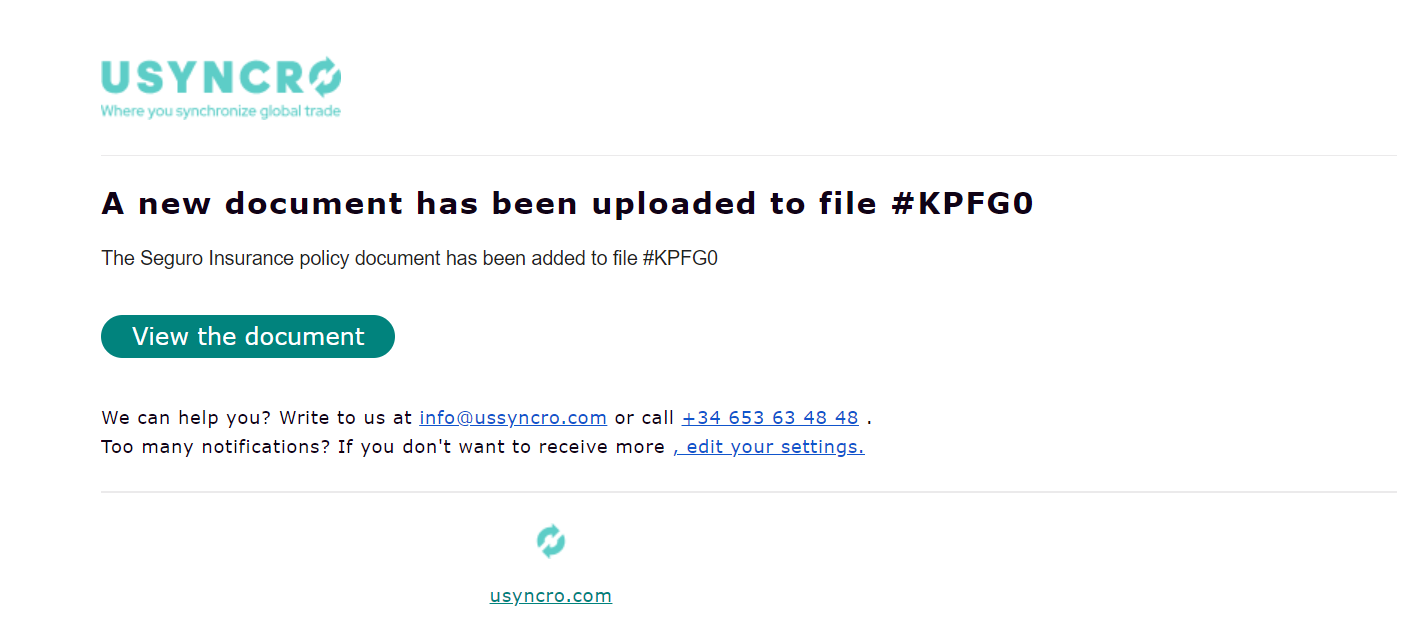
Click on the link in the email to access the uploaded document with the insurance offer.
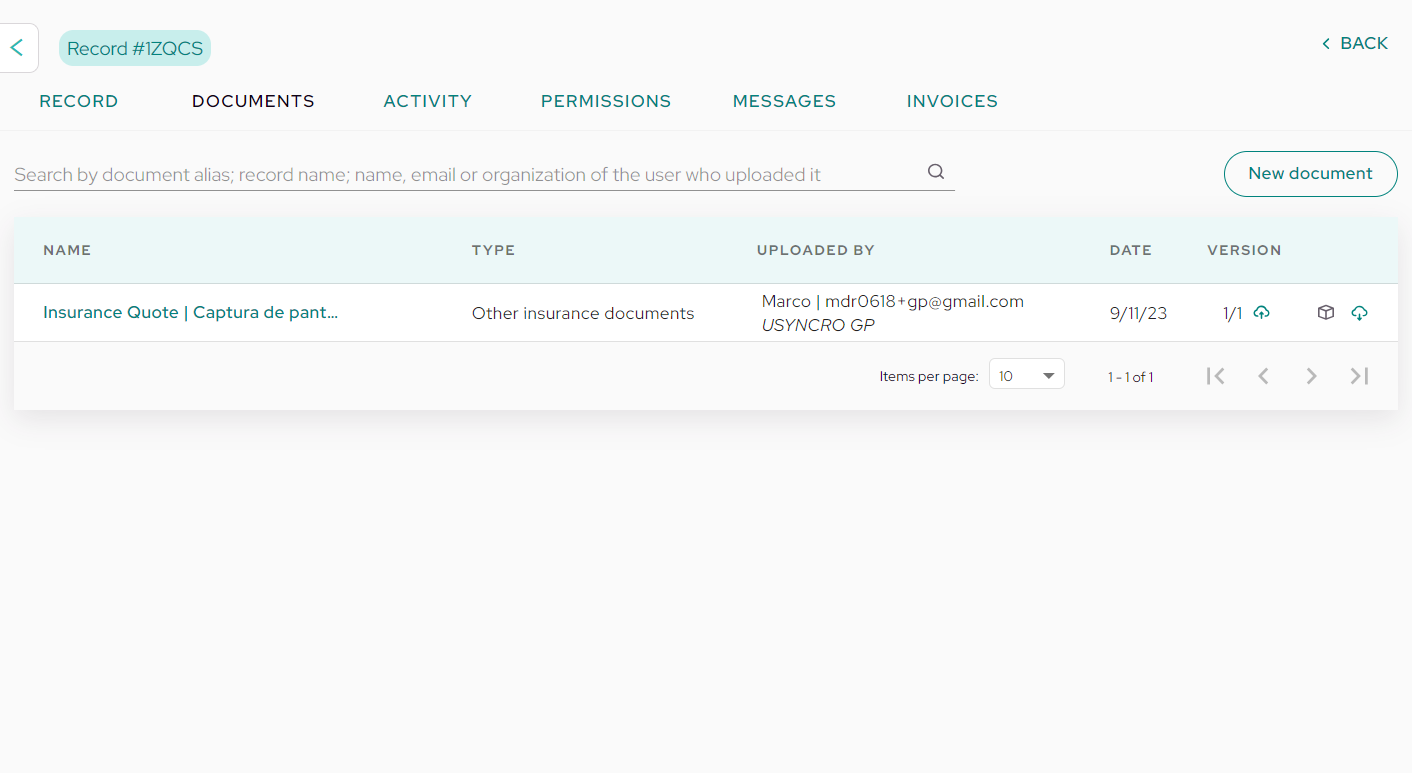
Once here, click on the document name, and a window will open with the document details.
Click on the «Download» button at the bottom right to view it. It will open in a new tab.
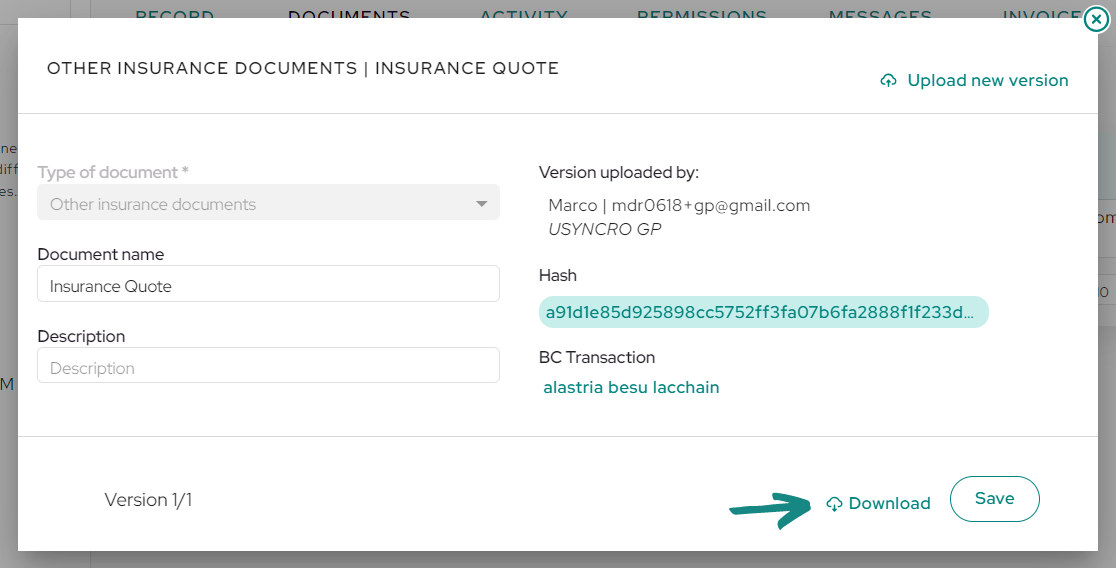
Once you have reviewed it and agree to the terms, proceed to digitally sign the document and upload it as a new version on the platform.
To do this, go back to the shipment in USYNCRO and go to the «Documents» tab at the top. Once inside, click on the quote uploaded by the insurer.
In the opened window, locate and select the «Upload New Version» button at the top right.
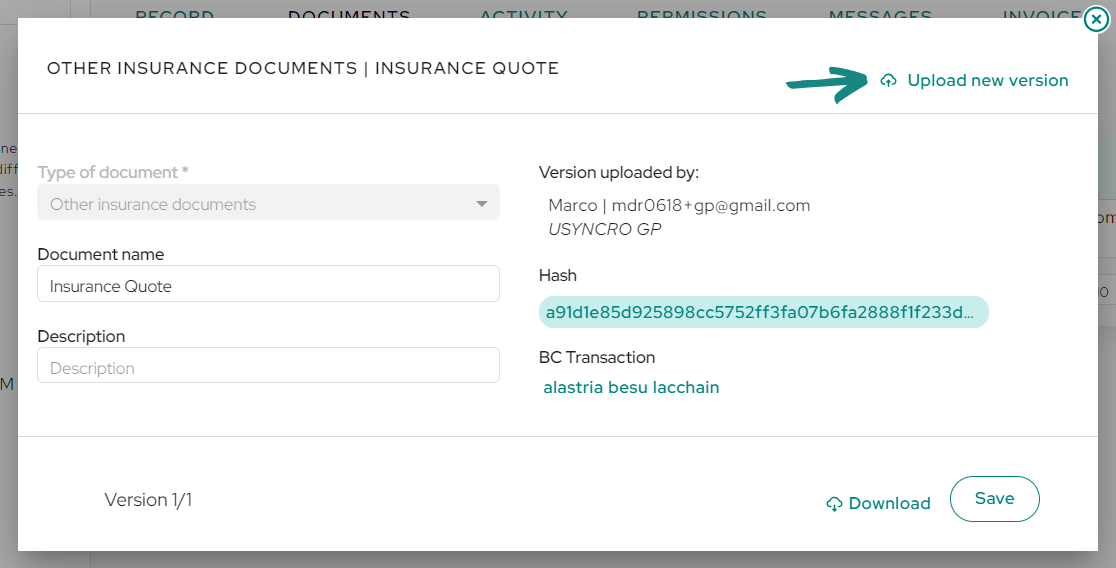
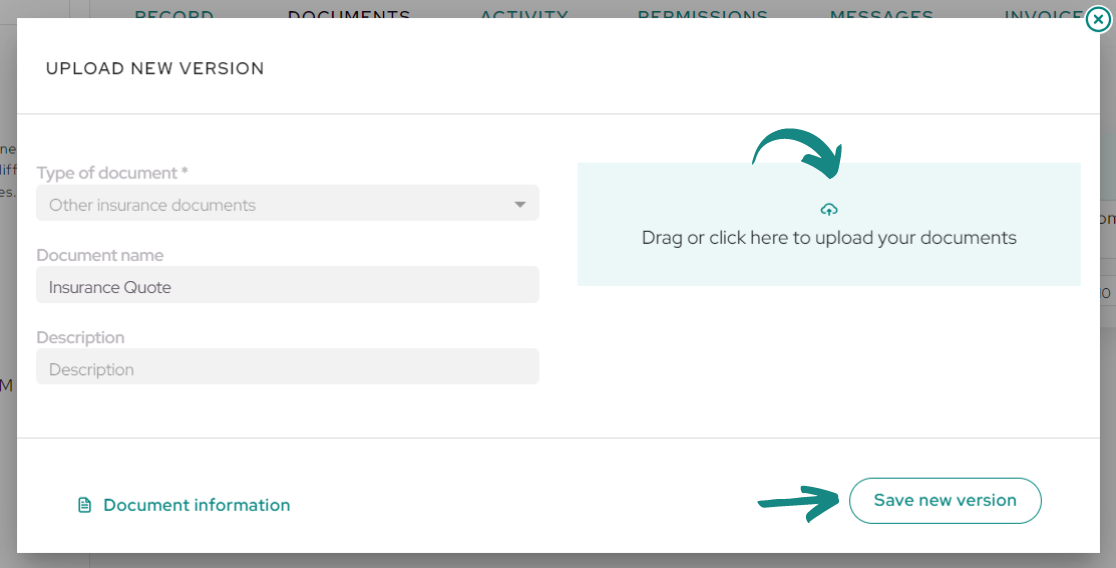
A new window will open where you only need to click on the blue box on the right side of the window.
Select the signed document from your computer files and open it. Then save the box to upload the new version with the signed quote.
After some time, you will receive another notification in your email informing you that the insurer has sent you a message. Click on the link in the email to view it.
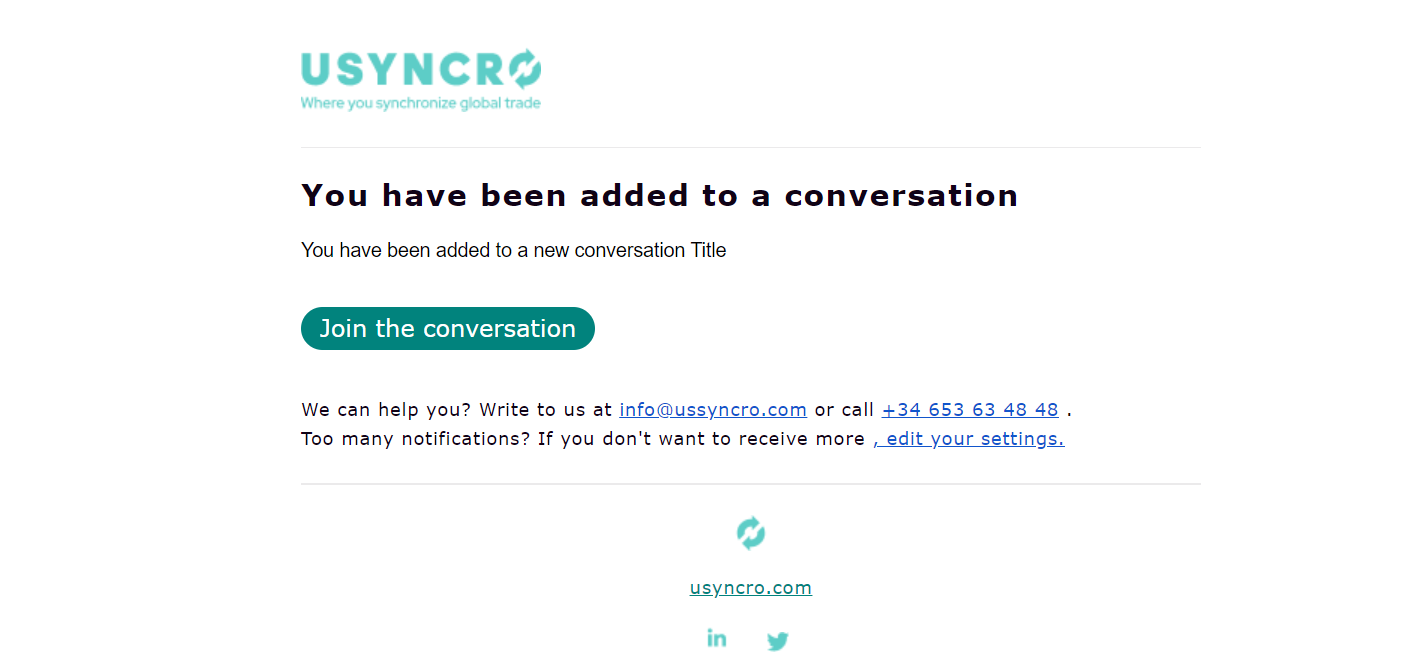
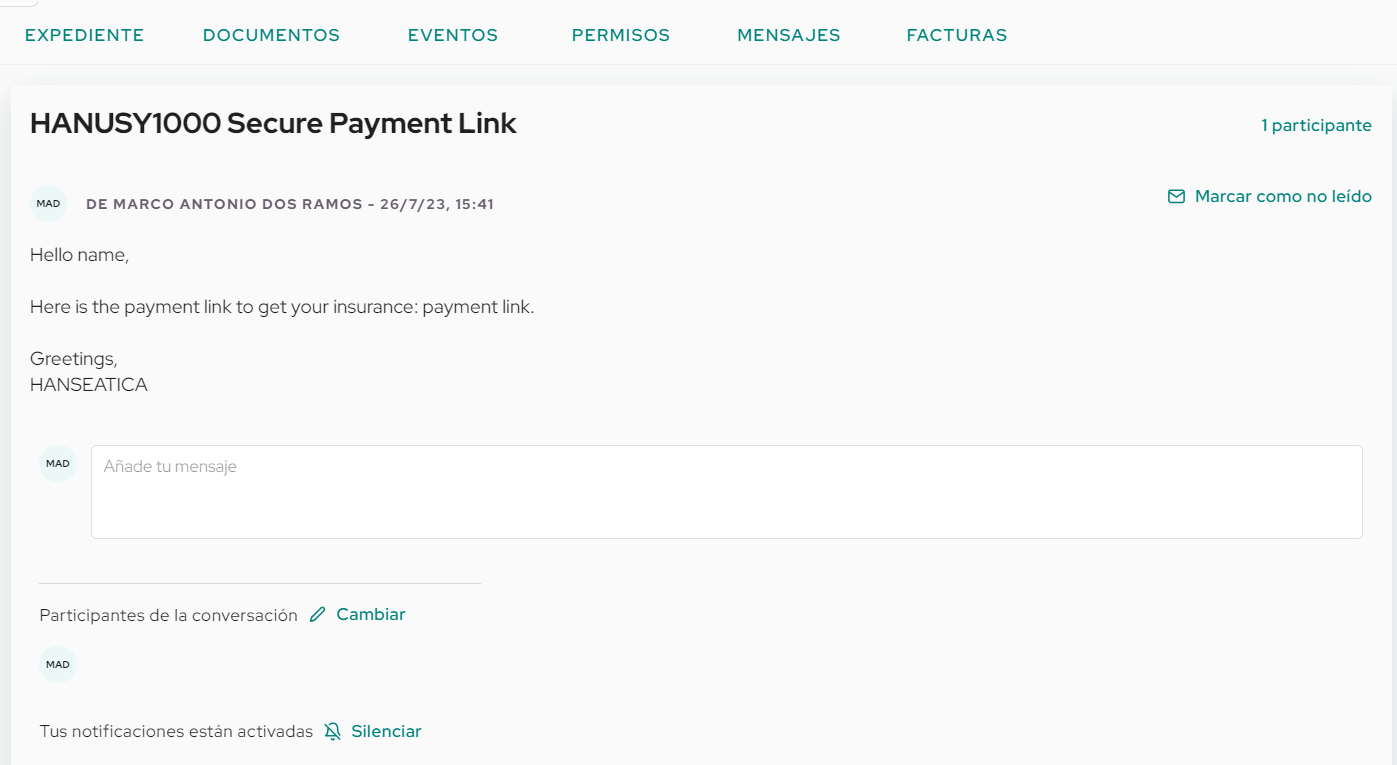
You will be directed to the message sent in USYNCRO. In it, you will find a payment link through which you can make the insurance payment. Paste the link in a new tab and follow the steps.
After making the payment, you will receive a notification in your email informing you that the insurance document has been uploaded to the platform (similar to what happened with the quote).
Click on the «View Document» button and proceed to download the document in the same way you downloaded the quote.